Add from API (Twitter)
Ingest tweets from X (Twitter)
You can configure Sintelix to ingest historical and future tweets from X based on different criteria. For example, you may want to ingest tweets from a specific account, or tweets that mention a current event or contain a specific phrase.
You must specify the maximum number of tweets you want to ingest. The ingestion is run as a background task from the time you submit the task until the maximum number of tweets have been ingested.
If you want to ingest historical tweets, a standard X account will enable you to search for tweets posted in the past 7 days. Access to more data requires a paid subscription.
To ingest tweets from X (Twitter) and add search feature:

Create an X developer account
- In X, create a developer account, if you have not already done so.
- Log in to Twitter as a developer, then follow the steps on the X Developer page to create an app.
- Go to the Keys and tokens tab, then copy the following credentials, as you will need to enter them into Sintelix:
- API key
- API secret key
- Access token
- Access token secret
Set up an External API configuration with your credentials
- In Sintelix, open the project into which you want to ingest tweets.
- On the Main Navigation Bar select Admin.
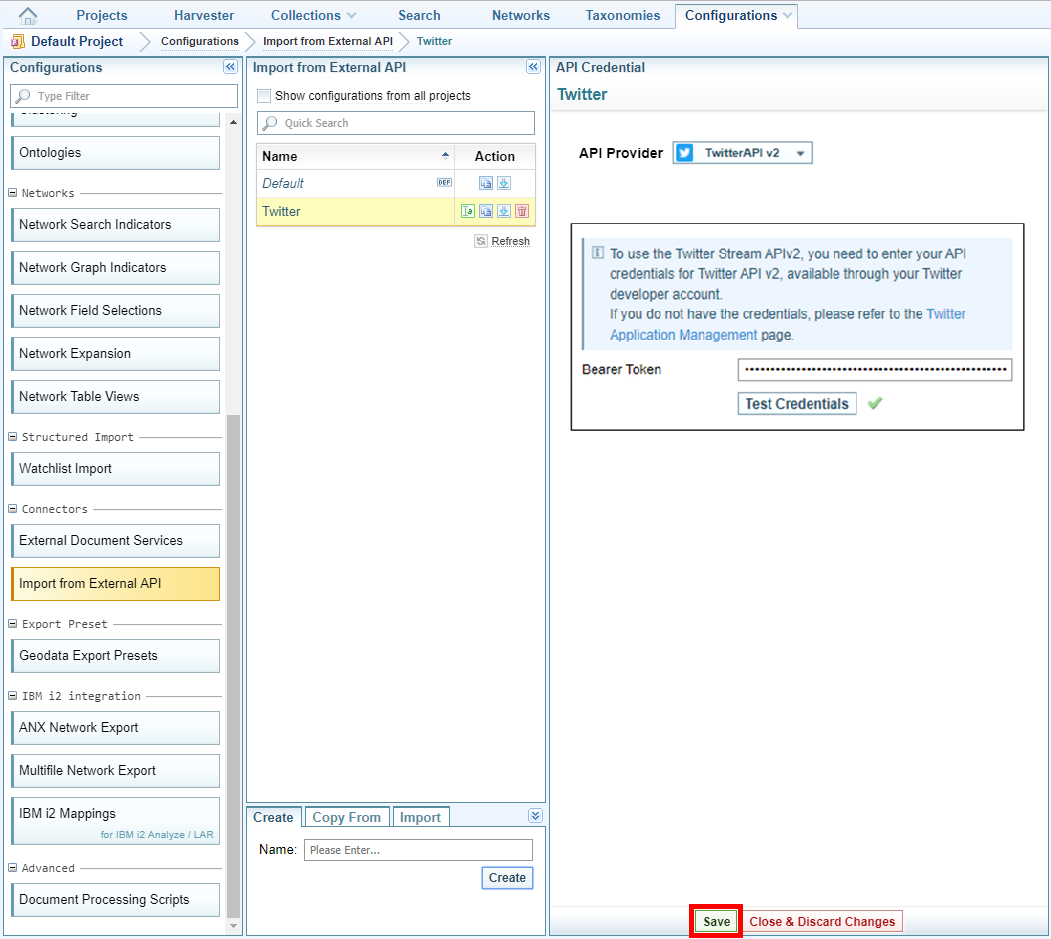
- Select Data Source Definitions > Create a Credential.
- When the Create a new External API Credential window displays, from API Provider, select Twitter API v1 or select Twitter API v2.
- Enter your Twitter credentials then select Test Credentials.
- Do one of the following:
- If your credentials are correct, a green tick is displayed. Select Save.
- If your credentials are not correct, a red cross is displayed. Check that you have correctly copied your credentials from Twitter then enter them again.
Ingest tweets
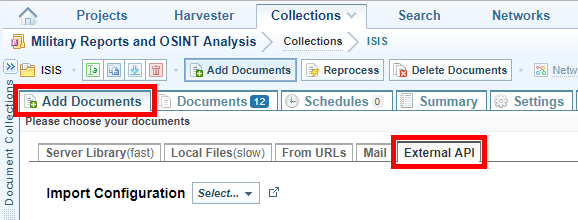
- On the Main Navigation Bar select Collections then either open the collection in which you want to ingest the tweets or create a new collection.
- Select the Add Documents tab, or button, then select the External API tab.
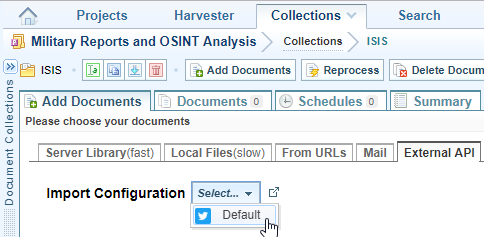
- From the Import Configuration dropdown list select the API configuration you created with your Twitter credentials.
- Do one or more of the following:
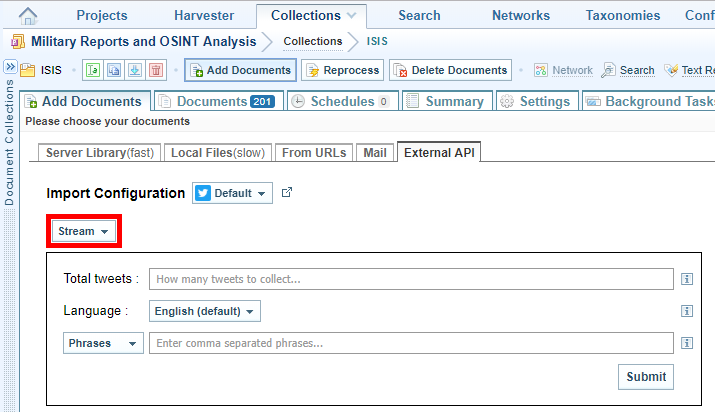
- Select Stream.
- In the Total tweets field enter the maximum number of tweets to ingest.
- From the Language drop-down list select the desired language of the tweets.
- Do one of the following:
- To ingest tweets that contain a specific phrase or phrases, select Phrases then enter the phrase. To enter more than one phrase, separate them with a comma.
- To ingest tweets by a specific Twitter user/s, select Accounts then enter their user name/s. If entering more than one user name, separate them with a comma.
- Select Submit.
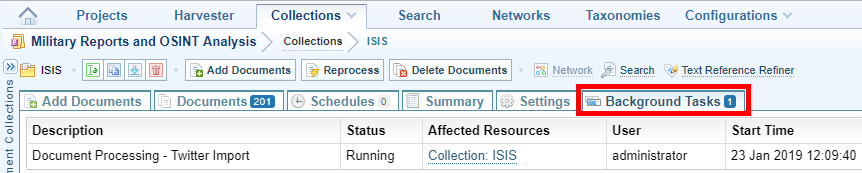
- To see details about the task while it is running, select the Background Tasks tab. To stop the selection select the Delete icon .
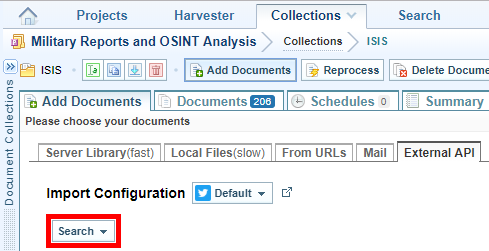
- Select Search.
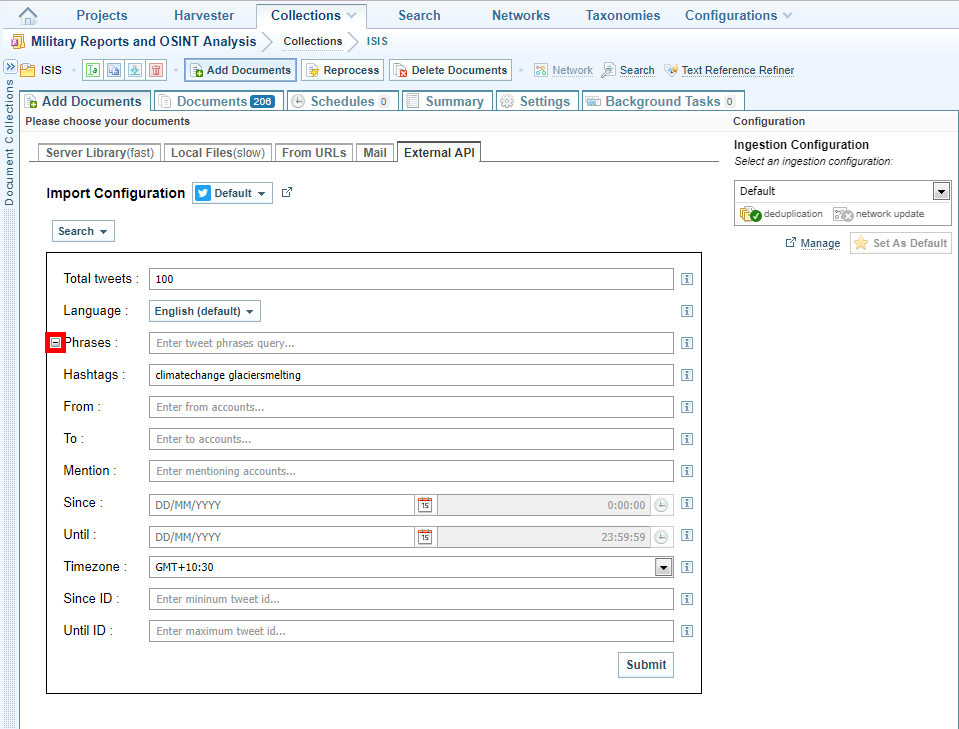
- In the Total tweets field enter the maximum number of tweets you want to ingest.
- From the Language drop-down list select the language in which the tweets you want to ingest were written in.
- Expand the Phrases section to view the search criteria fields, then enter your search criteria. You must enter at least one search criterion into one of the following fields:
- Phrases
- Hashtags
- From
- To
-
Mention
Check that the documents are added to the collection successfully.
- Select Submit. A background task begins to ingest the tweets into the collection. Ingestion The process of converting added files into Sintelix documents in Sintelix will stop when the total number of tweets you specified have been ingested.
- To see details about the task while it is running, select Background Tasks. To stop the task select the Delete icon beside it.
Set up a background task to ingest future tweets:
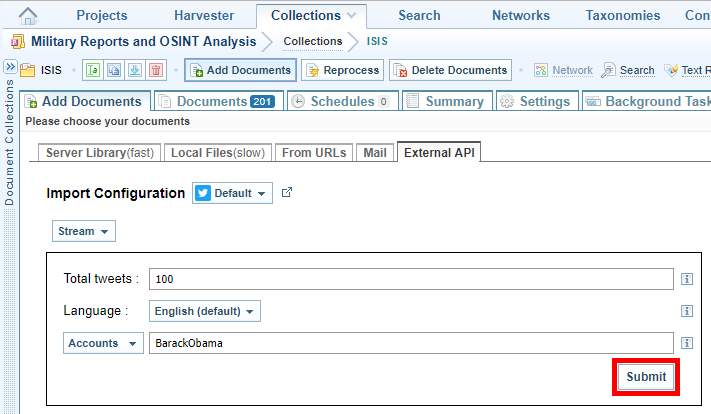
A background task begins to ingest tweets into the collection. Ingestion The process of converting added files into Sintelix documents in Sintelix will stop when the total number of tweets specified has been ingested.
Set up a background task to search for and ingest historical tweets:

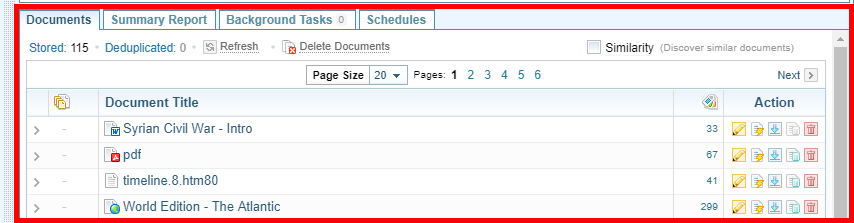
You can now explore and analyse the information in the collection Once source data has been ingested, the resulting Documents are stored in a Collection. Once Documents are stored in a Collection, you can browse, search and edit Documents. Only text-based Documents is stored in Collections, not the original source files. (see ).