Manage Configurations
Permissions
Under the default Security Model:
-
Configurer or Administrator role can change configurations.
-
Other users can only view configurations.
See Roles and Access Levels and Customise the Security Model.
Quick Summary
The table below summarises the icons and their associated meaning or task.

|
Default | Indicates a Default configuration. |

|
Modified | Indicates a Default configuration that has been modified. |

|
Search Engine |
Unique to Harvester Rule Sets. Identifies a Search Engine Rule Set. |

|
Rename |
Rename a configuration. |

|
Copy | Copy a configuration. |

|
Export | Export a configuration. |

|
Delete | Delete a configuration. |

|
Revert | Revert to system default |

|
Error |
Links to a Warning Message when a configuration is either incomplete or has a problem. |
Configurations pane
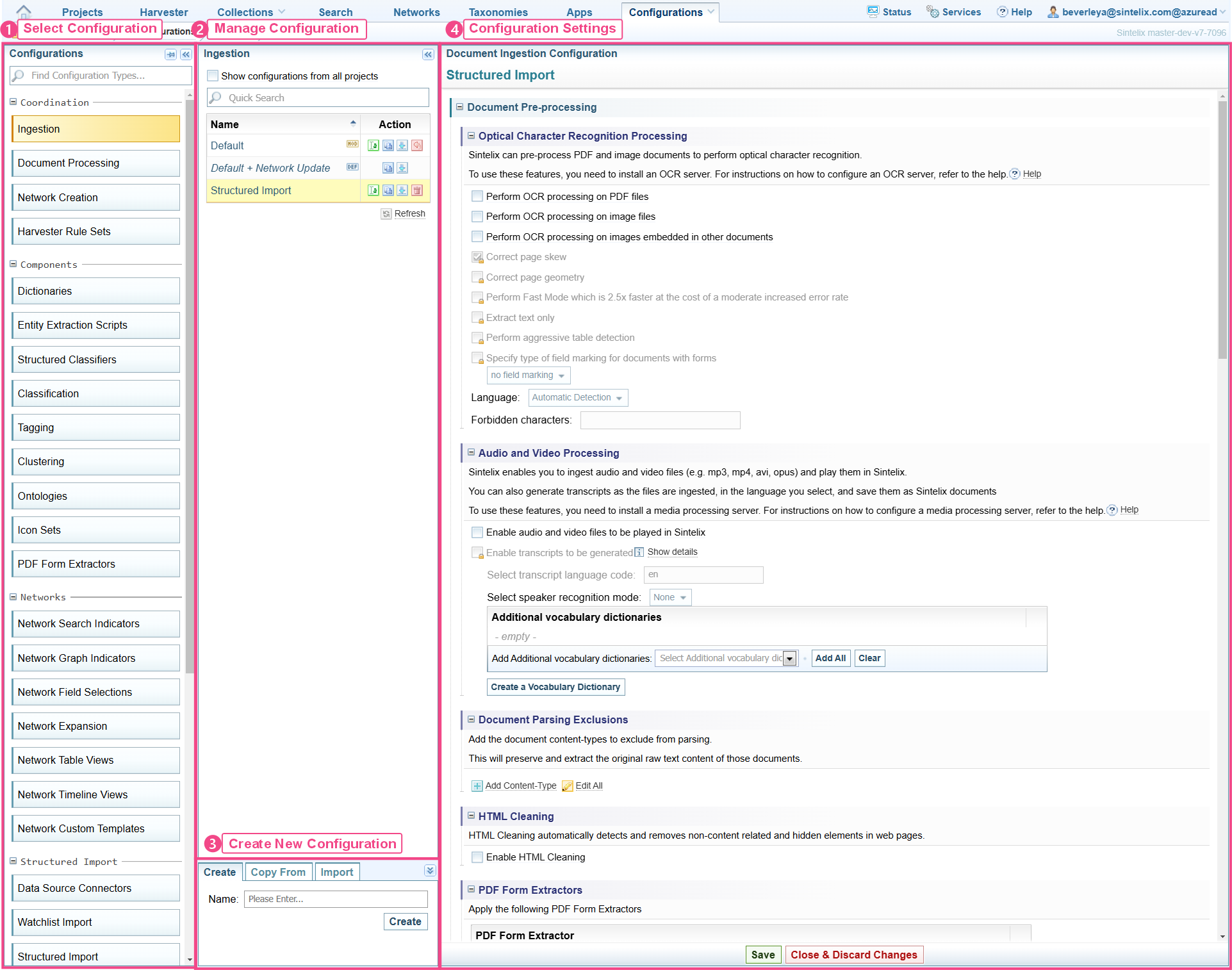
Select the Configurations tab to open the Configurations pane, with the Configurations available listed on the left.
There are four main areas:
-
Configurations - Select the type of Configuration
-
Manage Configuration - Open, Copy, Rename, Export, Delete and Revert to system default configurations.
-
New Configuration - Create a new configuration, Copy From another project, or Import a configuration.
-
Configuration Settings - unique to each configuration, where you modify the configuration settings.
Open
Select the name of the configuration you want to open.
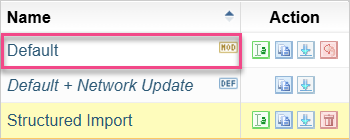
Result: The configuration settings are opened in the right pane.
To increase the space, click the collapse icon  on the two left panes.
Show all
Select the Show configurations from all projects option to list the configurations from all projects.
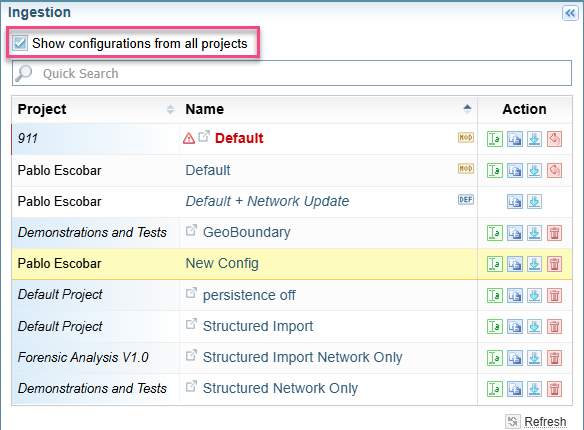
When showing all project configurations, you can:
-
open a configuration from another project by clicking on the configuration name.
Result: This will open the other project and the selected configuration.
-
copy a configuration from another project to this project or to another project by selecting the
Copy icon.Result: This displays the Copy Configuration To dialog.
Default Configurations
Some Configurations have pre-define Default configurations installed.
|
|
Indicates a Default configuration. |
|
|
Indicates a Default configuration that has been modified. |
With Default configurations, you can:
-
Copy the configuration to create a new configuration
-
Modify the default configuration, which will display the MOD symbol
indicating it is a default configuration that has been modified. -
Revert a modified configuration back to the original default configuration.
You cannot delete a Default configuration.

Example
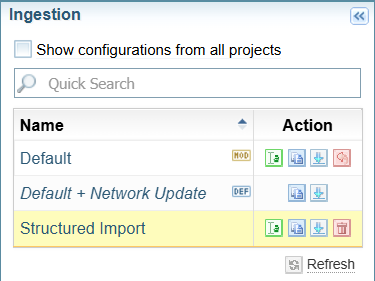
The diagram below shows three configurations:
-
Default - a Default configuration that has been modified.
-
Default + Network Default - a default configuration that has not been modified.
-
Structured Import - a configuration that is not a default.
Revert to system default
To restore the default configuration (clearing all modifications):
-
select the Revert icon
-
select to confirm.
Result: The MOD symbol changes to a DEF symbol .
Create
For the recommended process for creating a Harvester Rule Set configuration, see Create a Rule Set: Sintelix Extension.
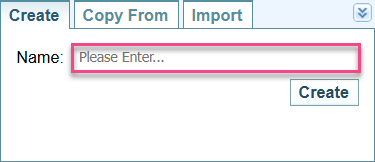
To create a configuration:
-
Enter a name for the configuration in the Create dialog.
-
Select
Result: The new configuration is opened in the pane on the right.
Copy
You can copy configurations from:
-
Copy To this project by selecting the
Copy icon. -
Copy To another project by selecting the
Copy icon and selecting the Other Project option. -
Copy From another project to this project by selecting the Copy From tab.
-
View All and Copy a configuration between projects (another project to this project or another project to another project) by selecting the Show configurations from all projects option and selecting the
Copy icon next to the configuration in the other project.
Copy To this project
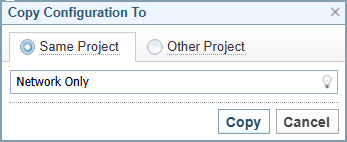
To copy a configuration in this project to the same project:
-
Select the copy icon
for the configuration you want to copy. -
Result: The Copy Configuration To dialog is displayed.
The Same Project option is selected by default.
-
Enter a name for the project.
-
Select
Result: The copied configuration is created and opened in the pane on the right.
Copy To another
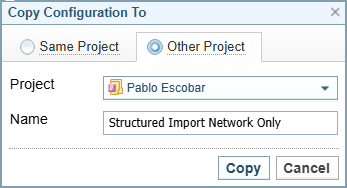
To copy a configuration in this project to another project:
-
Select the copy icon
for the configuration you want to copy. -
Result: The Copy Configuration To dialog is displayed.
The Same Project option is selected by default.
-
Select the Other Project option.
-
Select the name of the project you want to copy to.
-
Enter a name for the project.
-
Select
Result: The configuration is copied. You need to navigate to the other project to see the copied configuration.
Copy From another
You can copy a configuration from another project to this project in two ways:
-
By selecting the Show configurations from all projects option and selecting the
Copy icon. -
By selecting the Copy From tab at the bottom of the configurations pane.
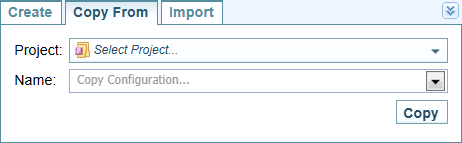
To Copy From from another to this project:
-
Select the Copy From tab at the bottom of the configurations pane.
-
Result: The Copy From dialog is displayed.
-
Select the name of the project you want to copy to.
-
Select the configuration you want to copy to this project.
-
Select
Result: The copied configuration is created and opened in the pane on the right.
View All and Copy
When you have the Show configurations from all projects option selected, you can copy a configuration from another project to:
-
this project, or
-
another project.
-
Select the Show configurations from all projects option.
-
Select the copy icon
for the configuration you want to copy. -
Result: The Copy Configuration To dialog is displayed.
The Other Project option is selected by default with the current project name selected and the name of the configuration pre-filled.
-
If you want to copy this configuration to another project, change the Project name.
-
Select .
Result: The configuration is copied and added to the list of configurations.
Rename
To rename a configuration:
-
Select the Rename icon
beside the configuration you want to rename. -
Enter the new name for the configuration then select .
If you rename a modified default configuration, it will create a copy and restore the default configuration.
Export
To export a configuration, select the Export icon next to the configuration.
Result: The configuration is exported to your Downloads folder. The filename is the configuration name, and the file type is xml. For example, Default.xml.
Import
To import a configuration:
-
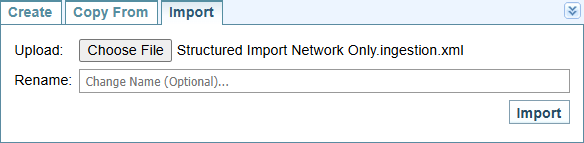
Select the Import tab at the bottom of the configurations pane.
Result: The Import dialog is displayed.
-
Select
Result: The Open dialog is displayed.
-
Select the configuration xml file you want to import and select .
Result: The filename is displayed in the dialog.
-
If you want to give the configuration a different name, enter the name in the Rename field.
-
Select .
If there is an existing configuration with the same name as the one you’re about to import, a message asks if to want to overwrite it.
If yes, select .
If no, click , and rename the configuration.
Result: The configuration is copied and added to the list of configurations.
Delete
When you delete a configuration you cannot undo the action.
To delete a configuration:
-
Click the
Delete
icon
beside the configuration you want to delete.
- Confirm by selecting .
Warning Message
If a configuration shows a warning message then the configuration is either incomplete or contains an error.
Click on the icon to view the warning message.
Example
In the Ingestion configuration, if you remove any Network Creation configurations and disable document persistence then ingestion would have no output. Sintelix will create a warning message advising the configuration is incomplete or has an error.