Backup Sintelix
Introduction
You can schedule Sintelix backups, run a backup immediately and restore backups.
Select the Admin > Backup tab to manage backups.
Before running a backup you need to Set Up the Backup Location.
Run a backup
You can either:
-
run a backup when required by selecting the button, or
Backup pane
The Backup up has three sections:
-
Backup Targets - shows the status of the backup locations.
-
Backup Settings - you can view the backup schedule and Schedule backups.
-
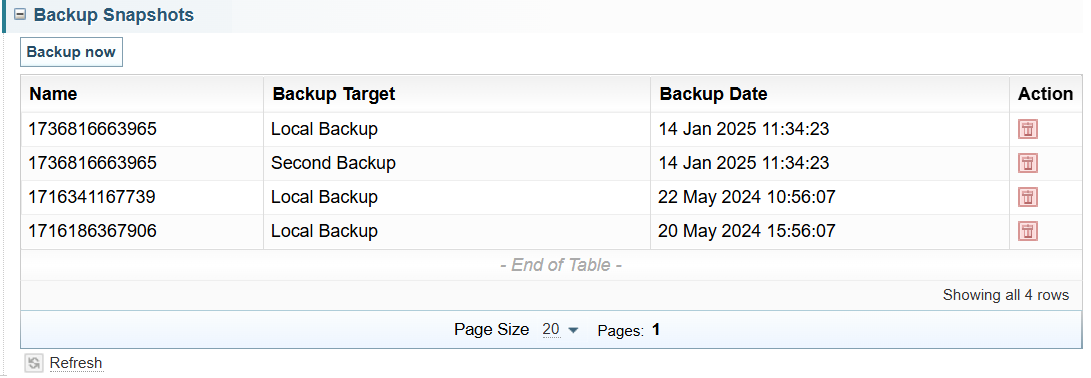
Backup Snapshots - shows the status of completed backups.
Backup Targets
The Backup Targets section shows the status of the backup locations.
 Screen example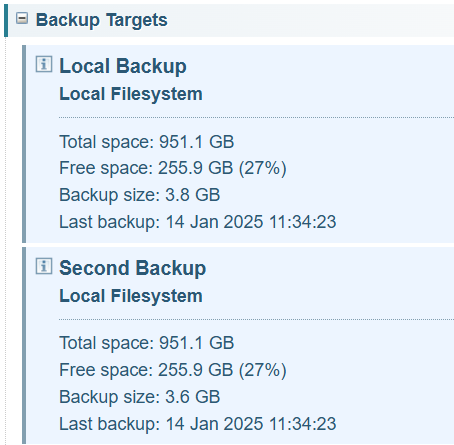
Set Up Backup Location
Before running a backup, the backup location needs to be set up by creating a backup.xml file. See Set Up the Backup Location
Missing backup.xml
If the backup.xml file is missing, the following warning message is displayed.
Backup configuration file not found. Please create a file called backup.xml in the database directory containing the backup configuration.
Previous versions of Sintelix stored the backup target location in the file backup-location.txt in the root of the Sintelix Database directory.
For backwards compatibility this file will still be supported. A warning will be displayed asking the user to migrate to the new backup.xml schema.
Backup Settings
Schedule backups
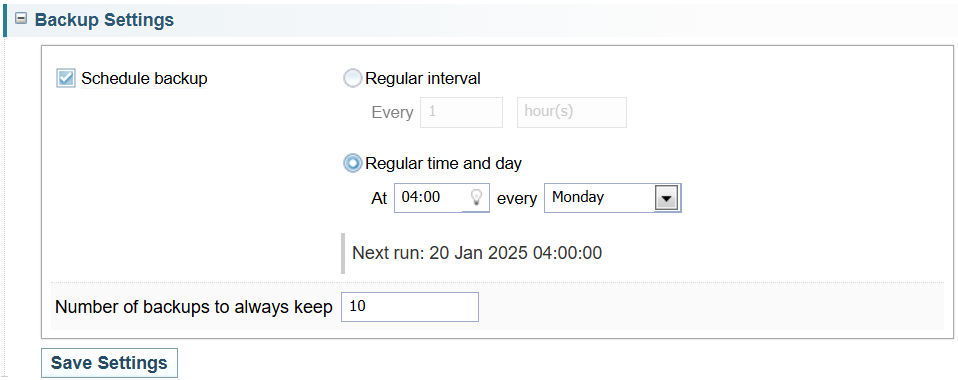
To schedule backups:
-
Select the Schedule backup checkbox
-
To backup on a regular interval:
-
Select the Regular interval radio button
-
Choose the frequency and duration (in minutes or hours)
For example, Every 2 hours.
-
-
To backup at a time of day
-
Select the Regular time and date radio button.
-
Choose the time of day.
Click the lightbulb icon
 to view a list of times.
 -
Choose the day period, e.g. every day or on a specific day of the week.
-
-
Select the button.