Add from Server Library
Background
This topic describes how to ingest data from a Server Library.
See Add (Ingest) Documents. for more information on the different methods of adding source files into Sintelix.
Configuration
By default, Sintelix has a default Server Library.
Additional libraries can be added by the Administrator, including to an Amazon Web Services S3 Bucket (a Cloud-based repository).
These additional libraries will be shown as additional options in Add Documents pane. However, the behaviour for adding files are the same as for adding files for the Server Library.
See Configure and Secure Libraries for more information about setting up additional libraries.
Add files from a File Library
The Server Library is a quick way to load a large amount of data to process.
-
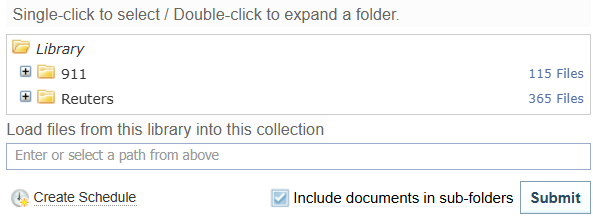
Select the Server Library tab.
Result: The folders and files in the Server Library folder A folder in which you can place source documents. When you install Sintelix you are prompted to enter a path and name for a server library folder. The default name is 'Server Library' but you can change this. The fastest way to ingest documents is to place them in a server library folder. are displayed.
-
Select the folder or file you want to add to the collection.
Click on a folder or a file to select it. Double-click on a folder to expand it.
-
Select the Include documents in sub-folders checkbox, if required.
-
Select the Email notification on completion checkbox, if required.
-
Select .
Result: Sintelix will begin ingesting the documents. Progress can be viewed under the Background Tasks tab. As each document has been ingested, it is added to the Collection and can be viewed in the
 Documents tab.
 A file added from the Server Library may not be ingested when Sintelix can't access the file, for example, nothing happens or an error occurs.
Please ensure that the system user account can access the file library location. This is especially important for Windows desktop installs, where the system user account may not have access to files in folders, e.g. OneDrive cloud files or Mapped Network Drives.
For example, if the Server Library has been set up in OneDrive, and the files are stored on the cloud and not on the local machine, then Sintelix can find the file name, but not the file itself.
See Configure and Secure Libraries for more information about modifying or setting up Server Library locations.