Schedule a Harvest
Scheduling
You can schedule a regular harvest to keep information up-to-date. Sintelix will check for new and updated pages and ingest them into the collection.
Schedules can run at a regular:
- interval (minutes or hours), or
- time and day (daily or day of the week).
Guidelines
-
Multiple queries: A schedule can contain more than one query.
-
Add but not remove: The scheduler adds documents to collections but does not remove them. If a page no longer exists, the scheduler will not remove it from a collection.
-
Not added if no change: If a page has not changed since the previously scheduled ingestion, it is not harvested again.
-
Added if changed, original remains: If a page has changed since the previously scheduled harvest, it is harvested again and added to the collection. Data is not added to the header to indicate that it is an updated file. The original page remains in the collection.
-
User security applies: The security credentials of the user who created the schedule is applies. If the project or collection becomes inaccessible to that user, the scheduler will no longer run.
-
User can be changed: A user can remove themselves from a schedule allowing a different user to take ownership of the task.
-
Alert and pause on failure: If a scheduled harvest fails, the scheduler will pause and an alert will be created for the user who created the schedule.
-
Schedules not copied or exported: Harvest schedules are not copied when the project is copied, and they are not exported when the project is exported.
-
Local Time: When viewing a scheduled harvest, the date and time the harvest will be run is in your local time zone.
Access
Scheduled harvest jobs can be accessed from Harvester > Batch
Viewing Schedules
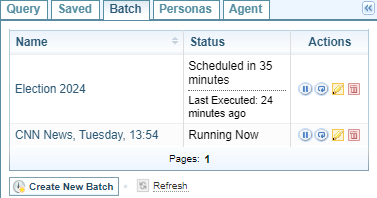
Scheduled harvests are displayed in a table format, showing the:
- Name
- Status (next scheduled and last run)
- Actions

Actions
For each scheduled harvest, you can choose to:
 Suspend (pause) the schedule - Status changes to Disabled
 Reschedule to restart the suspended schedule
 Run the harvest once now
 Edit the Schedule
 Delete the schedule
Add a Query to a Batch Harvest
A scheduled harvest can contain one or more queries. The queries are created in the Query tab and then copied into a either an existing or new scheduled harvest.
To copy a Query into a new or existing scheduled harvest:
-
Select Copy into Batch
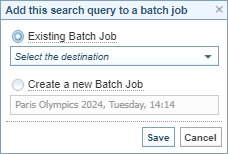
Result: The following dialog is displayed.
-
Create a New Batch Harvest
-
Select the Create a new Batch Job option
Result: A name is entered automatically based on the selected query.
-
Change the name, if required.
-
-
Add Query to Existing Batch Harvest
-
Ensure the Existing Batch Job option is selected.
-
Select the Batch Job to copy the query into from the dropdown.
-
-
Select Save.
Result: The scheduled harvest is updated in the Batch tab.
If you choose to:
-
Create a New Batch Harvest, a new schedule is created under the Batch tab. You will need to edit the schedule to set the timing and parameters for the scheduled harvest.
-
Add Query to Existing Batch Harvest, the query is added to the existing scheduled harvest and no other changes are required.
-
Edit the Schedule
Process
To edit a scheduled harvest:
-
Select the Edit button
next to the scheduled harvest. -
Modify the fields (below), as required.
-
Select Save.
Fields
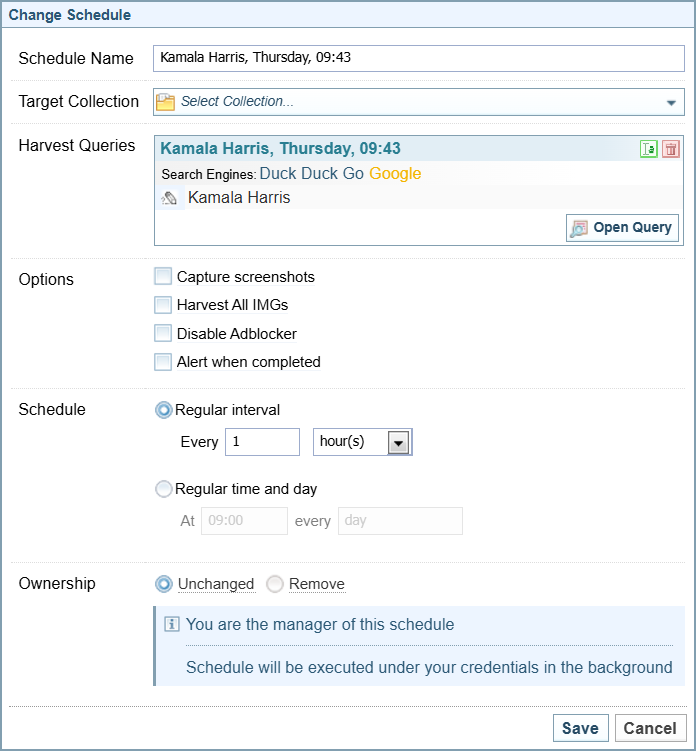
The following fields are required when you create/edit a schedule:
-
Schedule Name (optional)
-
Target Collection
Select the Collection to save the results of the harvest from the dropdown.
-
Harvest Queries
-
Select Rename
 to give a query a different name.
 -
Select Delete
to remove a query from the scheduled harvest.
-
-
Options
Enable the required harvest options:
-
Harvest Full Page (content and boiler plate elements) - this is useful when you are testing Rule Sets or setting up a Gold Standard Collection.
-
Harvest All IMGs - this will override the Rule Set settings and harvest all images.
-
Capture Screenshots - Creates the screenshots of the websites that are harvested. This is useful if need to keep a record of the page at the time it was harvested as evidence.
-
Disable Adblocker - Disables the installed adblock capability, which can help the harvest run faster but may capture ads within the harvested content, depending on the ruleset settings applied.
-
-
Schedule, either:
-
Regular interval (minutes or hours), or
-
Regular time and day (daily or day of the week).
-
-
Ownership, either:
-
Unchanged
-
Remove (to remove yourself from this schedule), or
-
Take Ownership (if no user is currently assigned).
-