Visualisation Options
When viewing a Network Graph, you can adjust the Visualisation Options by selecting it from the Layout menu.

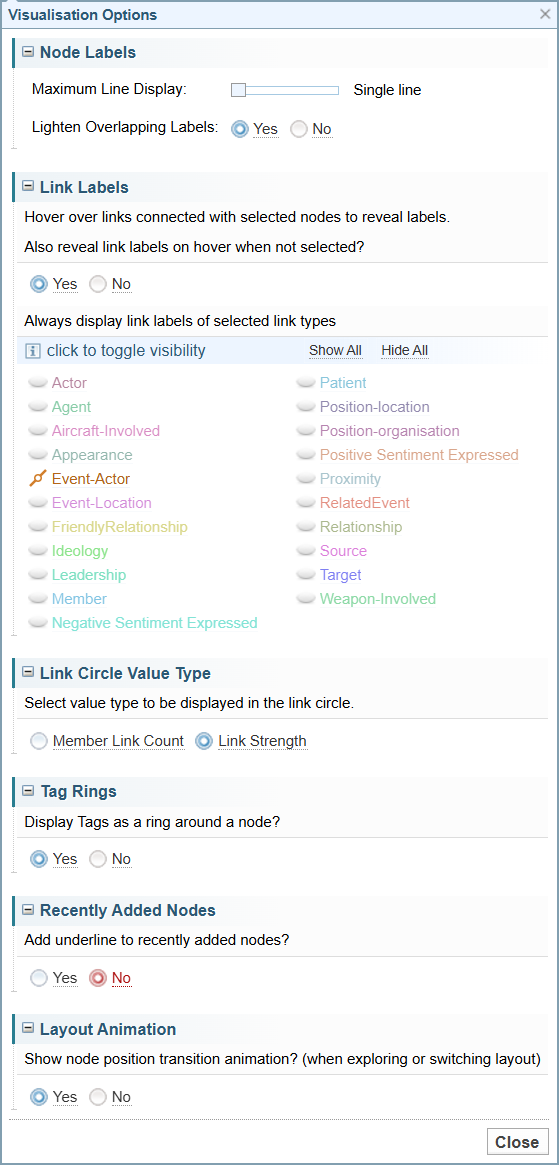
Node Labels
|
Option |
Description |
|---|---|
| Maximum Line Display | Adjusts the number of lines between 1-3 for the label displayed below the node. |
|
Lighten Overlapping Labels Yes No |
When yes is selected, one label will be a lighter colour when node labels overlap. |
Link Labels
|
Option |
Description |
|---|---|
|
Yes No |
Default behaviour: Hovering over a link connected to selected nodes will reveal the link labels. Optional behaviour: Hovering over a link connected to unselected nodes will only reveal link labels when the option is Yes option is selected. |
| Click to toggle visibility |
You can individually select the link names to switch between always showing the link labels or hiding the link labels until they are hovered over.
|
| Show All | Shows all labels. |
| Hide All | Hides all labels. |
 Indicates link is unselected.
 Indicates link is selected.
Link Circle Value Type
The circle displayed in the centre of a link link displays a number. You can choose between the following two options:
|
Option |
Description |
|---|---|
|
Member Link Count (default) |
Displays the total number of links connecting the node members. |
|
Link Strength |
Displays the link strength. The Link Strength value can be set using Entity Extraction Scripts and using Link Aggregation as a Network Expansion.. |
Tag Rings
When viewing a network graph, there are several ways you can use the mouse that are useful to understand:
|
Option |
Description |
|---|---|
|
Yes (default) No |
Select Yes to display tag rings around the node. |
Recently Added Nodes
When viewing a network graph, there are several ways you can use the mouse that are useful to understand:
|
Option |
Description |
|---|---|
|
Yes No (default) |
Select Yes to underline the link label for recently added nodes. If the Network has been recently created, then all nodes are likely to be underlined. |
Layout Animation
When viewing a network graph, there are several ways you can use the mouse that are useful to understand:
|
Option |
Description |
|---|---|
|
Yes (default) No |
Select Yes to animate the movement of nodes and links when adjusting the display. When No is selected, the nodes and links will simply reload in the new position without a movement animation. |