Link Aggregation
Introduction
Once a Network has been created, you can examine the Links, group them and create aggregated links that combines links in the network, including a calculated value that is stored as the Link Strength value.
The new link is then available to analyse in Network Tables, Graphs and Timelines.
Link Aggregation is a custom Network Expansion. You can build your own Link Aggregation Network Expansions.
How it is applied
You apply Network Expansions, including Link Aggregation, when viewing a Network.
See Expand the Network.
Link Strength
You can choose one of the following options for calculating link strength:
| None | The link is created, but does not have a Link Strength value. |
| Total Link Strength |
Adds all the existing Link Strength values together. See Link Strength |
| Total Count | Counts the number of links (excludes Member Count). |
| Total Member Count |
Adds up the Member Count for all matching links to give a total Member Count. The Member Count is the number of links that were clustered into the resulting link. It is the number displayed on links in the Network Graph. |
| Neighbour Overlap |
Identifies the percentage of neighbouring nodes they have in common. When you View Neighbours in Nested Tables, a % column is shown giving the calculated View Neighbours in Nested Tables percentage. The Neighbour Overlap is the same calculation, except it is given out of 10 rather than as a percentage. For example, if the Common Neighbours calculation is 70%, then the Neighbour Overlap value will be 7. |
Dialog
 Link Aggregation Dialog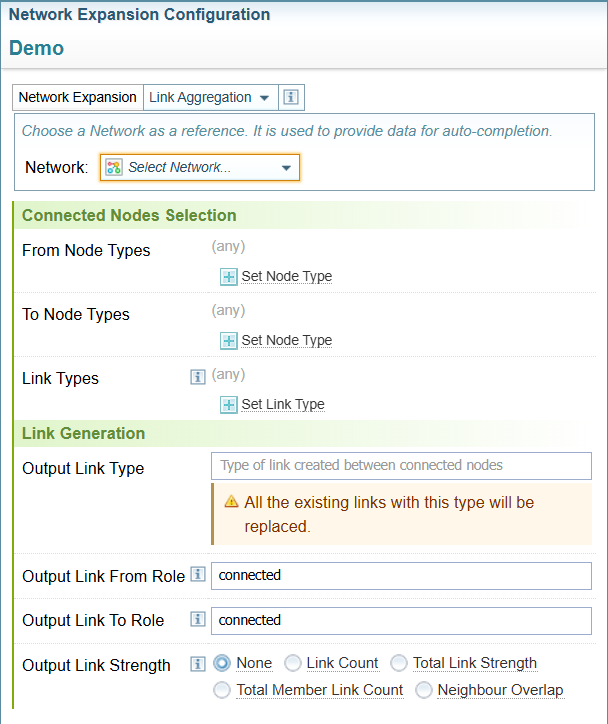
Process
To create a Link Aggregation Network Expansion:
-
Select Configurations > Network Creation
-
Create a new configuration.
Result: The Network Expansion dropdown defaults to Topic Detection.
-
Select Link Aggregation in the Network Expansion dropdown.
Connected Nodes Selection
-
Choose the nodes connected by links you want to aggregate by selecting:
-
From Node Types, by pressing the add button (you can add more than one node type)
-
To Node Types, by pressing the Add button (you can add more than one node type)
-
Link Types, by pressing the Add button and choosing the Link Type(s) you want to analyse.
You can leave any of these options blank. Leaving them all blank will aggregate all links in the Network (excluding other Expansion Links).
-
Link Generation
-
Define the Link Type you want to create.
-
Output Link Type: Give the link a name.
Using the same name as an existing link will replace the existing link with the aggregated link.
-
Output Link From Role: Enter the role assigned to the node being linked from.
-
Output Link To Role: Enter the role assigned to the node being linked to.
If you give the From Role and To Role different names, the link will have a Link Direction pointing towards the To Role.
-
Output Link Strength: Choose the type of aggregation you want to calculate and include as the Link Strength for the link (see Link Strength above):
-
-
Select Save.
Result: The name of the Link Aggregation configuration will be displayed as an option in the Network Expansion dialog. See Expand the Network for instructions on running the Network Expansion.
When the Link Aggregation is run on the Network, the resulting calculated value is stored as Link Strength.
By default, Network Graphs show the link Member Count in the circle on links.
You need to change the Network Graph Visualisation Options to set the Link Circle Value Type option to Link Strength. This will display the Link Strength as the value in the circle on the Links in the Graph.