Links
Links represent a connection between two Nodes.
Nodes can be:
-
Entities, or
-
Documents.
Links in the Network Graph
Link view
When you view the Network Graph, you see a link represented as a coloured line between two nodes. Every link type has a unique colour, which can be customised in the Ontology configuration.

Link Hover view
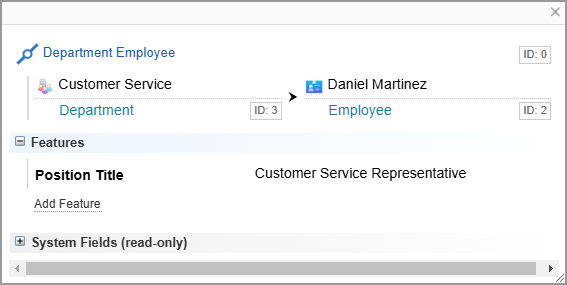
When you hover over a link in the Network Graph, additional information about the link is displayed:
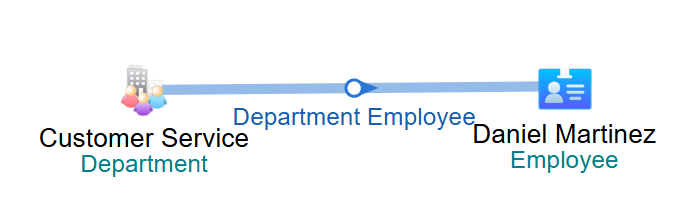
You can change what information is displayed on the Network Graph using the Visualisation Options in the Layout Menu.
Link Components
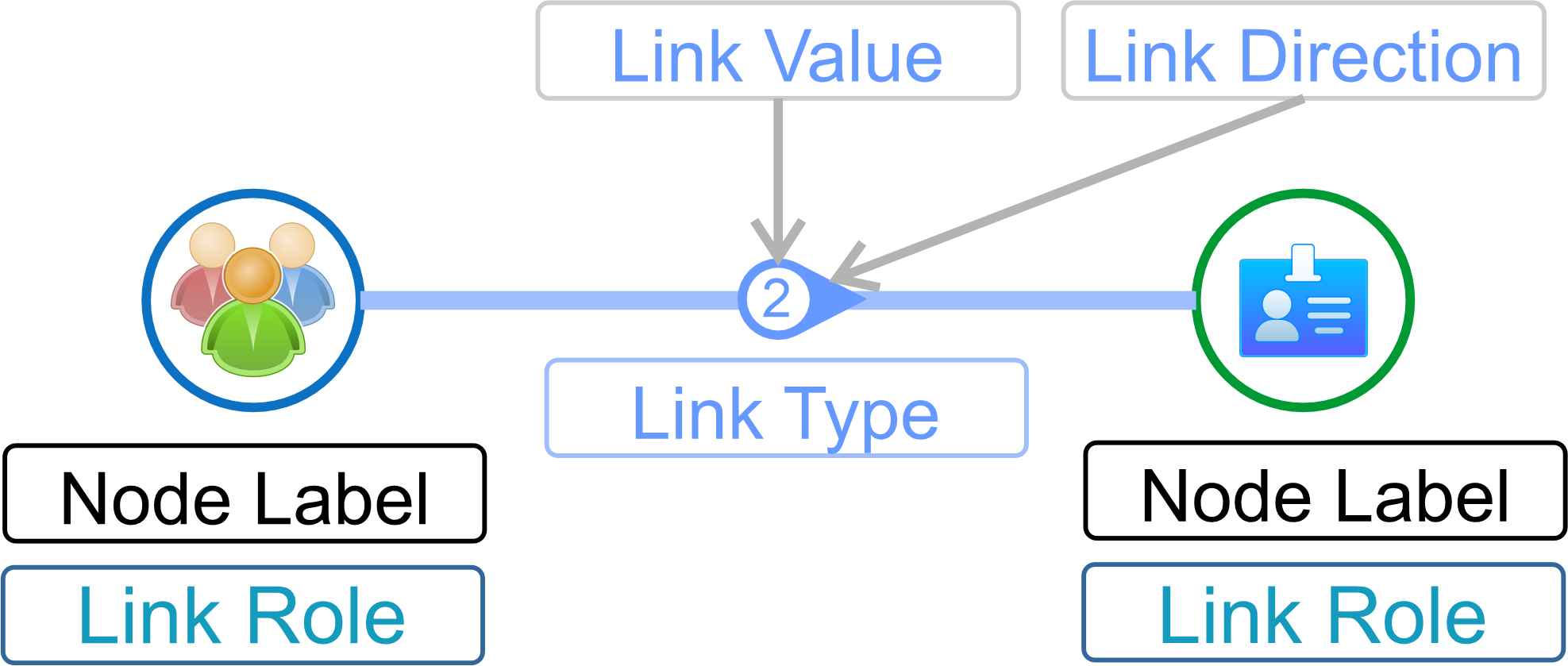
The diagram below identifies the components of the link displayed on the Network Graph.
Link Value
The Link Value can display either the link Member Count or Link Strength, depending on the Network Graph Visualisation Options.
When link strength is displayed, the circle has double lines.

Member Count
The Member Count is the number of links that were clustered into the Network link. It is the number displayed on links in the Network Graph.
Link Strength
The Link Strength requires a field called strength.
You can use one of the methods below to add the strength field to a link:
-
Edit the Network Creation configuration to add a double type field named strength.
-
Use the Edit Schema option for a link to add a field of the floating point value type field named strength (See Networks Overview Pane)
-
Add or modify links using Entity Extraction Scripts (EES) to include a strength field and assign a value.
Assign a Value
The strength value can be assigned using EES which will then be clustered into the Network link.
You can change the value by selecting the  Link Details option from the Network Table or Network Graph and changing the value in the strength field. See Edit Features and Fields.
The Link Aggregation Network Expansion configuration creates and adds a value to the strength field.
Link Direction
Links can have a direction. The Link direction is indicated with an arrow in the Network Graph.
 No direction indicated.
 One direction indicated.
 Both directions indicated.
Using Directional Links
When viewing a Network, if directional link are present, you can choose to:
-
view all links by choosing the main
 Link Type
 -
only view incoming links by selecting the
 Incoming Links icon
 -
only view outgoing links by selecting the
 outgoing links icon.
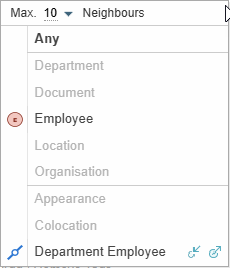
 Example Menu showing Directional Links
The following Show More Neighbours menu from Network Graphs includes the directional link options.
Link Details: Features and Fields
You can select to view the Link Details from a Network Table or Network Graph shortcut menu. The link details are displayed, including any features and fields added to the link.
You can edit the details, for example, change a field value or add a new feature. See Edit Features and Fields.