Text Graph Analyser
Introduction
The Text Graph Analyser allows you to test your Dictionaries and Entity Extraction Scripts to check if the code is working as expected.
Access
When editing Dictionaries and Entity Extraction Scripts, the Text Graph Analyser is displayed.
Screen Layout
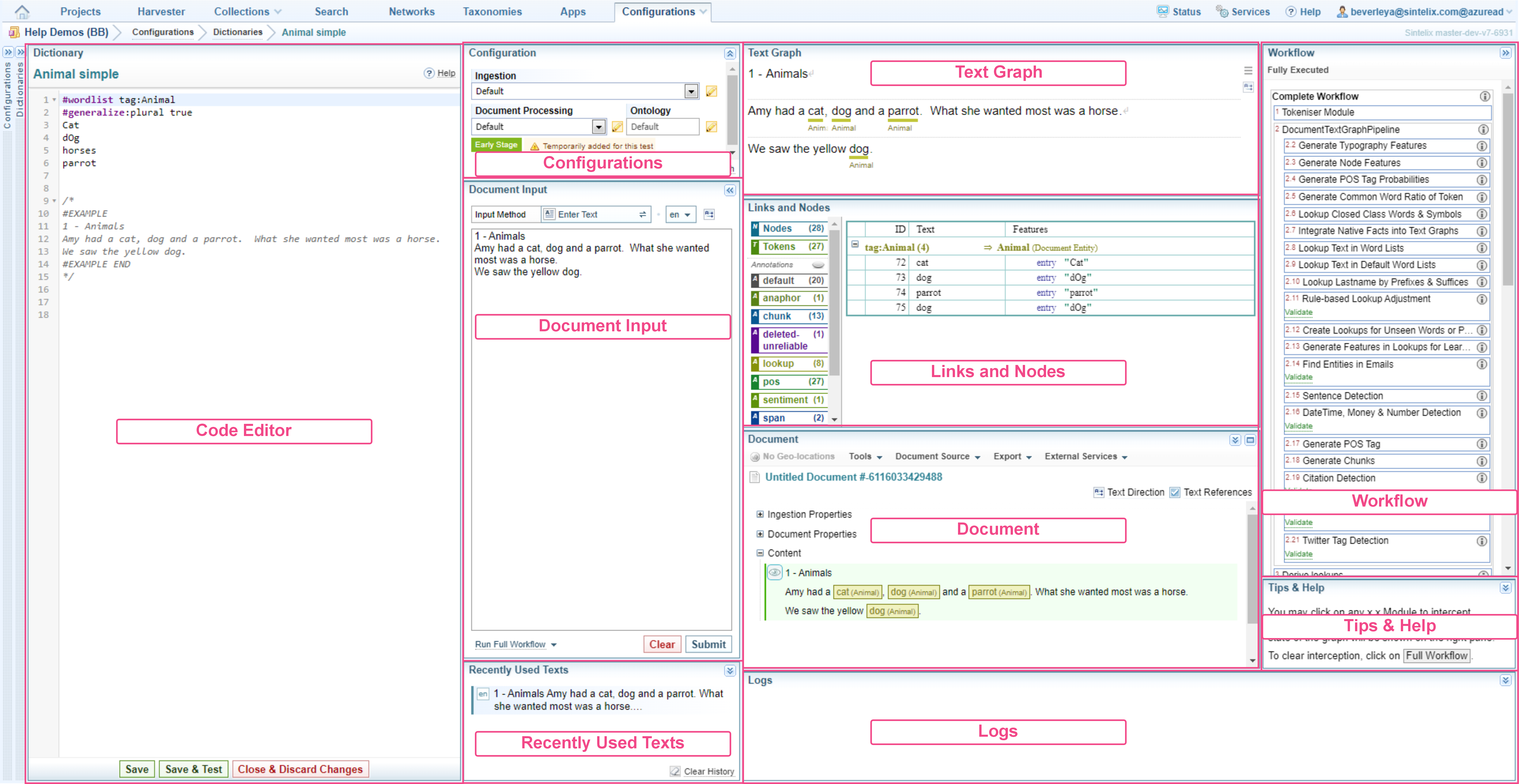
Code Editor
The Code Editor pane is where you edit the script.
See Code Editor for more information about using the editor.
Test Process Summary
To test a script, you:
-
(Optional) Change the configurations to apply during the test.
-
Choose the text to use in the test in the Document Input pane.
-
(Optional) Choose to run a full or partial workflow during the test.
-
Run the test by selecting either the Save & Test or Submit button in the Document Input pane.
-
Analyse the results of the test displayed in the Text Graph, Nodes and Links and Document panes.
Run a Test
1. Choose the Configurations (Optional)
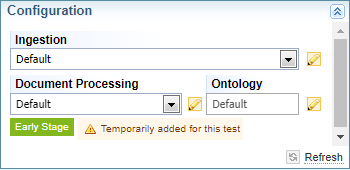
Testing your code involves running the Ingestion and Document Processing configurations.
You can choose to use the configurations displayed or change the configurations.
Change a Configuration
To change a configuration, select the required configuration from the dropdown field.
Edit a Configuration
To edit a configuration:
-
Select the Edit button
 .
. Result: The configuration will be displayed in the pane to the right.
-
Make the required changes and select the Save button.
To remove the configuration editing pane, re-run the test by clicking on the Submit button in the Document Input pane.
2. Choose the Text to Use in the Test
Options
There four ways to choose text to use in the test:
-
Enter Text - you provide a text to use in the test.
-
Select Document - you provide the ID to a document to use in the test.
-
Example Text - you embed the text to use into the code - which can be either text or a Document ID.
-
Recently Used Text - you select the text to use from a list of text used in previous tests - which can be either text or a Document ID.

Input Method: Enter Text or Select Document
You can use either example text or a document to use as the input when testing code.
Click on the Input Method option button to toggle between Enter Text and Select Document.
For example, click on Enter Text to change the Input Method to Select Document.
 à
à

| Input Method | Button | Pane |
|---|---|---|
| Enter Text |
|
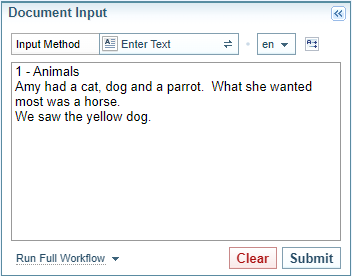
|
| Select Document |
|
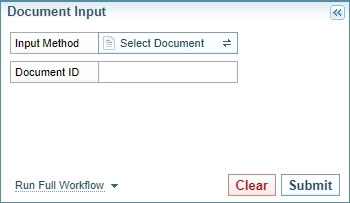
|
Select Text to Use in the Test
You can paste text to use in the test in the text field in the Document Input pane.
To use text to test your code:
-
If the Input Method is not showing Enter Text, click on the Input Method option to toggle from Select Document to Enter Text.
à
Result: The text field is displayed.
-
Paste text into the text field.
-
Select Submit button to run test.
Select a Document to Use in the Test
It is often useful to test your code on a whole document - without having to copy all the text into the Document Input pane - and preserving the formatting of the document.
In the Document Input pane:
-
Click on the Input Method option to toggle between Enter Text and Select Document.
à
Result: The Document ID field is displayed.
-
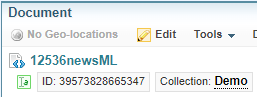
Select a document to view from Collections > Documents pane and copy the ID from the Document pane.
-
Paste the Document ID into the Document ID field.
-
Select Submit button to run test using Document as the sample text.
Use Previous Text in the Test
When you run a test using the Submit button, the text used in the test is captured in the Recently Used Texts pane.
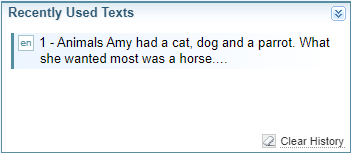
To use text listed in the Recently Used Texts pane:
-
Select the required text from the list in the Recently Used Texts pane.
Result: The selected text will be loaded into the Document Input pane.
-
Select the Submit button to run the test.
Embed Example Text in the Code
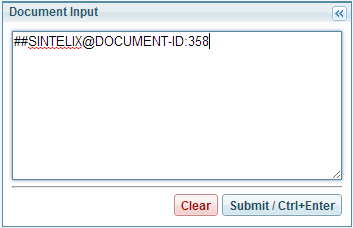
You can embed example text or a Document ID into to the code to use in the test.
See Test Examples.
To use the Example Text when testing your code:
-
Select the Clear button in the Document Input pane to remove any pre-existing text.
-
Select the Save & Test button in the Code Editor.
Result: The example text will be loaded into the Document Input pane and will be used to test the code.
3. Choose the Workflow (Optional)
By default, the full Document Processing workflow is used when you run a test. However, you can choose to only run part of the workflow to examine when and how you code is being executed.
There are two methods for choosing the Workflow:
-
Workflow dropdown: Selecting an option from the Workflow dropdown in the Document Input pane.
-
Workflow pane: Expanding the Workflow pane and selected any step within the Workflow.
Workflow Dropdown
The Workflow dropdown at the bottom of the Document Input pane.
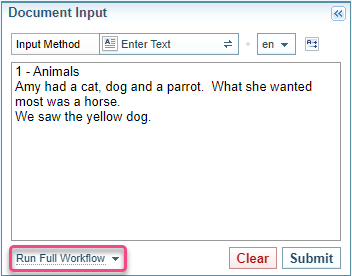
To run your code using a partial workflow, select the required option from the dropdown and then select Submit.
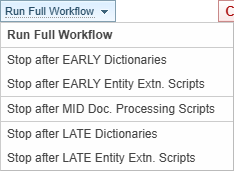
To return to the Full Workflow, simply select the Run Full Workflow option from the dropdown.
Workflow pane
The Workflow pane is collapsed by default. Select the Workflow List expand icon at the top right of the Text Graph Analyser to open the Workflow pane.

The Workflow shows all of the actions taken during document processing.
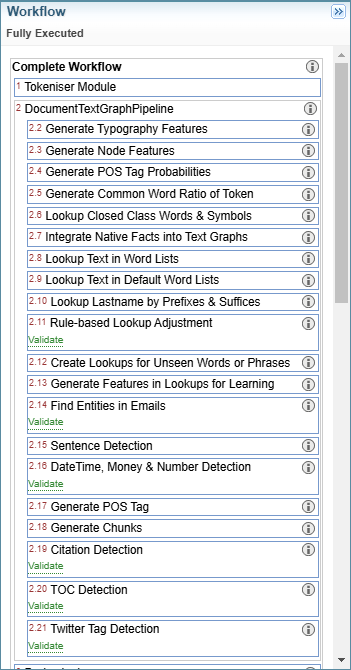
To run your code using a partial workflow, select any step in the Workflow list and then select Submit.
The test will stop after the selected step.
The Workflow button in the Document Pane will show the step the test will stop after.

To return to the Full Workflow:
-
select Complete Workflow at the top of the Workflow List or
-
select the Run Full Workflow option from the dropdown.
Analyse the Results
Analyse the Results
Viewing the processed document
The processed document, showing any output text references is visible in the document pane:
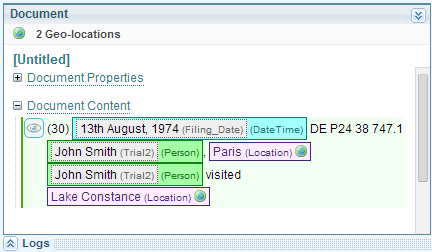
If the workflow is partially executed (see above), text references will not be displayed in the document view.
It is an ordinary document pane, save that it has additional view and currently viewed icons, ringed below:
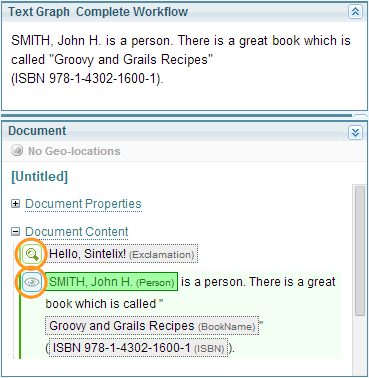
Clicking a looking glass icon next to a text block runs the text graph analyser on that text block. The icon then becomes the eye icon to indicate which text block is currently being analysed.
Viewing the Text Graph
The core of the text graph analyser is the Text Graph pane. The Text Graph ribbon indicates whether the complete workflow is being run, or whether it has been intercepted before its final stage.
Below the text graph pane is the Links and Nodes pane. This lists all the nodes and links on the text graph, together with their features, and the label (if available) of the rule that created them.
The text graph is usefully interactive. As the cursor moves over link/node categories on the Links and Nodes table, the links show up on the Graph. Here the cursor covers the root node of the link tree "(default)" and all the links and nodes are highlighted on the graph:
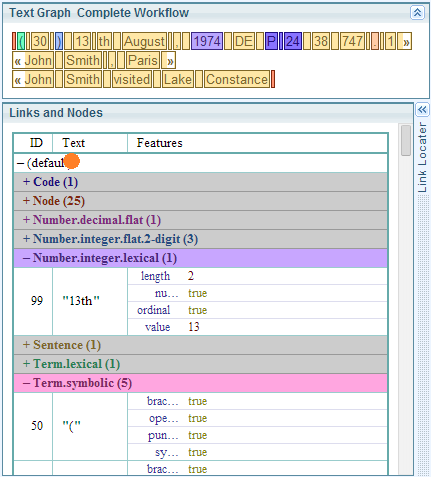
Viewing Links and Nodes
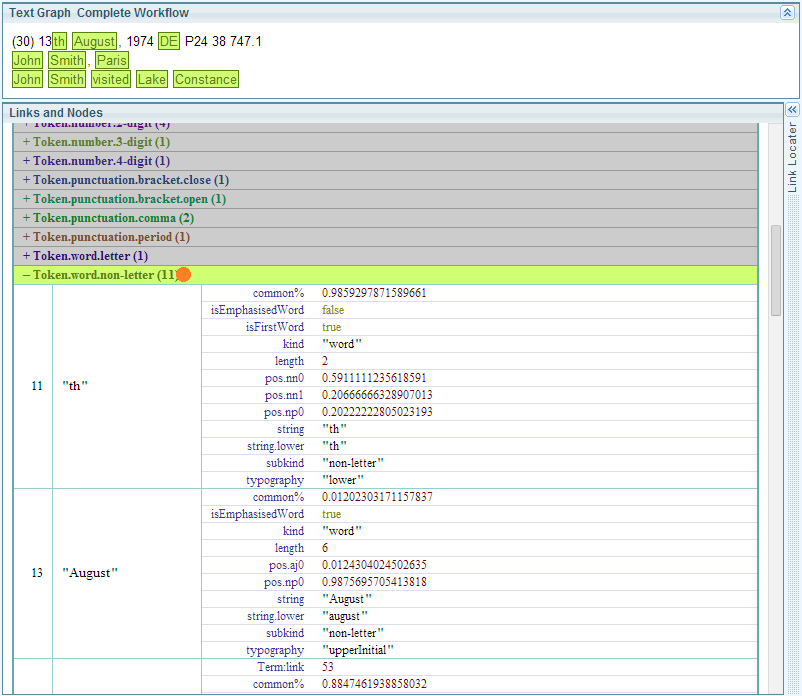
The branches of the link tree can be opened by clicking them with the mouse. The instances of each link type are listed together with their features.
Deleted nodes are listed under the "Deleted" category.
The Link Locator
In the text graph pane, if you are interested in a particular text token, for example, "August" below, click it to reveal the Link Locator pane, which lists all the links overlapping the token.
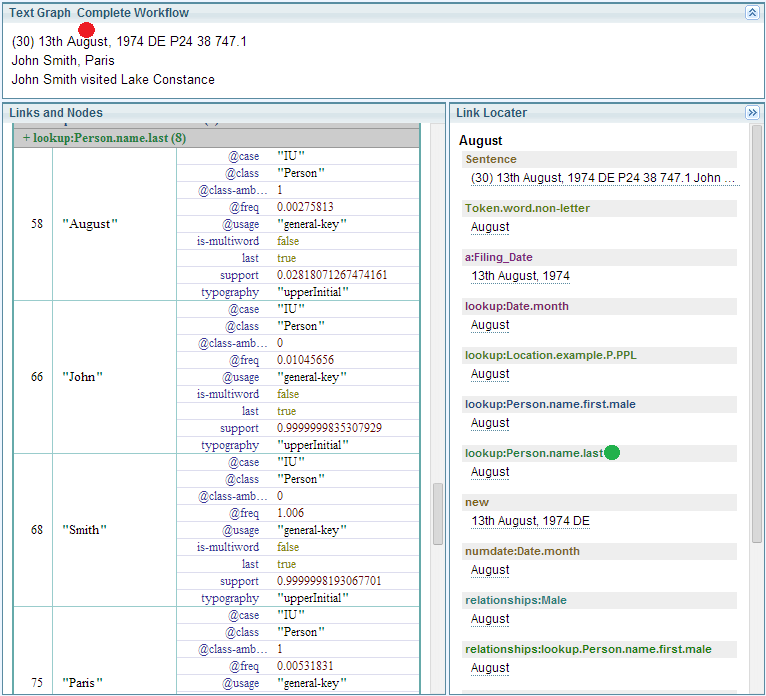
Click on a link name in the Link Locator pane (for example, "lookup:Person.name.last", above) to navigate the Links and Nodes pane to its entry for that link.
Logs
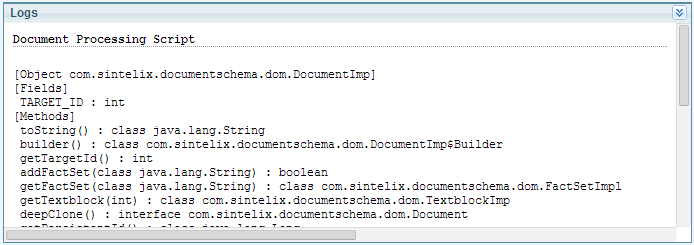
Some configurations (for example, Document Processing Scripts) can generate logs, which are sent to the log pane: