Add from Data Source Connection
Background
This topic describes how to ingest data through a Data Source Connector, usually from a database.
See Add (Ingest) Documents. for more information on the different methods of adding source files into Sintelix.
Ingest from a Data Source
You can ingest data directly from a Structured Data Source into a Collection and create Documents.
You can also ingest data through a Structured Data Import, currently available for Excel and CSV files.
Configuration
Before you can ingest data through a Data Source Connector, the connection needs to be configured.
Ingesting data
To ingest data from a database via a Data Source Connector:
-
Select From Data Source.
-
Select a configuration from the Configurations dropdown.
This populates a list of Data Source Mappings.
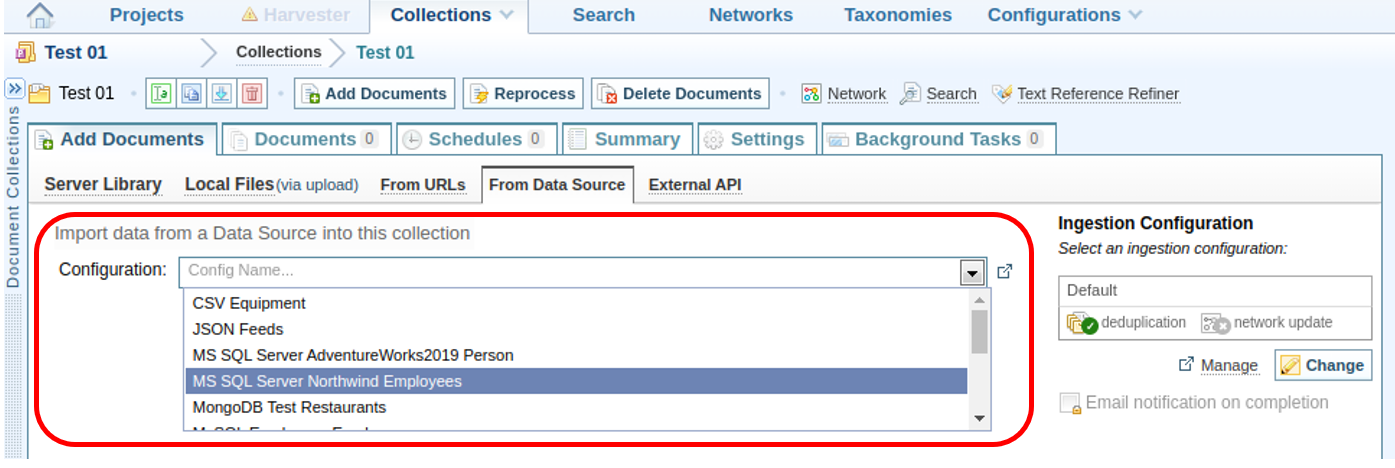
If no configurations are listed, see Structured Data Source for information on the requirements.
-
Select or deselect Data Source Mappings from the list one by one, or Add All or Clear the list.
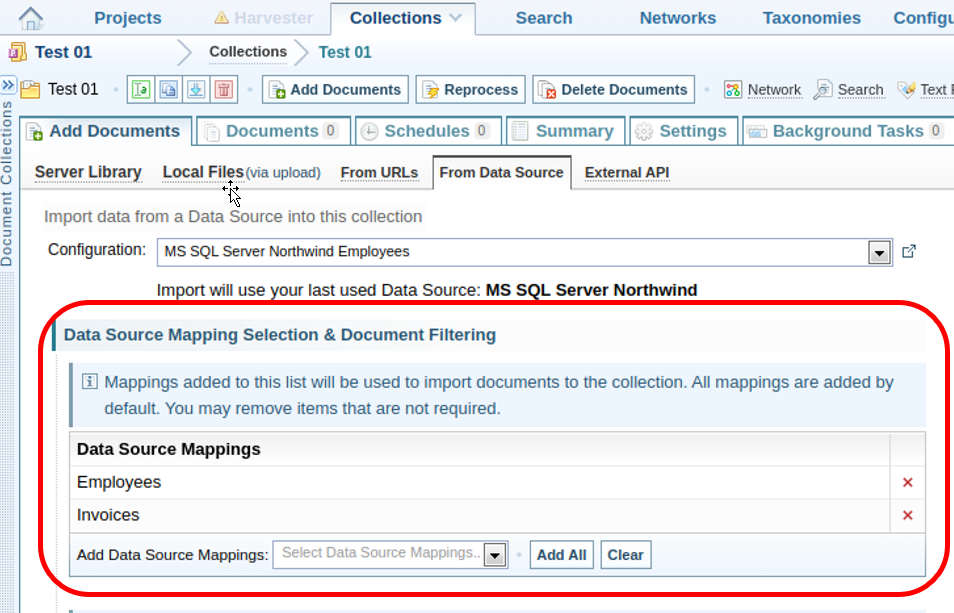
If no Data Source Definitions are listed, refer to Define a Data Source Connection for instructions on setting up one.
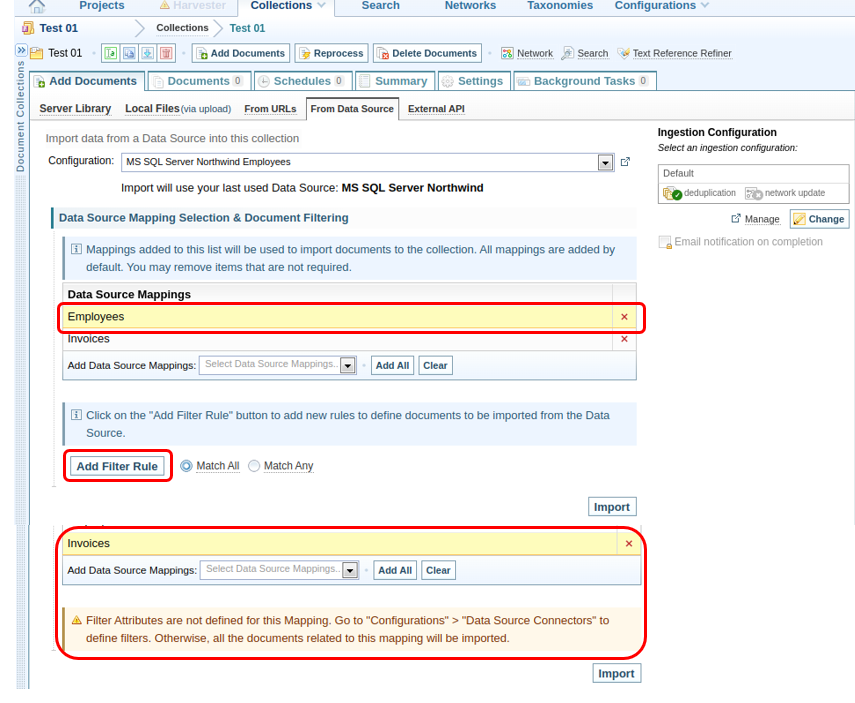
Data from the selected mappings can be imported without applying filters by selecting Import. If filters are to applied, follow the next step.
-
Select Add Filter Rule to add a new filter rule.
-
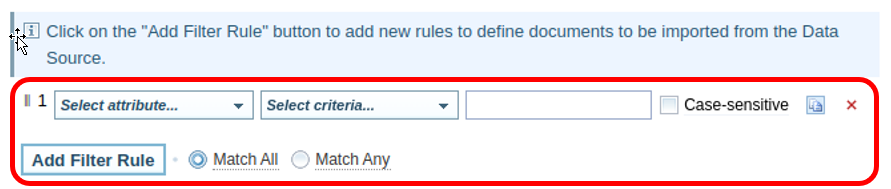
Select the attribute from the drop-down menu.
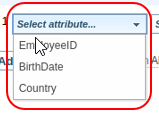
-
Select a rule criteria (defined by data attributes), from the next drop-down.
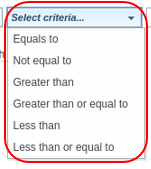
-
Enter a value in the next text box, if required. The text box will be disabled for certain data types, such as Boolean. A prompt in the text box specifies which value format to be entered.

-
If the attribute has a case-sensitive data type, the Case-sensitive check box will be enabled. The default value is unchecked, meaning the case is ignored during filtration. Select the check box to turn on case-sensitive.
More rules can be added in the same way. In addition, a rule can be duplicated by selecting the duplicate button next to the text box. The duplicated rule can then be edited.
-
Remove a rule by selecting the X.

-
Match All, and Match Any options are available next to the Add Filter Rule button. If all rules must be matched, select the Match All, which is the default option. Match Any will search for data which matches at least one rule.

-
Select Data Source Mappings and configure Filter Rules for all the mappings. This is not mandatory, as filter rules are optional.
-
Select Import to launch an import task in Sintelix. This will add a new SQL Import job in the Job List below the Import button.

-
The status of the import task can be viewed in Background Tasks.

-
Imported documents will display in the Documents tab.
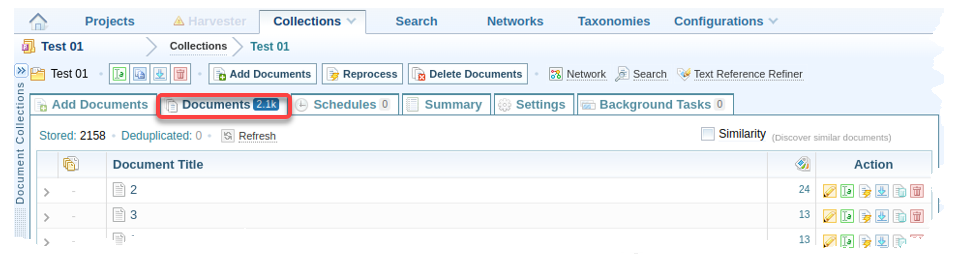
-
Select .
Result: Sintelix will begin ingesting the documents. Progress can be viewed under the Background Tasks tab. As each document has been ingested, it is added to the Collection and can be viewed in the
 Documents tab.