My Account
Access
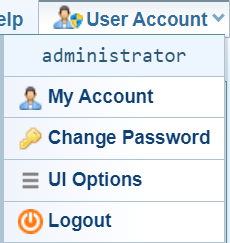
You account settings can changed from the User Account menu in the top right of the Sintelix window, where you can:
-
access your My Account Overview to view your account status, set up two-factor authentication and change your theme.
-
Change Document Text Scaling in the UI options to increase the font size when viewing Documents.
My Account Overview
When you select the My Account option, your My Account Overview is displayed.
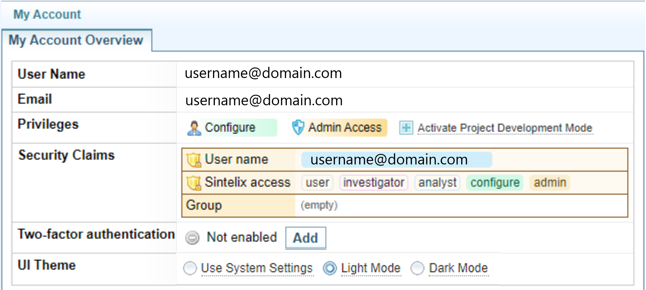
In the My Account Overview, you can see:
-
your assigned email address for your account, if assigned.
-
your privileges, indicating your assigned role (Investigator, Analyst or Configurer) and if you have Admin Access (see Roles and Access Levels).
-
the security groups you have been assigned to which can be used to control access to Projects, Collections and Networks (see Manage Project Security).
-
if two-factor authentication has been enabled (see Setting Two-Factor Authentication)
-
the theme applied to your account (see Set the Theme: Dark Mode).
Change Your Password
When you select the Change Password option, the following dialog is displayed.
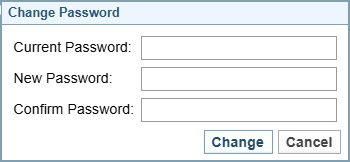
Complete the fields and select to change your password.
If you can't remember your current password, please contact support.
Change Document Text Scaling
You can quickly change the size of the text displayed when viewing Documents. This can be useful when viewing documents in different languages, such as Chinese or Arabic, where the font size is too small.
-
Select Collections > Documents and open any Document so you can see the font size change.
-
Select UI options from the User Account menu.
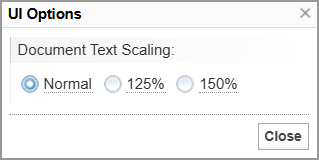
Result: The UI Options dialog is displayed.
-
Select the required option: Normal, 125% or 150%.
Result: The text in the Document in the background will change as you choose an options.
-
When satisfied by the text scaling selected, select .
Logout
To logout of Sintelix:
-
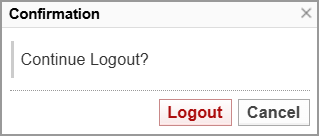
To logout of Sintelix, select the Logout option.
Result: The Confirmation dialog is displayed.
-
Select to Logout.
Result: The Sintelix Login screen is displayed.