Setting Two-Factor Authentication
To add an extra layer of security to your account, you can set up a two factor authentication.
Ensure the following:
- Your personal device must be able to produce standard time-based authentication codes (TOTP).
- Authenticators like Google Authenticator, Microsoft Authenticator or Authy is available on your personal device.
- The time on you personal device matches the Sintelix Server time or is within less than 3 minutes of the Sintelix Server time for authentication code to function.
To setup the authentication:
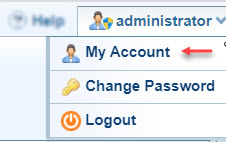
- Login to Sintelix, click your user name and select the My account, as shown in the following:
- Click the Add button next to Two-factor authentication
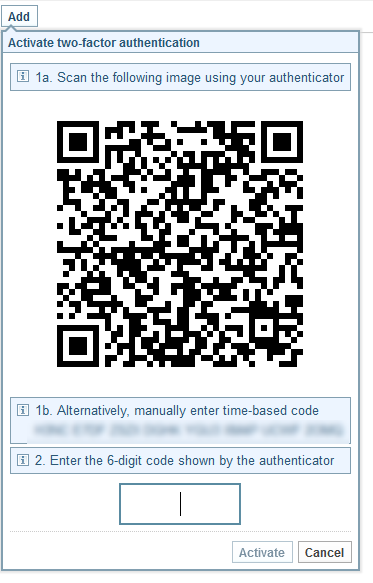
The Activate two-factor authentication dialog is displayed:
- In your Authenticator you can either:
- Scan the image displayed on your Activate two-factor authentication dialog
- Enter the time based code displayed on the Activate two-factor authentication dialog
- Enter the 6 digit code sent to the Authenticator and click Activate
After the two-factor authentication is setup, every time you log in to Sintelix, a code is generated on your personal device. Enter the code in Sintelix to authenticate yourself.