Log in to Sintelix
Quick Summary
This topic describes how to:
-
Log In using either external user authentication or Sintelix user authentication
-
activate your Sintelix account, and
-
reset your Sintelix password.
To information on how to change your password, set up two-factor authentication and modify your account settings, see My Account.
Types of Log In
The Log In screen may vary, depending on the type of log in methods configured in Sintelix.
-
Log In using external user authentication, for example, your Microsoft login.
-
Log In using the standard Sintelix Log In.
External User Authentication
Log In using External User Authentication
There are different types of External User Authentication that can be configured by the Administrator to log users into Sintelix.
In the example below, clicking the Login with sintelix.com button will allow the user to quickly log in using their Microsoft user credentials.
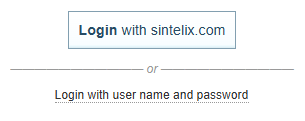
Selecting the option will display the standard Sintelix Log In dialog.
You manage your user login, for example, resetting your password, using the external authentication methods.
Sintelix User Authentication
Using Sintelix Log In
The first time you login, you will need to activate your account first. See Activate your Sintelix Account.
Standard Sintelix Log In dialog
Where external user authentication is not configured, the standard Sintelix user login dialog is displayed.
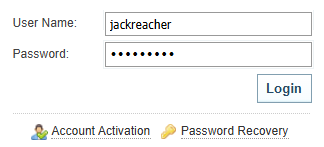
To log in to Sintelix:
-
Open Sintelix (default URL: http://localhost:8081)
-
Enter your user name and password, and then select .
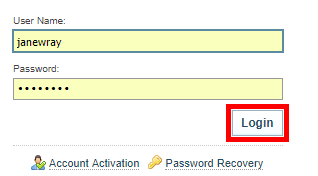
If a two-factor authentication is setup, a code is generated on your personal device. Enter the code in the Authentication field. See Setting Two-Factor Authentication for information.
Result: The Sintelix Home screen is displayed. You can now use Sintelix.
Activate your Sintelix Account
The first time you log in with a Sintelix user account, you need to activate your Sintelix account using the user name and password activation token provided to you by the Sintelix Administrator.
- On the Log In screen, select
 Account Activation.
 - Enter the Activation Token provided by your Administrator.
- Enter you password in the New password and Confirm password fields.
-
Select .
If you are using a demonstration or evaluation copy of Sintelix, the Sintelix Software Evaluation License Agreement is displayed. When you have read the agreement, select I have read and agree to the terms of the license agreement, then select I Agree.
Result: The Sintelix Home screen is displayed. You can now use Sintelix.
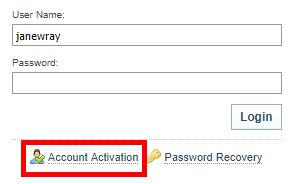
Result: The User Account Activation dialog is displayed.
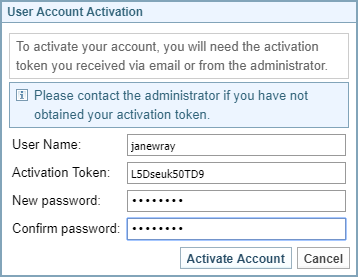
After you have activated your account, the activation token will no longer work.
Reset your Sintelix password
To reset your Sintelix password, you need a password activation token.
If email notifications are enabled, you can get an activation token automatically emailed to you (see Request an Activation Token). If not, you need to ask an Administrator to reset your password and give you an activation token.
For Administrators, see Reset Administrator Password.
Request an Activation Token
To get an Activation Token automatically emailed to you:
-
On the Sintelix Log In screen, select
 Password Recovery.
Result:
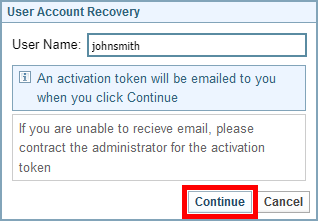
When email notifications are enabled, the following dialog is displayed.
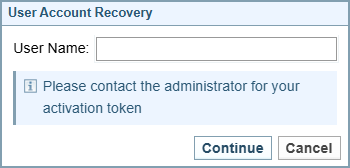
If email notifications are not enabled, the following dialog is displayed.
-
Enter your user name.
-
Select .
Result: An activation token is emailed to you.
-
When you have received your activation token, follow the instructions to Activate your Sintelix Account, where you will be asked to enter the Activation Token and set up a new password.