Using Help
The following information provides some tips and guidance for using this help documentation.
Help Controls
The help controls, and what they do are summarised below:
 |
Displays the help documentation content organised into a table of contents. Select an item to view the contents in the topic pane. Selecting an item will also expand and/or collapse any child topics. |
 |
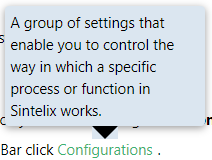
Displays a list of terms that have been given a definition. Select a term to view the definition. When these terms are used within the help, hovering over the term will display the definition in a popup. For example:
|
 |
Allows you to print out a topic. |
  |
Expands or Collapses all dynamic dropdown elements on the page,
|
 |
When a topic is opened from search results, the search terms are highlighted within the topic. Select the Remove Highlights button will remove the search term highlights from the topic. |
  |
Select the previous or next page in the table of contents sequence. |
 |
Type search term/s in the search field and press Enter to find topics containing the search term/s or phrase. See Searching Help. |
 |
When the sidebar collapses on smaller screen, the menu button is displayed. Hover or click on the menu button to display the sidebar. The sidebar provides quick links to headings within a topic, as well as links to related topics. |

Finding info
There are different ways to navigate and find the information you need, including:
- selecting the help icon within Sintelix to take you to a specific page in the help
- Searching Help
- navigating using the table of contents
- the quick links panel to the right of the content which summarising the headings in a topic and also lists related tasks, configurations and administration tasks.
- popup links which have the popup icon
 before the link, which will open in a popup window, for example:
  .
. - links between topics which appear without a popup icon before the link, for example:
 .
. - glossary links, which appear as green text and appear in a box above the text.
Links from Sintelix
Some panels and dialogs in Sintelix have a help icon (e.g.  or
or  ) which will link to the help page specific to that function.
Search
You can search help to find information on your topic of interest. Simply enter the term in the Search field and press Enter. The results will be displayed in a topic pane.
Select the topic title to open the topic. Notice that the search words will be highlighted within the topic page. Each search term will be highlighted using a different colour. To remove the search highlights, select the Remove Highlights button  on the topic toolbar.
For example,  .
.
Tips
Searching for 'green text' will find topics containing the word 'green' and the word 'text'. To search for a specific phase, enclose the words in quotes, for example, search for "green text" rather than just green text.
For more advanced tips on using Search, see Searching Help.