What's New with Sintelix!
Welcome to Sintelx 8!
Wow! Sintelix 8 is packed with new features! Here are a few highlights:
-
Importing structured data is easier than ever with our new Structured Import wizard. Easily import Excel, delimited, fixed width and JSON files. We will be adding more formats to the wizard in the near future. See Load Structured Data.
-
Quickly explore and understand relationships between entities by listed neighbours in nested tables. See Network Table - Nested Neighbours.
-
You can now ingest Geospatial files which can be viewed on maps. See Geospatial Data Files.
-
Maps have been enhanced with the new heat map feature and the ability to connect to a custom map server. See Map Settings: Heat Map, Base Map Improvements and Custom Map Server.
-
You can now group links in a Network to calculate total count, total strength or neighbour overlap using the Link Aggregation Network Expansion (Network Link Aggregation). You can view the result in the Network Graph using the improved Visualisation Options, ability to filter or remove links based on strength and to show shared neighbours when two nodes are selected (Network Graph Options).
We have also updated the Sintelix Chrome Extension (V2.2.4) to include platform updates and minor bug fixes.
New Features
Load Structured Data
Combine the power of unstructured and structured data analysis.
We are excited to release a new method to ingest structured data directly into Documents and Networks, including support for unstructured data held in structured fields.
You choose between Unstructured and Structured data ingestion when you Add (Ingest) Documents.
See Unstructured or Structured Ingestion and Structured Ingestion.
Load Structured Data supports:
- Excel
- Delimited
- Fixed width
- JSON files, and
- Databases.
Structured Import Wizard Features
The powerful Load Structured Data configuration wizard allows you to control how structured files are ingested, allowing structured fields to become entity nodes without the need for entity extraction.
-
transform data using a range of functions, for example, combining fields, formatting dates, etc.
-
filter data being imported, either using a fixed value or a parameter value entered at the time of importing
-
define the Document content including assigning source fields to properties and tags. Source fields published to the document Content section will also be processed using unstructured ingestion.
-
create entity nodes from source fields, and
-
create links between nodes.
A Structured Import Example is provided, which includes example Structured Import configurations and an Excel spreadsheet containing sample data.
You can import the configurations and then add the sample file using one of the example configurations to explore the results. Modify the configurations and see the effect on the sample file. Demonstration videos are included with the example.
Demo of Structured Import
The video shows how to create a simple Structured Import configuration and to then ingest an excel spreadsheet using the configuration.
To view the video in full screen, select the
 icon.
icon.
Network Table - Nested Neighbours
Quickly View Neighbours in Nested Tables. You can have multiple nested tables, allowing you to quickly explore and understand relationships between entities.
Click on the video to open in a new tab.

Network Link Aggregation
You can now create a Network Expansion that will create a new link type that calculates the total count, total strength, or the neighbours in common for selected links between nodes.
See Link Aggregation.
Network Graph Options
Network Graph Visualisations
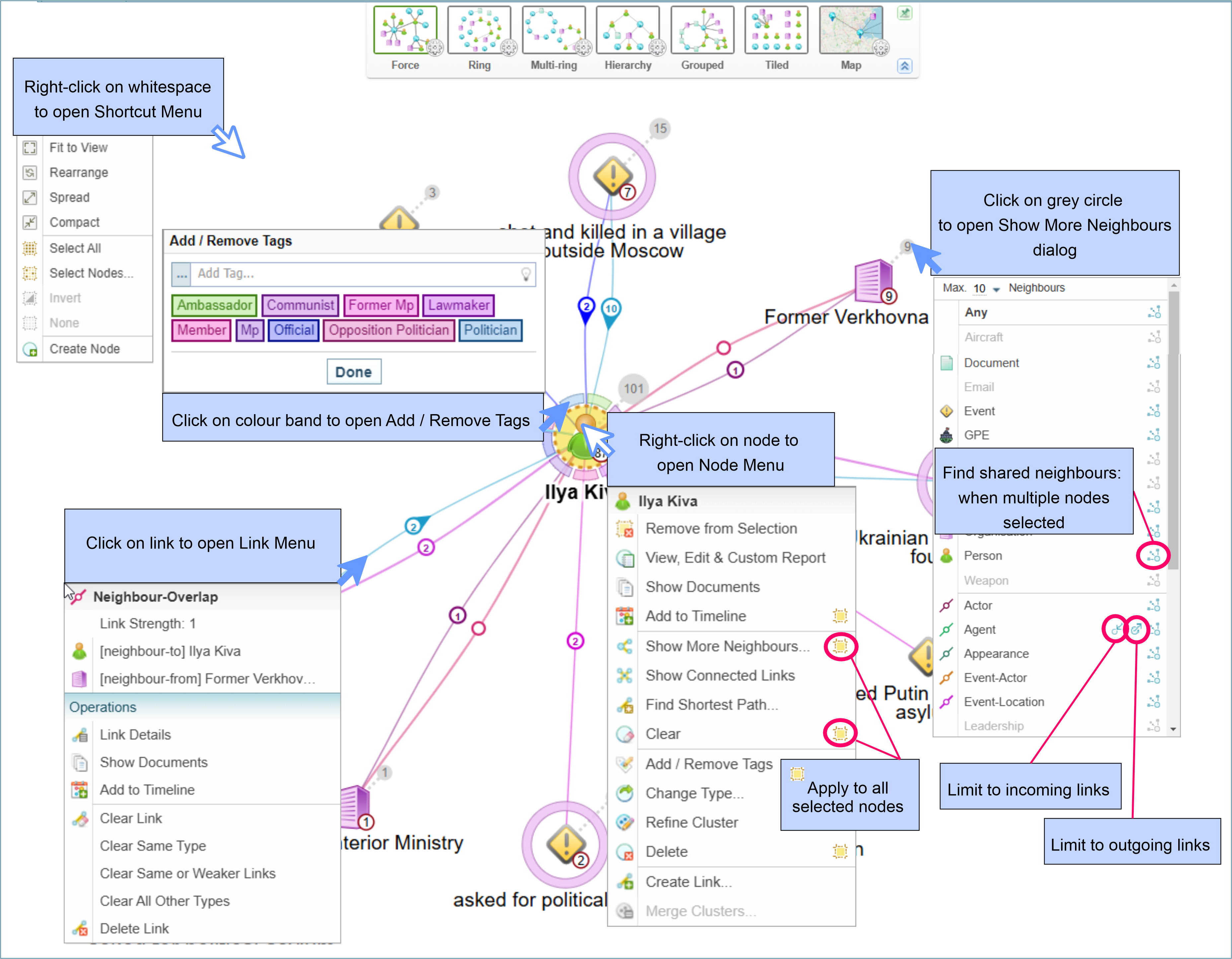
When viewing Network Graphs, you can use the visualisation options to switch the link value displayed in the circle on the link line between link member count (single line circle) and link strength (double line circle). See Visualisation Options.
Clear Links by Strength
You can clear links with a Link Strength equal or less than the value set. This allows you to examine the strongest links between nodes.
Show Shared Neighbours
When you select two nodes, you have the option to show the shared neighbours of the selected nodes.
Network Graph Shortcut Menu Summary
The updated shortcut menu summary highlights the new icons for identifying actions for multiple selections and links with a Link Direction.
Geospatial Data Files
You can now add Geospatial Files into Sintelix. This fantastic feature allows you to capture and display geographic information (routes, areas and images) viewed using the Maps feature. Geospatial data is captured in the Network as geo-data nodes.
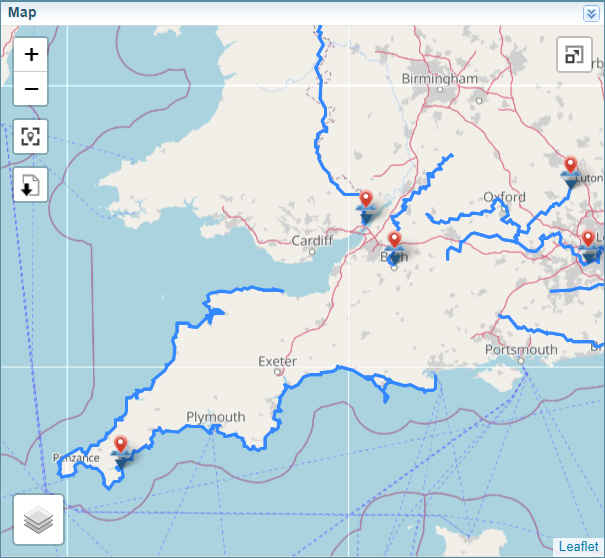
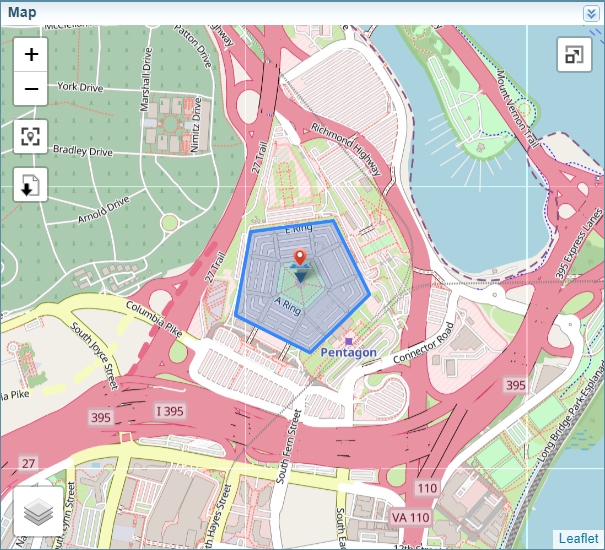
Below are examples of using Maps to view Geospatial information to display routes and areas.
You can try importing sample Geospatial files. See Geospatial Files Example.
Supported Formats
-
KMZ/KML
-
geoJSON
-
geoTIFF
-
SHP
-
GPX.
This map is displaying Geo-nodes with routes (paths):
This map is showing a Geo-node highlighting an area (shape):
Map Settings: Heat Map
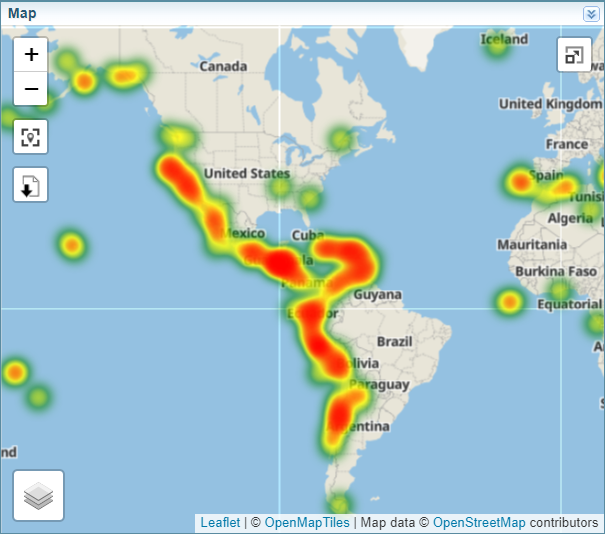
You can now change map settings to display:
-
Geo-data, for example, see:
-
Geolocations (shown with traditional map markers)
-
Heatmaps (shown to the right).
Custom Map Server
Sintelix 8 supports the configuration of a custom map server.
This configuration can be used to connect to an online raster map server, or to connect to an offline map server supplied by Sintelix.
See Custom Map Server.
Enhanced Entity Extraction using Deep Learning
Benefit from advancements in Large Language Models and Deep Learning applying multiple layers of processing to extract progressively higher level features from data.
Select Sintelix's enhanced mode Entity Extraction to use the processing power of GPUs to achieve more precise and accurate entity extraction (also called named entity recognition).
Ingestion Configuration
To use enhanced Entity Extraction during ingestion, select the Enhanced Extraction option in the Document Processing configuration.
Languages
Multiple Language Pipelines are supported (license required).
Requirements
Requires the Sintelix GPU Driver and GPU Plugin to be installed with a compatible NVIDIA GPU (8GB+ VRAM recommended). See Install GPU Enhanced Mode.
User Account Menu
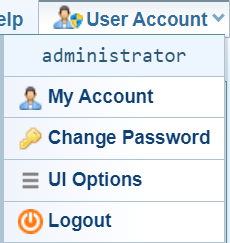
User Account Menu
The User Account menu has been updated to display "User Account" instead of the user's user name. The user name is now displayed when the User Account menu is displayed.
See My Account.
Documents
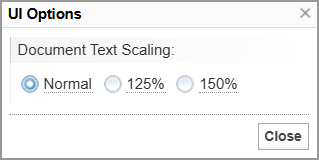
View Documents: Change Text Scaling
You can change the scale of text displayed in Documents using the new UI Options accessed from the User Account menu.
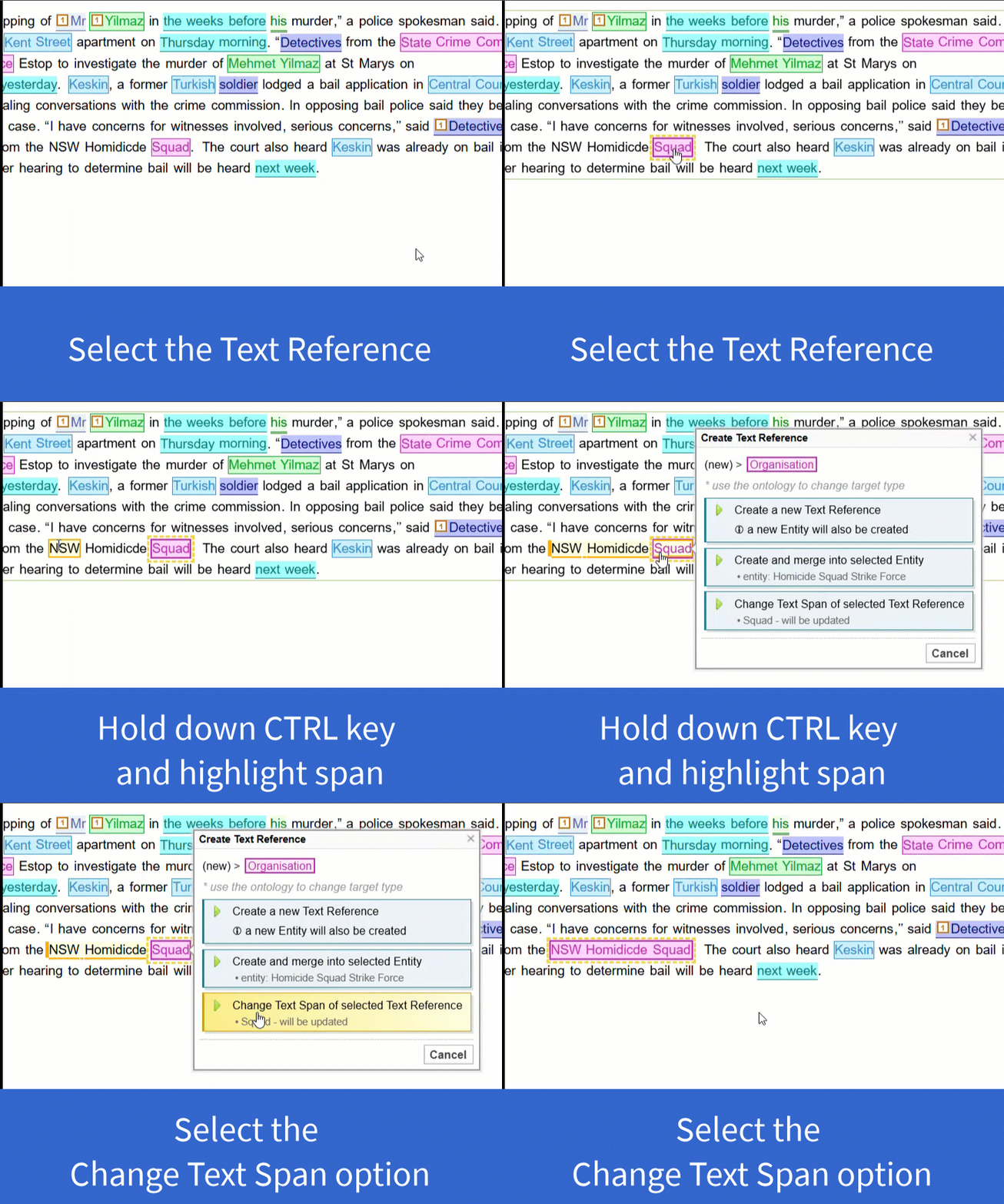
Edit Documents: Change Span of Text Reference
When editing a Document, you can quickly change the span of text included in a Text Reference:
Forensic Analysis
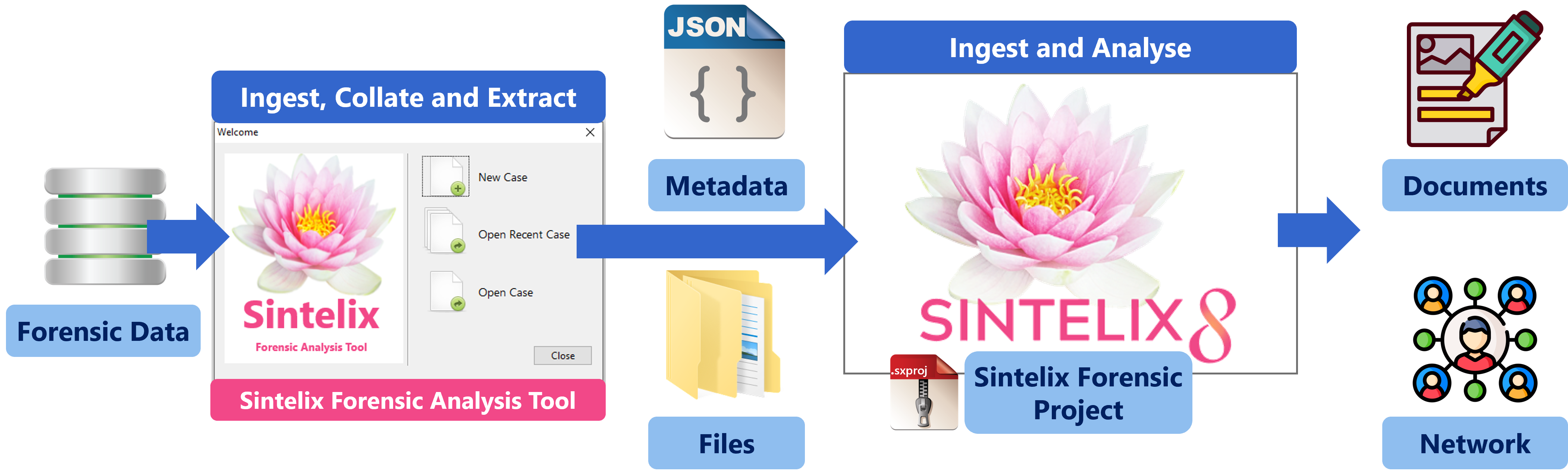
Forensic analysts collect data from devices and other source for analysis.
Forensic data files tend to be images of hard disks or systems memory that are large and contain large amount of binary data, not suitable for unstructured text analysis.
Sintelix Forensic Analysis Tool
Sintelix has a Forensic Analysis Tool designed to collate metadata and extract files for analysis in Sintelix.
See Forensic Analysis.
Improvements
Network Tables
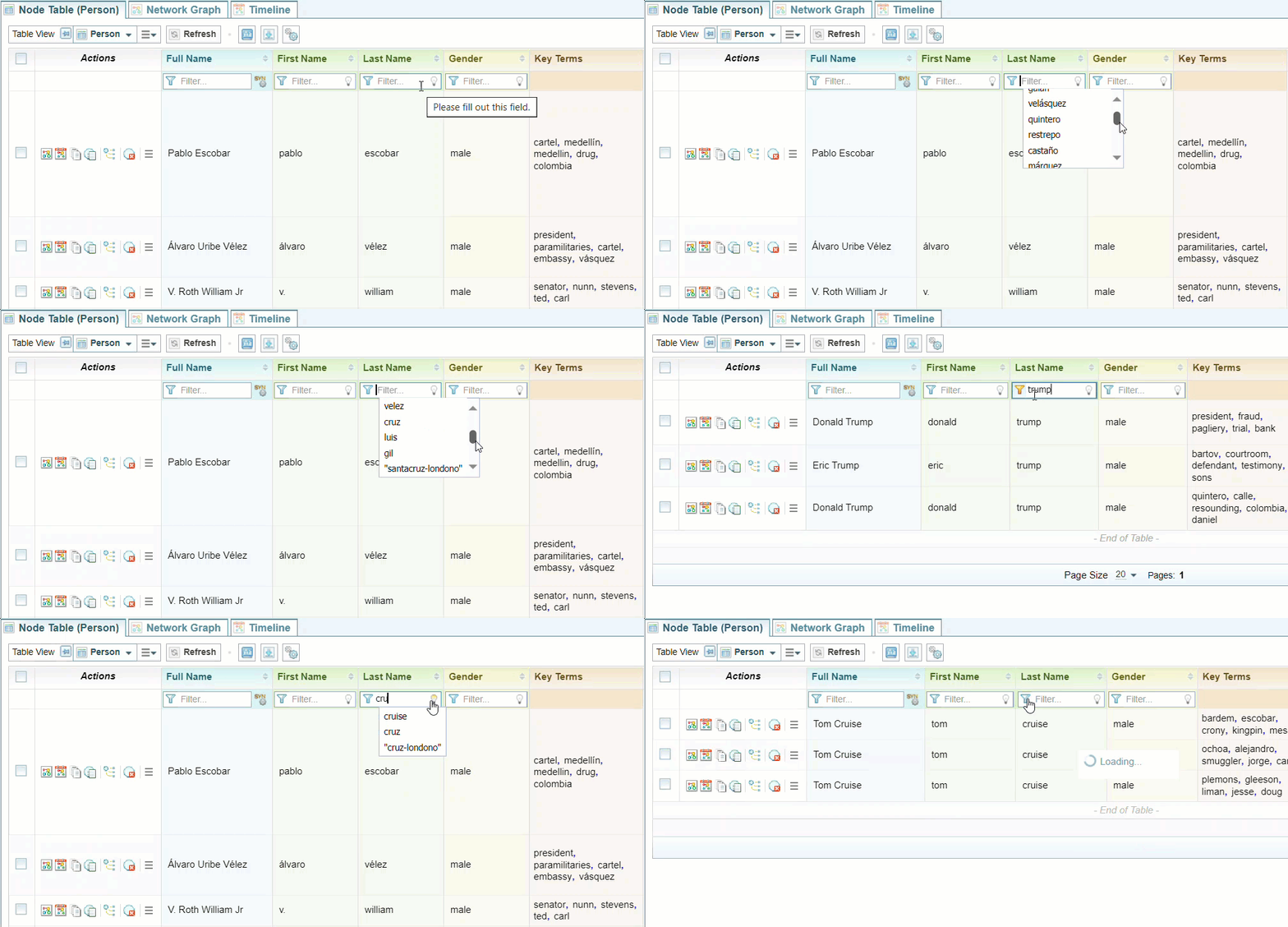
Show Suggestions
You can quickly filter a field in a Network Table when the lightbulb  is shown.
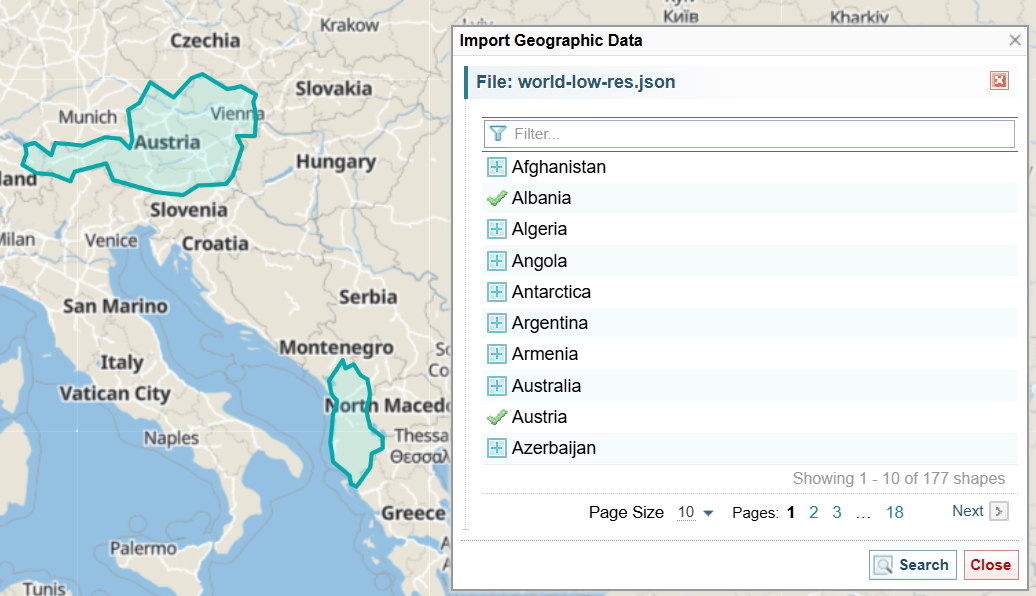
Filter by Map Area
You can quickly Filter a Network Table using a Map (geolocation) by either:
-
drawing shapes on a map or
-
selecting pre-defined shapes from a catalog (which you can configure using the new Geoshape Catalog configuration).
More Row Height options
When editing a Table View design, you can adjust the row heights from 1 to 5 lines or unrestricted.
See Edit the Table View.
Default Views and Forms
Sintelix now provides default Table Views and Forms for built-in Entities.
Harvester
Changes to Harvester Query options
We have added some improvements to how you Create a Harvest Query:
-
Search Engine Rule Sets are no longer listed in the Rule Sets list. They are only shown in the Search Engines section.
See Search Engines.
-
There is now a checkbox to disable or enable all Rule Sets. This can be useful when you only want to have one or a few Rule Sets enabled. You can disable them all and then enable only the ones you want.
-
You can now select a checkbox to Harvest All IMGs. When selected, this overrides the Rule Set settings for the elements being harvested. When harvesting, all images will be included within the elements being harvested. Images in elements not being harvested will still be excluded- see Harvest Parameters.
Changes to Processing Harvester Queries
-
When images are harvested, any link for the image will be retained.
-
Harvester workers are pre-initialised workers to make harvesting perform better.
Harvester Rule Sets
Rule Set Configurations
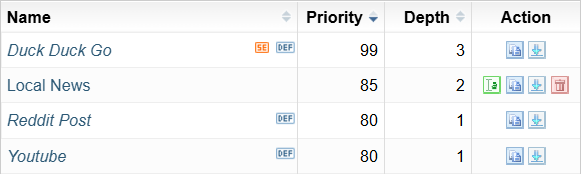
The list of Rule Set Configurations includes the Priority and Depth columns.
The Rule Sets are listed in Priority order, the same order they would be applied when Harvesting.
 - Indicates the Rule Set is for a Search Engine.
See
Configurations
EES Conditions
You can now include multiple values in condition statements in EES.
Sentiment Analysis.
There are new options available when configuring sentiment analysis.
Improvements to Help
Examples
There is a new section in the Help, called Examples. Currently there are two examples you can use to try out features of Sintelix:
We will include more examples in future releases.
Harvest Documents
The Harvest Documents section has been completely re-written.
We have also included an explanation of Harvest Depth. See Concept: Harvest Depth.
Dictionaries
The Dictionaries configuration section of help has been completely re-written.
Part of this process has also been to add the new Key Concepts section, to help understand some of the terms and concepts referred to in the help.
Help for the Code Editor and Text Graph Analyser have also been updated.
Administrators
-
The Third Party Licences have been updated for Release 8: Sintelix 3rd party licenses - Release 8.pdf
For more detailed information on the bug fixes and improvements to Sintelix, refer to our latest Release Notes.