Edit Text References in a Document
Create a new Text Reference
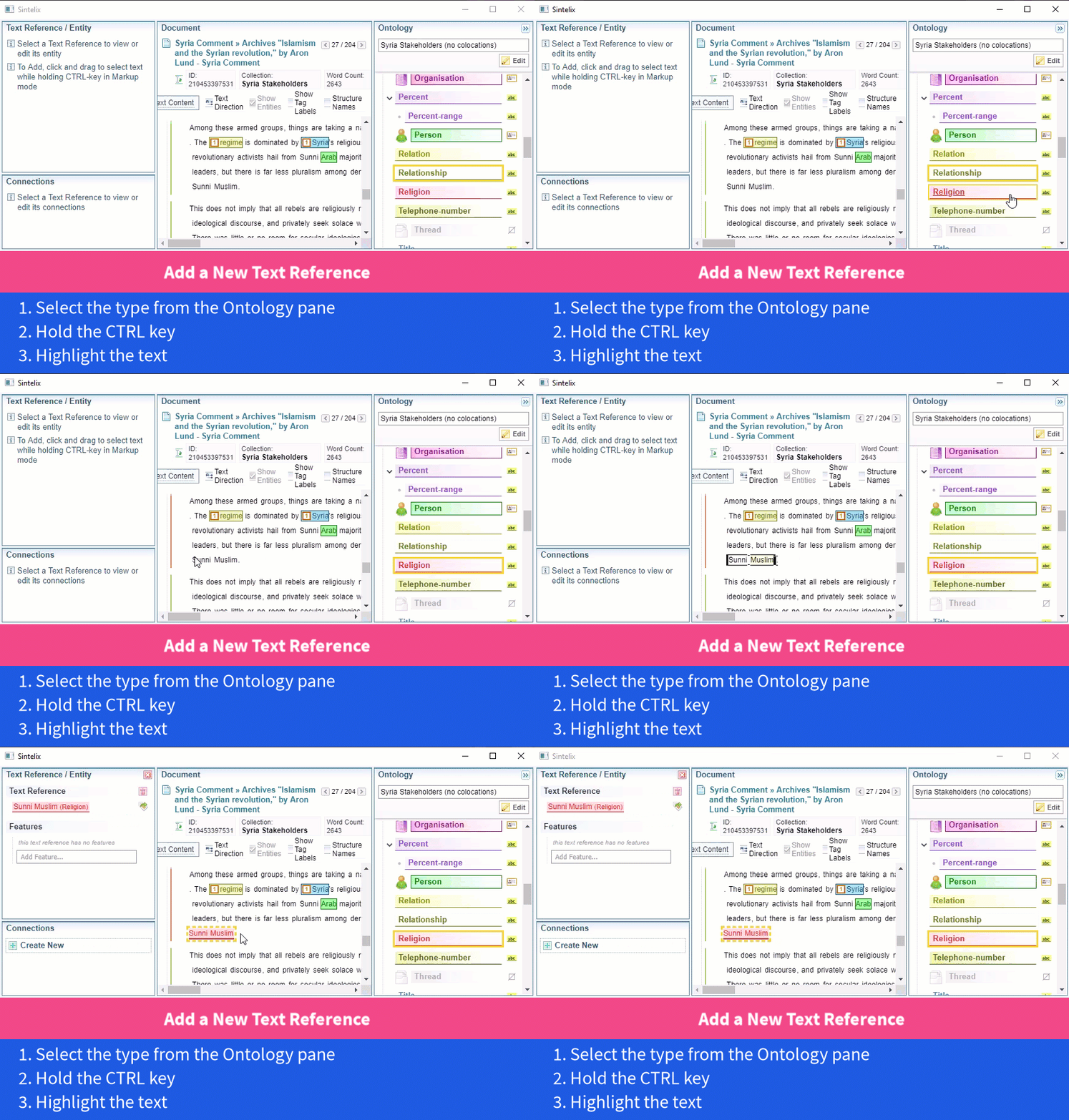
To add a new text reference to a document:
- make sure no entity is currently selected
- select the desired text reference type from the ontology view on the right
- hold the control button on your keyboard
- using your mouse, click and hold on the first word you want to markup
- holding the left mouse button, move to the last word to markup
Text must be selected from left to right.
-
release the left mouse button.
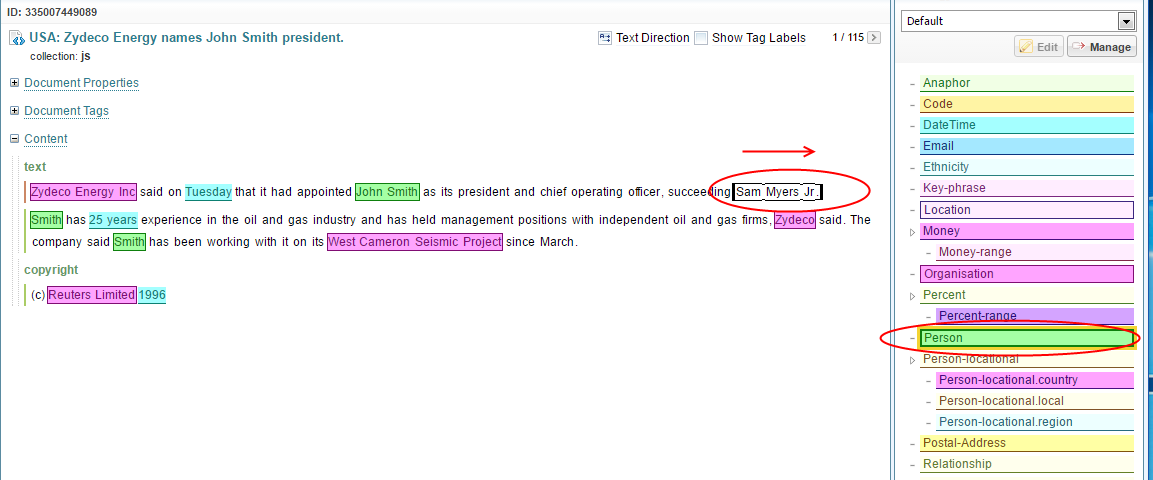
Text reference will be created. If the current Document Processing Configuration declares the selected type as Document Entity Resolution , a new entity for that text reference will be created as well.
Delete an existing Text Reference
To delete a text reference, right-click on it, then select Delete ".
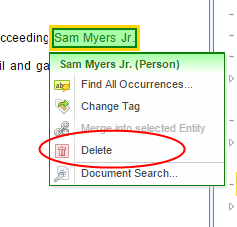
- If this text reference does not belong to an entity, it is deleted immediately.
- If this text reference belongs to an entity, but is the only text reference of that entity, it is deleted immediately, and the corresponding entity is also deleted.
- If this text reference belongs to an entity, but the entity has more text references, a pop-up gives an option to delete all of the entity's text references in bulk.
Change the span of a Text Reference
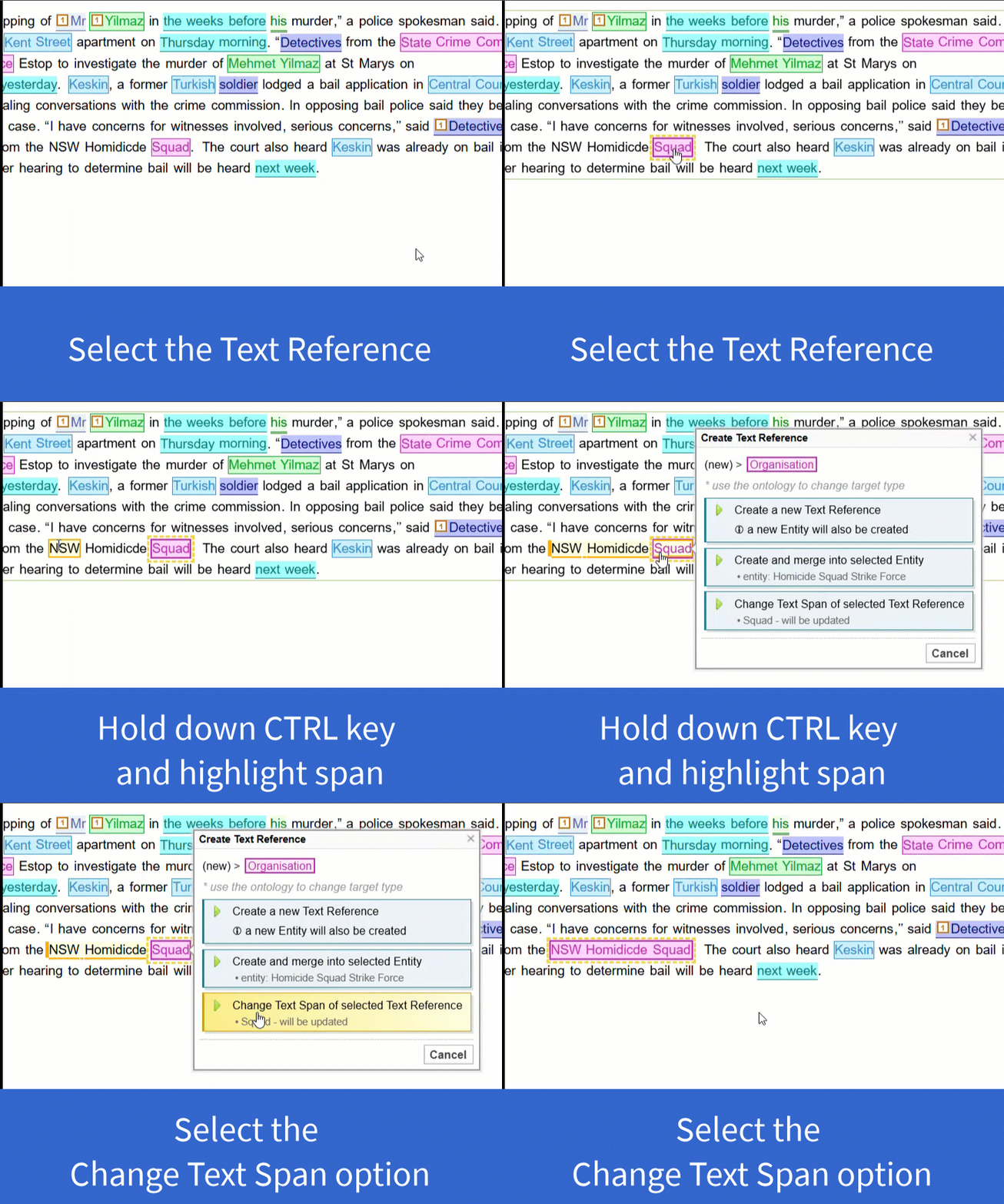
To change the span of text included in the text reference:
-
Select the text reference you want to edit
-
Hold the CTRL key and highlight the text.
Text must be selected from left to right.
-
Select the Change Text Span of selected Text Reference option from the Create Text Reference dialog.
Change the Type of a Text Reference
To change the type of a text reference:
- Select the desired text reference type from the ontology view on the right.
- Right-click on the text reference to change.
- From the menu, select Change Type .
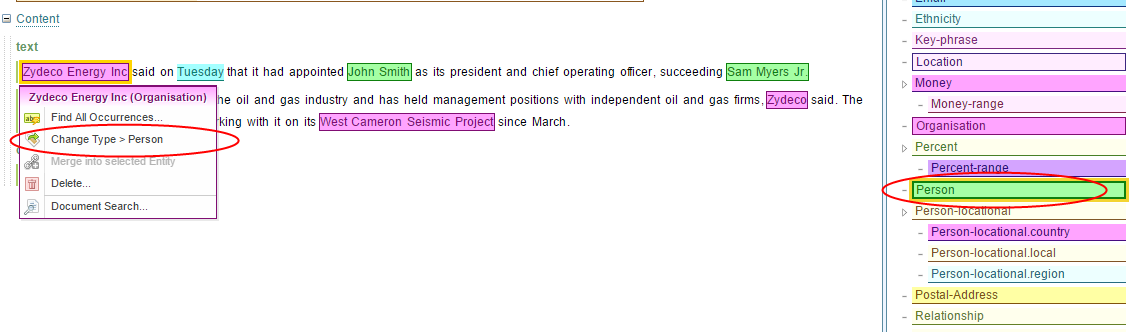
Similar to deletion, if the text reference belongs to an entity that has other text references, a pop-up appears. The pop-up gives an option to change the type of all the text references of the entity.
Create a Text Reference and add to existing Entity
To create a text reference and immediately add it to an existing entity:
- Select a text reference belonging to an entity you want to merge to.
- Hold the control button on your keyboard.
- Use left mouse button to markup new text reference, as described in the Creating a new text reference section.
Create multiple Text References with the same text
To markup all instances of identical text:
- Create an example text reference.
- Right-click on that text reference.
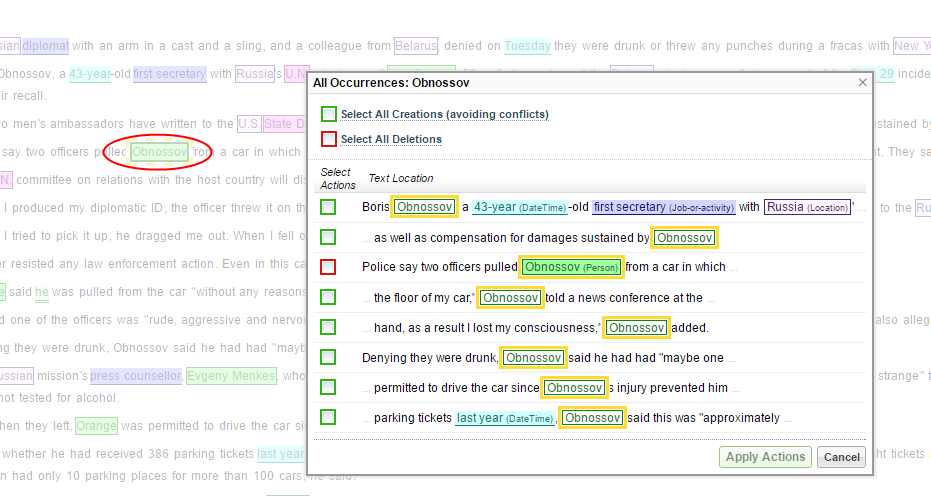
- Select Edit all Occurrences .
- In the window that opens, select all instances of the same text you want to markup.