Dictionaries
What is a Dictionary?
Dictionaries provide a simple way of creating text references, such as entities, when documents are ingested.
Dictionaries are a collection of wordlists. Each wordlist contains a list of words or phrases that you want to identify, such as types of weapons, names of illicit drugs, names of specific organisations and war crime indicators. Each word or phrase is referred to as an entry.

Example
Below is an example of a simple wordlist in a dictionary, where each word listed will be tagged as an Illicit Drug.
#wordlist tag:Illicit Drugs
fentanyl
heroin
morphine
opium
oxycodone
ecstasy
cocaine
Sample Text:
Fentanyl, morphine, opium and oxycodone were also discovered during the raid of the heroin dealer's home.
Result:
Fentanyl, morphine, opium and oxycodone were also discovered during the raid of the heroin dealer's home.
Access
Select Configurations > Dictionaries to view the Dictionaries available in the current Project.
How it is applied
Dictionaries are added to the Document Processing Configuration, which in turn is added to the Ingestion Configuration.
Dictionaries and ESS
Entity Extraction Scripts A Sintelix configuration for marking up and creating connections between document text using a highly configurable scripting syntax. (EESs) allow for more advanced control over entity extraction. EES scripts work faster when Dictionaries are used to create the initial text reference.
Capabilities
Dictionaries offer the following capabilities:
- single words or multi-word phrases
- add features to entries
- case sensitivity
- context-sensitivity - check if term appears in the same block with (or without) other words
- include or exclude plurals
- include or exclude alternative spelling for names
- escape special characters.
Edit and Test Dictionaries
You can edit and test Dictionaries, EES and Document Processing Scripts using the:
- Code Editor, and
- Text Graph Analyser to test the code and examine the resulting text graph and document output.
Test the Dictionary: Code Editor
The text editor provides code highlighting. To view the shortcut list of codes, press CTRL+Space.
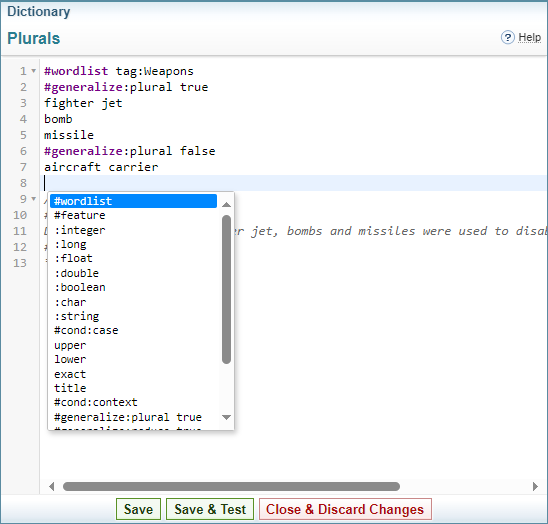
To test, select the button at the bottom of the Code Editor. You can select sample text or a sample document to test the code on and see the resulting output along with a detailed breakdown of the text graph.
For more information on using the Code Editor, see Code Editor.
Test the Dictionary: Text Graph Analyser
Video
Click on the image below to watch a video for quick introduction to defining and testing your Dictionary using the Code Editor and Text Graph Analyser.
For more information on using the Text Graph Analyser, see Text Graph Analyser.