Document Processing
Introduction
Document processing is an integral part of the Ingestion configuration. It is used to define what information is extracted from your documents and how it is marked up in the document output.
Early, Mid and Late Stage
Dictionaries, Entity Extraction Scripts and Document Processing Scripts can be run at different stages of the process:
-
Early stage runs added dictionaries and entity extraction scripts before Sintelix’s Learned Entity Extractor
-
Mid stage runs Document Processing Scripts immediately after the Learned Entity Extractor.
-
Late Stage runs after everything else has been run.
As a general guide, Document Processing is run as listed on the configuration page.
Process
To configure Ingestion:
-
Select Configurations > Document Processing
-
Select the configuration you want to modify.
See Manage Configurations for information on creating, copying, renaming, importing, exporting and deleting configurations.
-
Complete or modify each section's settings, as described below.
-
Select the button.
Enable built-in Entity Extraction
In its default state, document processing has a built in Entity Extraction that will extract common entities such as people, organisations and locations from your documents.
You can unselect the Enable Built-in Entity Extraction checkbox to disable the built-in entity extraction.
When disabled, the Dictionaries, Entity Extraction Scripts and Document Processing Scripts added below are used to apply entity extraction.

Enhanced Extraction
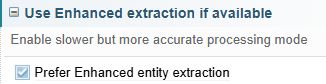
You can choose to use Enhanced entity extraction, if it is available.
Enhanced entity extraction uses a more sophisticated and accurate entity extraction process. However, it requires GPUs for processing. It may not be available, depending on the system running Sintelix. It may also run more slowly, depending on the processing power available.
You can unselect the Prefer Enhanced entity extraction checkbox to disable the enhanced entity extraction.
When disabled, the default entity extraction engine is used.
Phrase Chunker
The Phrase Chunker is an advanced feature for dividing a sentence into sequences of semantically-related words. Selecting the Phase Chunker checkbox will generate a new annotation type on the Text Graph.

Machine Learning
When editing a document, you can manually modify marked up to text references and connections.
You can save these edits so they can be applied to future documents processed by this configuration, by selecting the Enable Machine Learning checkbox.
Sintelix will save the text references in a Machine Learning dictionary and the connections in a Machine Learning entity extraction script.


How Machine Learning Works
Machine Learning applies when you make edits to the markups in a document (entities, text references and links). See Edit a Document.
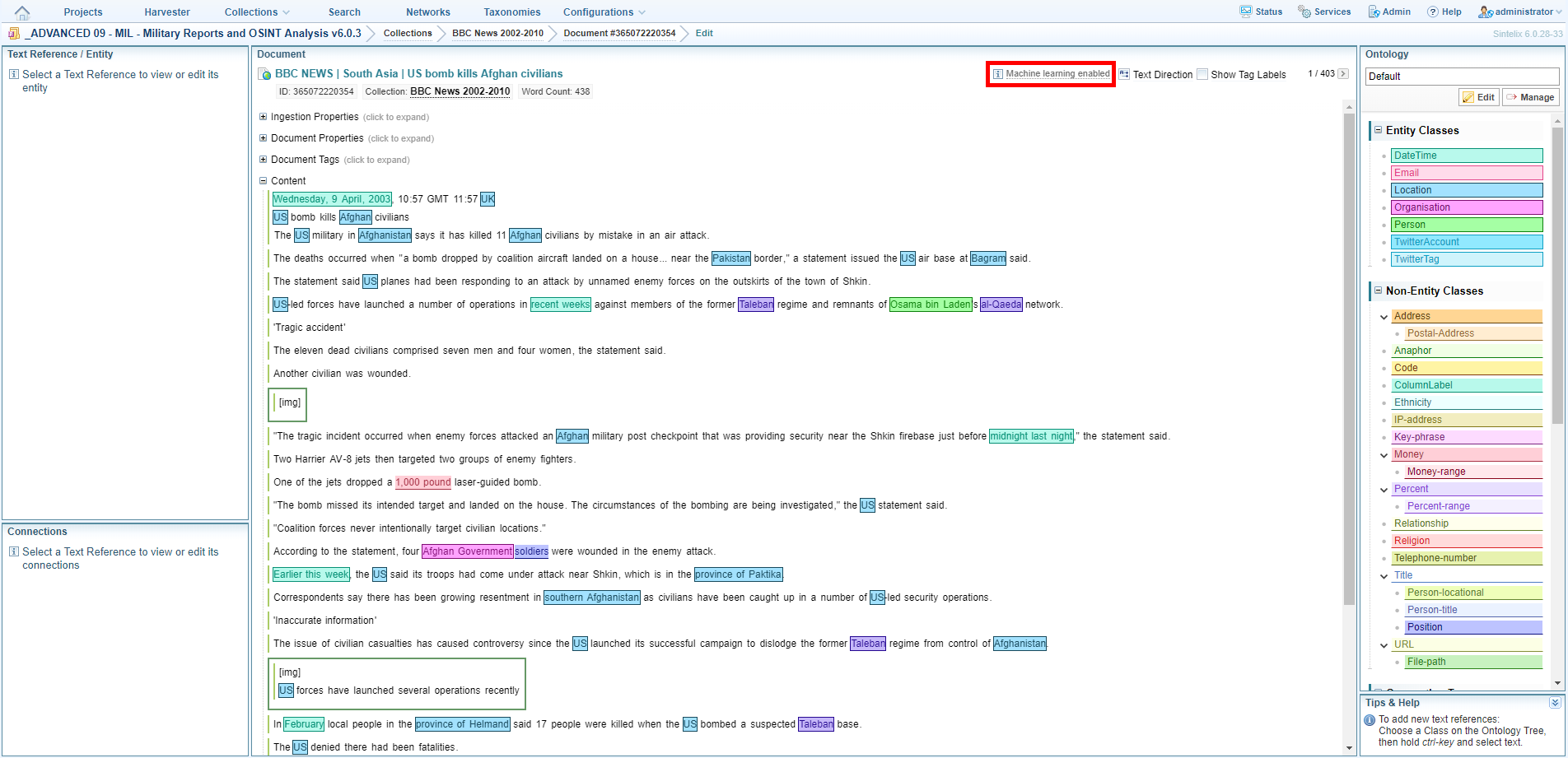
A message at the top of the Document pane confirms that Machine Learning is active.
Sintelix does the following:
- When you create a new text reference, the exact text will be added to the ‘learned’ namespace in the Machine Learning dictionary (unless an identical entry already exists).
- When you delete a text reference:
- if it was in the Machine Learning dictionary in the ‘Learned’ namespace it will be deleted
- if it was not in the ‘Learned’ namespace it is added to the ‘removed’ namespace
- When Sintelix applies the dictionary during document processing, any matching ‘removed’ namespace text references are removed first then any matching ‘learned’ text references are added (if they don't overlap existing markup). This removes any bad text references before new ones are added and classes are changed.
- The dictionary will be applied immediately before Late Stage entity extraction scripts, so a custom script can be used to interact with and refine the result.
- When you create a new connection between text references, Machine Learning will update the Machine Learning script (which is an entity extraction script). For each connection that is created this way, a very simple rule is added that matches the exact text of the connection.
- If you remove a connection, Machine Learning will remove the matching rule from the script (if it was created by Machine Learning).
- When Sintelix applies the script during document processing, the rules will add the Machine Learning connections but not remove any that you have deleted.
Script rules created by Machine Learning are very basic. They simply consist of existing text references and the tokens between them. They will work as they are but it is recommended that you use them as a template for developing custom entity extraction scripts.
Dictionaries (Early Stage)
Dictionaries added here will run before Sintelix's Learned Entity Extractor. Text References that have been created by the Dictionary in this stage will not be overridden by the Learned Entity Extractor.
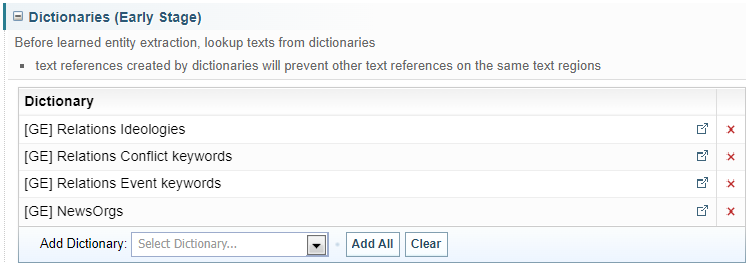

Click and drag to change the order.

Open configuration in new tab.

Click to remove item.
Entity Extraction Scripts (Early Stage)
Entity Extraction Scripts added here will run before Sintelix's Learned Entity Extractor. Text References that have been created by the Entity Extraction Script in this stage will not be overridden by the Learned Entity Extractor.
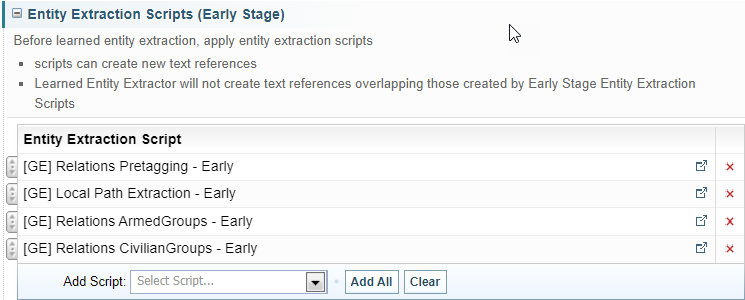
Click and drag to change the order.
Open configuration in new tab.
Click to remove item.
Learned Entity Extraction Configuration
This section enables you to exclude specific Text References from the document output. You may either enter the name of the Text Reference class, or select it from an Ontology to add to the exclusion list.

Document Processing Scripts (Mid Stage)
Document Processing Scripts added here will run after Sintelix's Learned Entity Extractor.
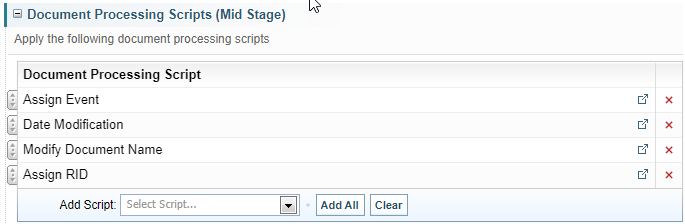
Click and drag to change the order.
Open configuration in new tab.
Click to remove item.
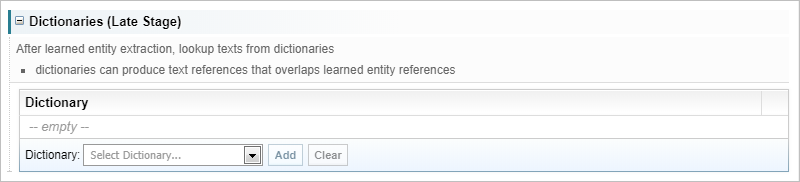
Dictionaries (Late Stage)
Dictionaries added here will run after Sintelix's Learned Entity Extractor. Text References created here can overlap Text References created by the Learned Entity Extractor.
Entity Extraction Scripts (Late Stage)
Entity Extraction Scripts added here will run after Sintelix's Learned Entity Extractor. Text References created here can overlap Text References created by the Learned Entity Extractor.
Scripts added here can refer to Text References created by the Learned Entity Extractor. Scripts added here can 0modify or delete existing Text References.
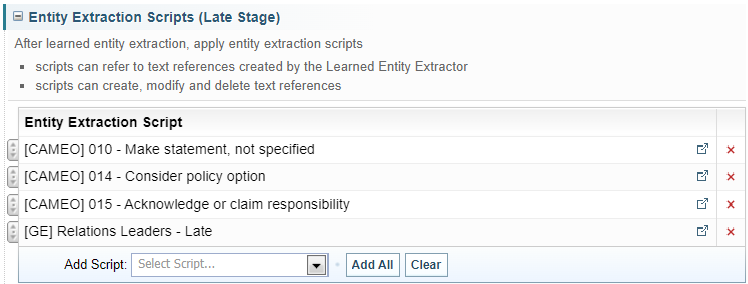
Click and drag to change the order.
Open configuration in new tab.
Click to remove item.
Sentiment Analysis
To configure Sentiment Analysis:
-
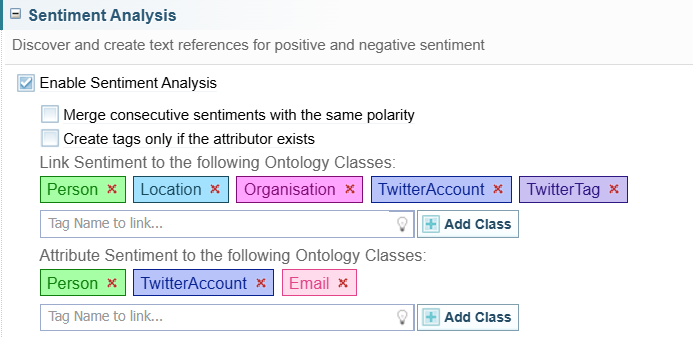
Select the Enable Sentiment Analysis option in the Sentiment Analysis section.
-
Select the Merge consecutive sentiments with the same polarity option, if required.
Example
For example, if the follow text was in a document:
Sample Text:
Australia is an exquisite, beautiful and affordable country.
The words "exquisite", "beautiful" and "affordable" are all positive sentiment terms, so when you have that box ticked it'll combine those three words, including separators and the merged term will be linked to the target.
If the checkbox is not enabled, the result is:
Result:
Australia is an exquisite, beautiful and affordable country.
If the checkbox is enabled, the result is:
Result:
Australia is an exquisite, beautiful and affordable country.
This applies to both positive and negative sentiments.
-
Select the Create tags only if the attributor exists option if required.
Example
The sentiment will only generate sentiment text references if Sintelix can detect a source and target for the sentiment.
For example, if the follow text was in a document:
Sample Text:
Australia is poor.
If the checkbox is enabled, "poor" would not be marked up as a sentiment as there is no attributor.
However, if the text in the document was:
Sample Text:
Putin said Australia is poor.
Then the sentiment text reference would be marked up, as an attributor was able to be identified.
Result:
Putin said Australia is poor,.
-
Specify the ontology classes to which sentiments can be linked and attributed:
-
To prevent sentiments from being linked or attributed to an ontology class, remove the class from the relevant list by clicking the delete symbol beside its name.

-
To enable sentiments to be linked or attributed to an ontology class, enter the name of the class in the field under the relevant list then click Add Tag.

-
Select the button.
Link Sentiment to the following Ontology Classes
List the entity classes which can logically have sentiment applied to them.
In the statement ‘I hate $200 parking fines’, for example, the negative sentiment ‘hate’ is not directed at the ‘$200’ money entity. You can capture this intuition by ensuring that the ‘money’ entity class is not in this list.
Attribute Sentiment to the following Ontology Classes
List the entity classes which can logically express sentiment.
Attributing sentiment to an entity can be useful to produce network visualisations. It may be useful to learn ‘who has expressed negative sentiment toward my business’ rather than ‘what negative sentiment has been expressed toward my business’. Modifying the entity classes in this list protects against illogical entity classes having sentiment attributed to them. For example, ‘the datetime 21/11/2018 expressed a negative sentiment towards my business’ does not make sense as we assume that a datetime entity cannot express sentiment. However, ‘the Twitter account @biggestfan expressed a positive sentiment towards my business’ is valid, as a Twitter account is a source from which a sentiment could have been expressed.
See Perform Sentiment Analysis for more information.
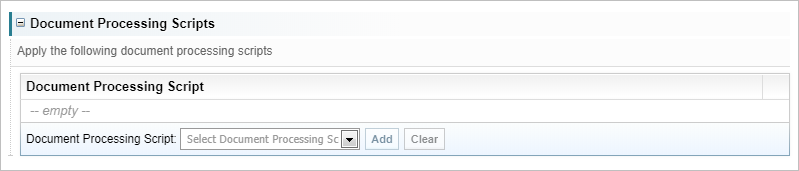
Document Processing Scripts
This is an advanced feature that rarely needs to be used. It exists to cover any marginal use cases that may require a modification of the standard Document Processing workflow.
Select the button.