Load Structured Data
Structured Import allows you to set a standard for importing files containing structured data, for example, Excel and CSV.
How it is used
When adding files to a Collection, the user choose to add unstructured or structured files.
When adding structured files, the user selects the Structured Import configuration to apply to the files being added to a Collection.
See Add (Ingest) Documents for more information.
Process
To create a Structured Import configuration :
-
Select the source type
-
Choose the Ingestion configuration to apply to the import
-
Upload a sample data file (or connect to a database)
-
Step through each of the Structured Import Tabs, using the button to move to the next tab.
-
Preview the Results of the configuration in the Sample Data section.
-
Select the button.
A Structured Import Example is provided, which includes example Structured Import configurations and an Excel spreadsheet containing sample data.
You can import the configurations and then add the sample file using one of the example configurations to explore the results. Modify the configurations and see the effect on the sample file. There are also demo videos showing the different Structured Import configuration tabs.

Video: Create Structured Import
The video shows how to create a simple Structured Import configuration and to then ingest an excel spreadsheet using the configuration.
To view the video in full screen, select the
 icon.
icon.
Structured Import Tabs
The Structured Import configuration steps through each of the following tabs.
The tabs must be completed in sequence when you first create a configuration.
Once you have completed each tab, you can step back to previously completed tabs to make changes.
You can Save your progress as you step through the Structured Import Wizard.
The tabs are shown at the top of each help topic to make it easy to navigate to each help page.
|
Tab |
Description |
|---|---|
|
Source |
You choose source type and upload a sample data file on which to base the configuration. You can't change the Source Type once the configuration has been created. You can upload different sample data files to test the configuration. |
|
Containers (Only Excel can have more than one Container) |
Containers represent a unique set of data. For example, in an Excel spreadsheet that has multiple worksheet tabs, each worksheet tab becomes a Container. You can choose which containers to include or exclude from the configuration. A configuration needs to be created for each active Container. See Containers. |
|
Data Definition (Unique to the Source Type) |
The Data Definition tab is unique to each source type. For example, for a delimited file, you identify the separator that defines the fields contained in the file. See Data Definition. |
|
Transformation (Optional) |
The Transformation tab provides a range of functions that allow you to transform data. For example, you can combine fields to create a new field. See Transformation. |
|
Filter (Optional) |
You can set filters to include or exclude data from the import. See Filter. |
|
Document Content (Optional) |
By default, a document is created for each row. Three sections unique to Structured Import are created:
You can choose the content to add to the document created for each row in the dataset. You can also assign document properties and tags. Any fields included in the document content will be processed using the ingestion configuration, identifying entities and links. See Document Content. |
| Structured Node Creation |
You can define the nodes (entities) you want created. You can add fields and features to the node from the source data fields. |
| Link Creation |
You can define how the entities link to each other, and what data become link features. See Link Creation. |
Preview the Results
The Sample Data section is displayed at the bottom of each tab so you can preview the effect of your configuration settings.
The Sample Data section displays a selection of the data contains in the Sample Data file. You can change the number of lines shown in the sample data from the dropdown on the right.
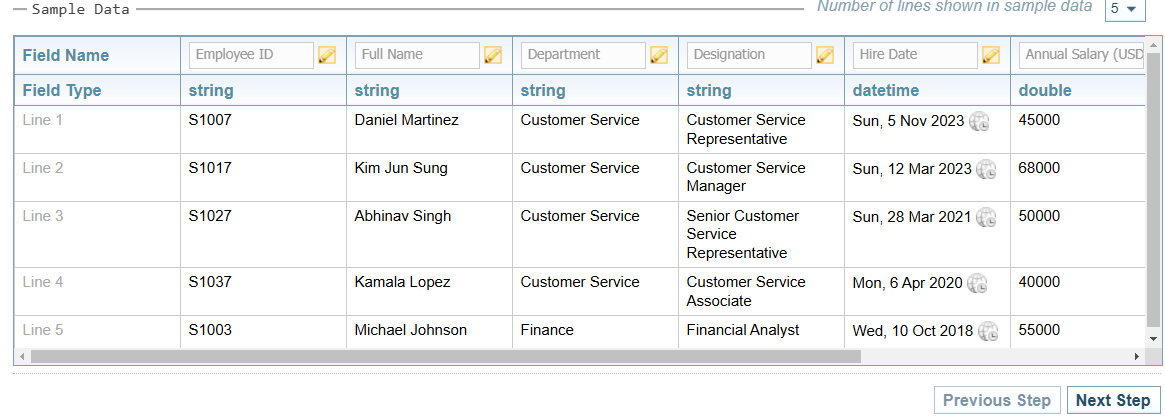
When you are satisfied with the configuration displayed in the Sample Data preview, select the button to move to the next tab.
Planning your Structured Import
It is important to plan your Structured Import. You need to decide:
-
if you need to create a Document from the data or only need create the Network entities and links for visualisation. For example, you would create a document if you want any unstructured text content ingested for extraction.
-
what data becomes entities and what data becomes entity fields and features.
-
how the entities link together, and what data becomes link features.
-
what unique identifiers are required to ensure the integrity of entities and links created when clustering across multiple structured and unstructured nodes and links.
Why use Structured Import
Structured data is data organised in a standard way, usually associated with software and databases.
For example:
-
a Call Log from a forensic tool analysing a smartphone.
-
transactions from accounting software.
-
call centre logs.
Sintelix can import structured data files using the unstructured data ingestion process, however, each file results in one document. You need to create Dictionaries and Entity Extraction Scripts to extract custom entities, links and features.
Using a Structured Import configuration allows you to accurately and easily select entities, links and features from the data. You can control how a document is created. Indeed, you don't need to create a document at all, you can simply ingest nodes and links directly into a Network.
Using the Structured Import configuration, you can analyse combinations of structured and unstructured data with greater control.
Example: Structured vs Unstructured
Below is a sample Excel spreadsheet.
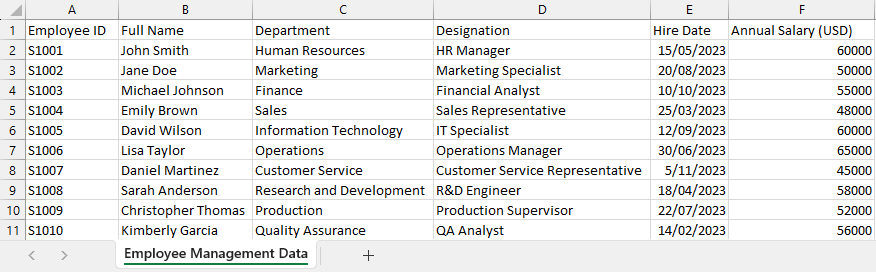
When this Excel spreadsheet is added using unstructured Ingestion, the file is ingested as a single document. You can see the names have been captured as Person, but other information has not been reliably extracted. Additional scripts are required to extract valuable information.
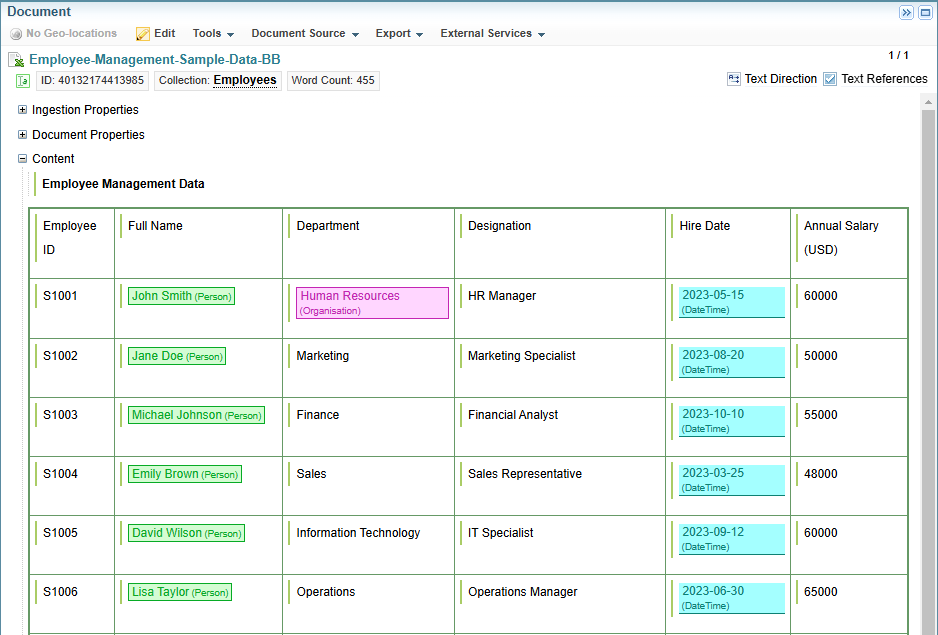
When ingested using a Structured Import configuration, we can define how that data is captured. We can create:
-
a document from each row
-
a Department entity.
-
an Employee entity, with the other fields added as features.
-
a link between Employee and Department.
The resulting document is shown below:
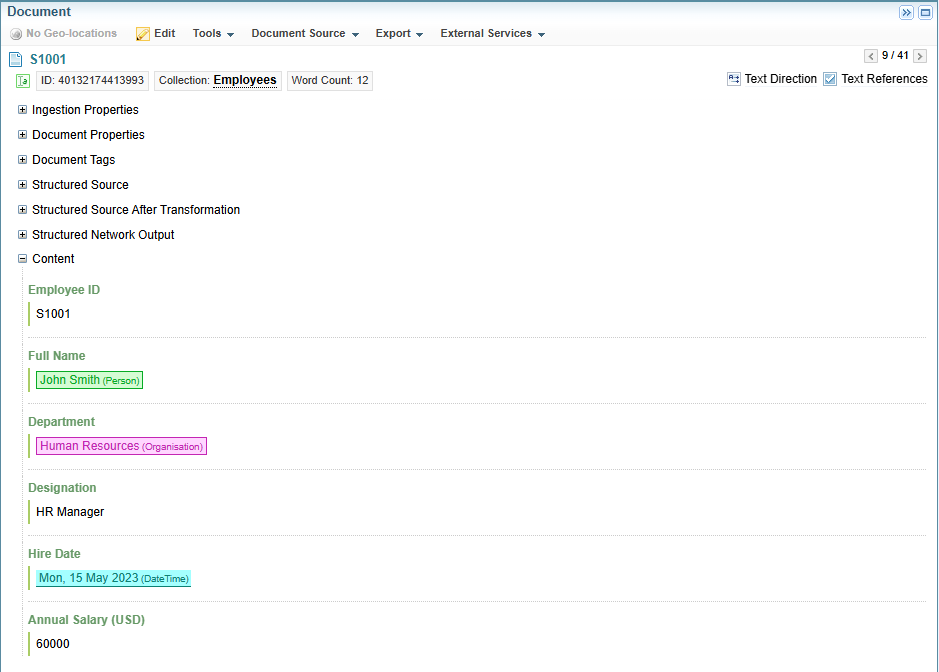
The Employee node contains the features from the data:
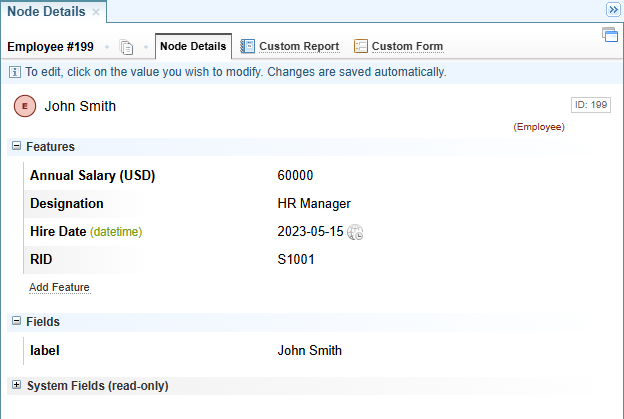
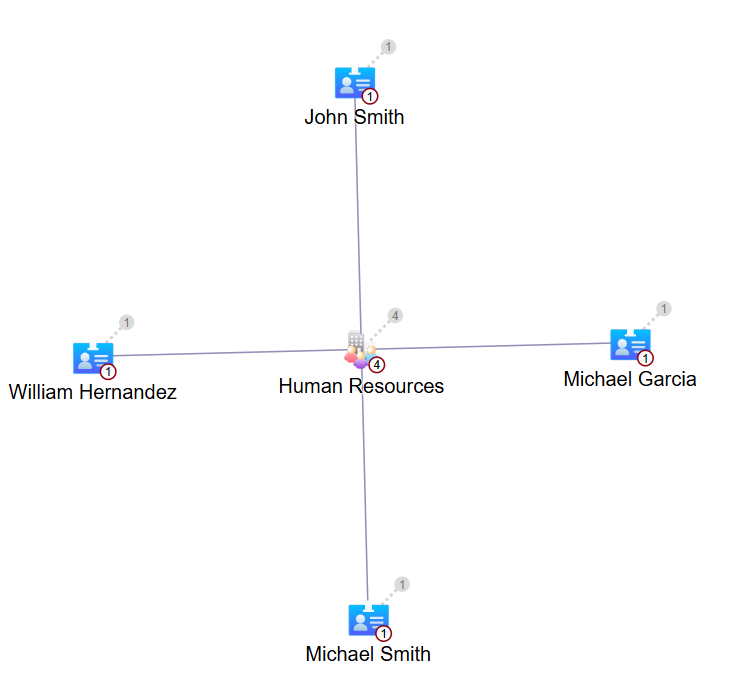
We can view a Network Graph to explore the relationships created from the data. In this case, the members of the Human Resources Department.