Structured Node Creation
You can create nodes (entities) from the fields and assign fields as entity features (attributes).
When you have created the required nodes, select to continue. Select the button to save your progress at any time.
Default Node
By default, a Node representing a record is created.

You can delete this node and create your own nodes as required.
Select the  Delete icon to delete a node.
Select the  Edit icon to change a node's settings.
JSON Reference Object
There is one additional field that is shown when working through the Load Structure Import configuration wizard for a JSON source file, called a Reference Object. See JSON Reference Object.
Create/edit a Node
Select  Create Structured Node to open the Create Structured Node dialog.
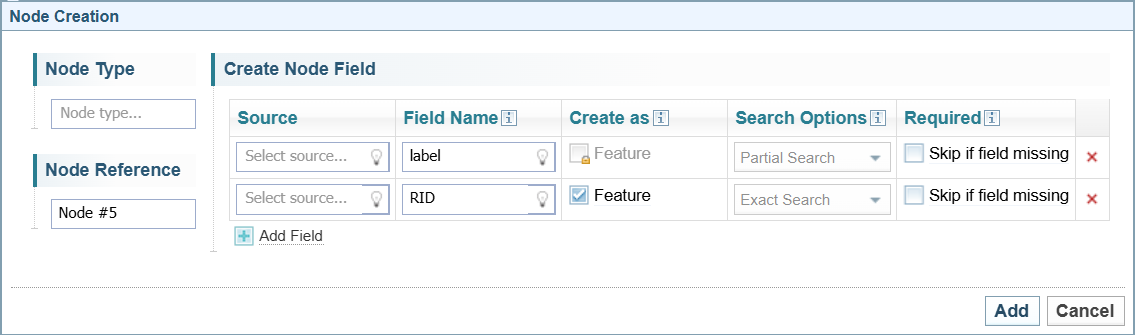
Identify the Node Type
| Node Type |
Enter the name for the type of node. For example, Person. You can create your own node type just by giving it a name, for example, Employee. The node types are listed in the Ontologies configuration. |
|
Node Reference |
The Node Reference is a unique identifier for the Node Type. Normally, it is the same as the Node Type. However, when you want to create two nodes with the same Node Type, you can by giving them a unique Node Reference. This helps to when creating links, where you may want to create different links between nodes. You can differentiate nodes with the same Node Type using the unique Node Reference. |
Select the Fields and Features
| Source |
Choose the field to use as the source. |
| Field Name |
Assign a Field Name for each source selected. By default, a label and RID source are listed. There are several special types of Field Names to be aware of.
|
| Create As |
Choose whether to create the source as a Field or a Feature. Field: A field is like a field in a database and is built into the schema of the Node/Link. Fields are unique to Networks. Feature: Used to store additional values (which may be missing) or to store multiple values, such as a list or a map of data. Features are more flexible, and you can add, delete and modify features in the Network. |
| Search Options |
Choose the required Search Option:
Fields with the same name across node configurations must have the same search option. If conflicting search options are found, Sintelix will automatically change the search configuration to 'exact search.' |
| Required | If required is checked: The node/link will not be created if the value is missing. |
|
Add Field |
Select Add Field to add additional fields and features to the Node. |
| Select to finish creating the node. |
Example
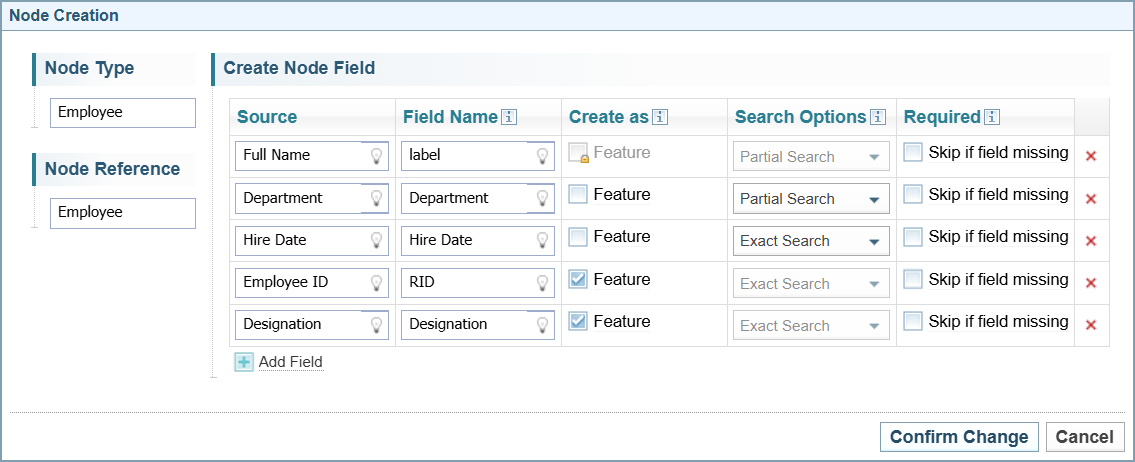
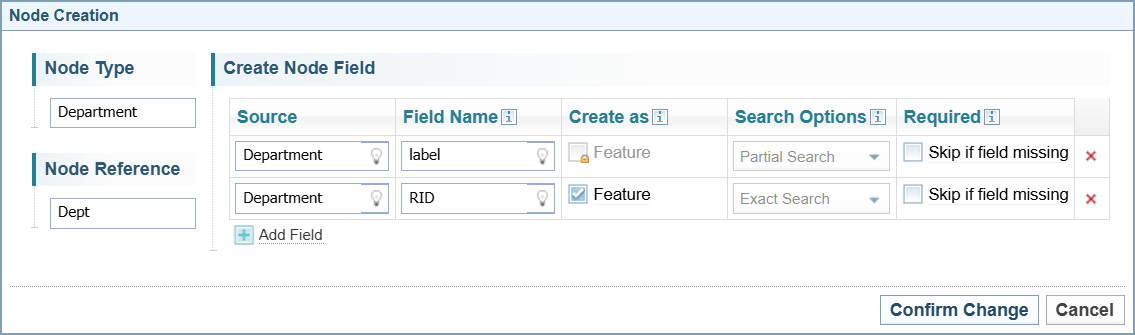
The example below creates two nodes: one for Employees and one for Departments.

No Sample Data
If there is no Sample Data, see Missing Sample Data.
Preview Document
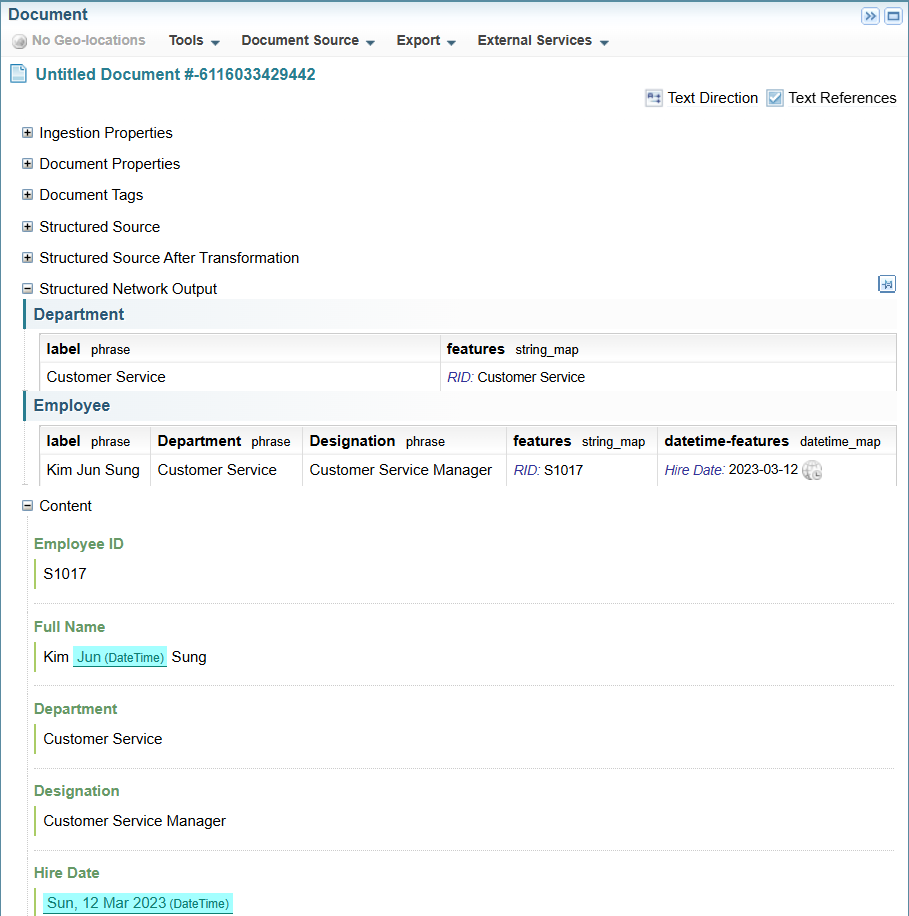
Selecting the  Preview icon in the Sample Data table will display a preview of the resulting document in the right pane.
A new section is added to the document: Structured Network Output.
This will list the structured nodes created for this record.