Transformation
Transformation allows you to alter the data (Optional).
For example, convert a string to a number, change a date format, combine fields to create a new field, etc.
When you have created the required transformations, if any, select to continue. Select the button to save your progress at any time.
Active Transformations
Active Transformations are listed in a summary table.

 Add Transformation Add Transformation
|
Opens the Transformation dialog to create a new transformation rule. The options displayed on the dialog varies depending on the type of transformation selected. |

|
Opens the Transformation dialog to edit the selected transformation rule. |

|
Deletes the selected transformation rule. |

|
Drag to change the order of the transformation rules. |
Transformation Types
The following transformations are available:
-
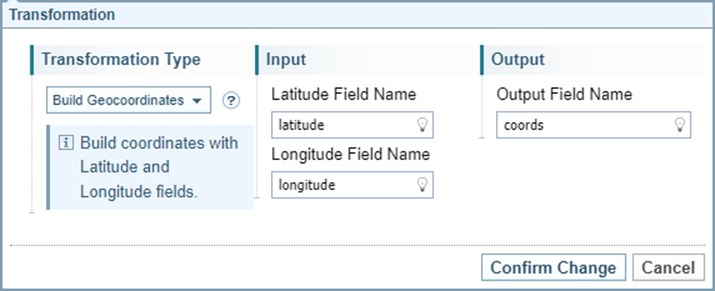
Build Geocoordinates - combine separate latitude and longitude values into a single geocoordinates value.
-
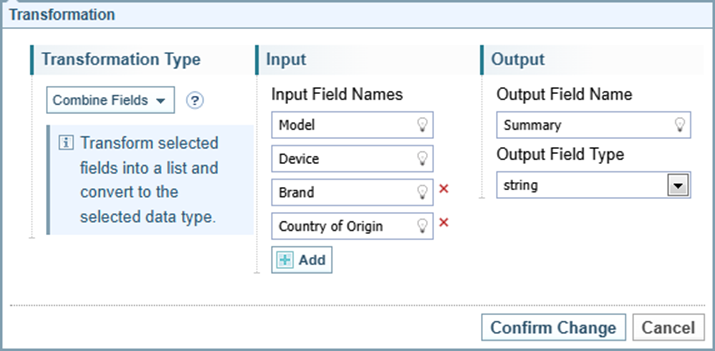
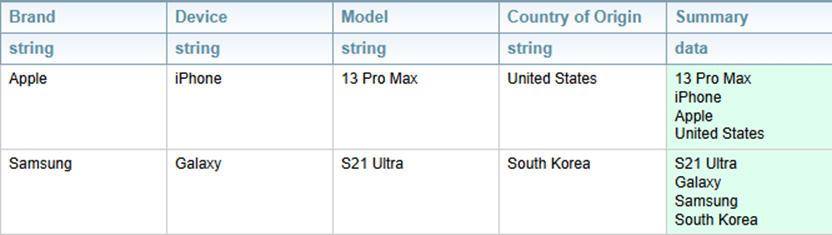
Combine Fields - combine fields into a list.
-
Copy - convert a field into a different datatype, for example, string to double.
-
Count - count the number of items in a field, for example, count the number of items in a list.
-
Create Map - combine fields into a list including both the field name and value. Similar to the list feature, except it also includes the field name as a label next to the value.
-
Date to String - transform a date into a string using a pattern to determine the format of the date string.
-
Dictionary Mapping - lookup the value in the field in a dictionary to identify a feature value.
-
Format - format a field according to a pattern, for example, format a number into a currency format.
-
Has Value - Return True or False if a field contains a value.
-
Parse Date String - convert a date in a string field into a date field.
-
Set Value - set the value of a field.
-
Dynamic Load Time - fill the specified field with the date and time the data is created.
You can combine transformations.
For example, you can use the result from one transformation as an input to a following transformation.
You can replace fields.
When you specify the Output Field Name you can use an existing Field Name to replace the existing value with the transformed value.
The functions provided are based on the Java java.util.formatter.
JSON Reference Object
There is one additional field that is shown when working through the Load Structure Import configuration wizard for a JSON source file, called a Reference Object. See JSON Reference Object.
Build Geocoordinates
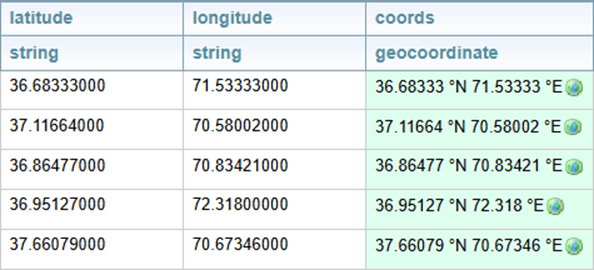
Combines two fields containing latitude and longitude values of type double. (With built-in validation for latitude ranging from -90 to 90, and longitude ranging from -180 to 180).
It outputs the geo-coordinate in the defined output field using the Sintelix geocoordinate datatype.
Example:
Result::
Combine Fields
Combine fields into a list.
Example:
Result:
Copy
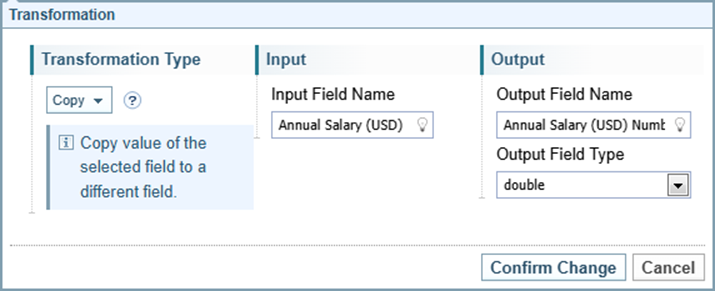
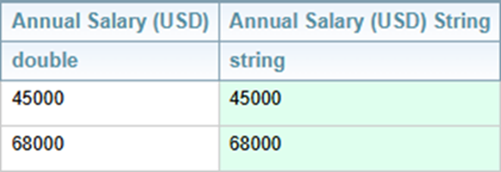
The Copy transformation converts a field into a different datatype, for example, string to double.
Example:
Result:
Count
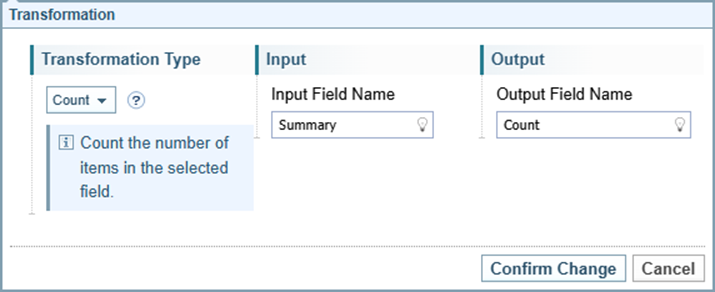
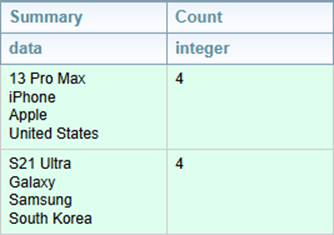
The Count transformation counts how many items are in the selected field. Usually used to count items in a List or Map data structure.
Example:
Result:
Create Map
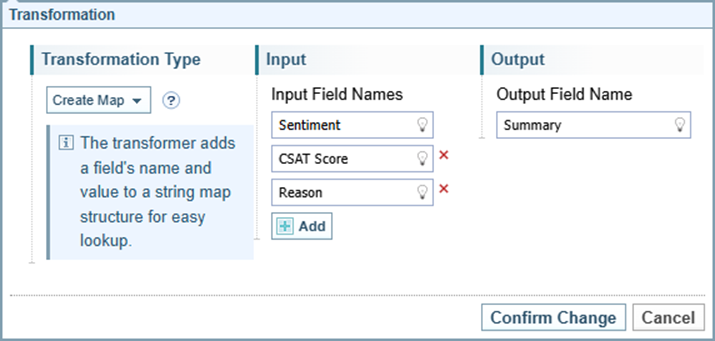
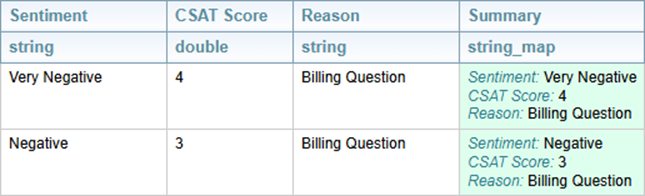
The Create Map transformer adds field names and values to a map data structure (key: field name, value: field value) for easy lookup and outputs to the defined field with the ‘string_map’ datatype. The input values are transformed into the ‘string’ datatype and stored in the map.
Example:
Result:
Date to String
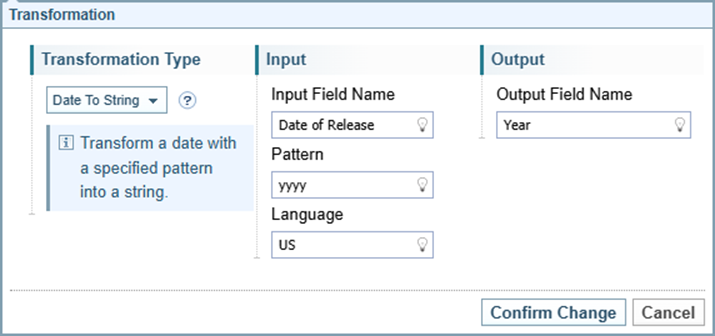
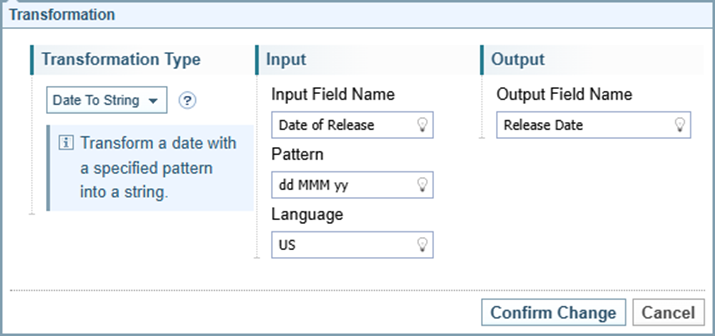
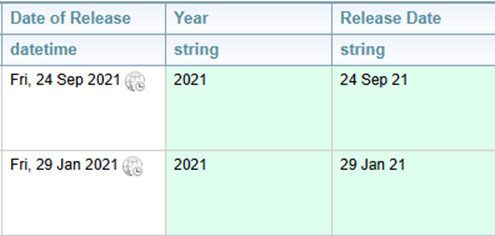
Transform a date with a specified pattern into a string.
Example Patterns:
The following provides example patterns based on the date and time 1:30 PM 3rd August 2024.
| dd MMM yy | 03 Aug 24 |
| yyyy | 2024 |
| dd-MM-yyyy | 03-08-2024 |
| d-M-yy | 3-8-24 |
| yyyyMMdd | 20240803 |
| yyyy-MM-dd HH:mm | 2024-08-03 00:00 |
Example 1:
Example 2:
Result:
Dictionary Mapping
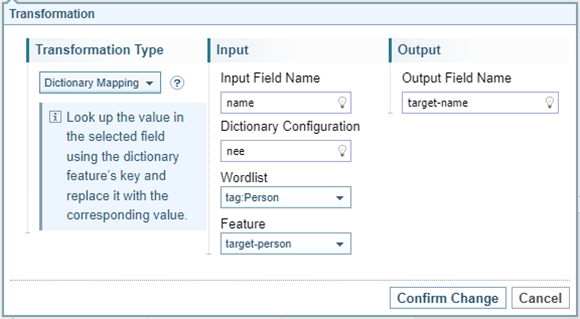
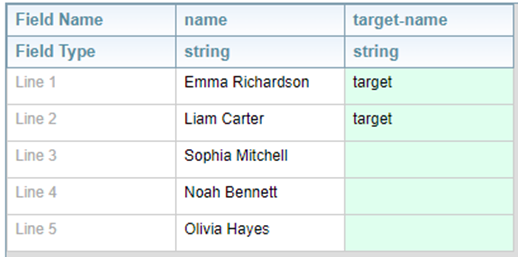
Look up the value in the selected field using the dictionary feature’s key and replace it with the corresponding value.
Example:
Given the following dictionary:

You can create a Dictionary Mapping transformation:
Result:
Format
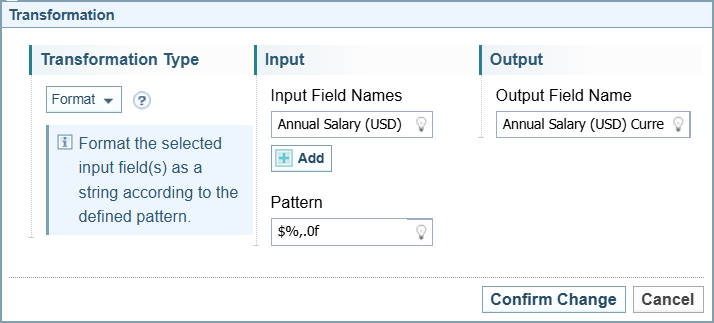
Format the selected input field(s) as a string according to the defined pattern.
Example use cases:
-
Format a double into a string.
-
Concatenate multiple selected fields and output them as a string with additional characters.
Format structure:
|
% |
% starts the format specifier |
| s |
s represents a string, for example %s. Input values must be a string. |
| f |
f represents a floating point number, for example %f Input values must be double datatype. |
| %.nf | .n represents decimal places, for example %.2f gives 2 decimal places. |
|
%,.nf |
, represents the comma separator (radix point) in numbers over 999. |
|
%% |
%% escapes %, giving the character %. |
You can use the Copy transformation to change a string to a double or a double to a string.
Example Patterns:
The following provides example patterns.
|
John Smith |
%s %s | John Smith |
| London | 01-%s | 01-London |
| 123.456 | %.0f | 123 |
| 123.456 | %.2f%% | 123.46% |
| 50000 | $%,.0f | $50,000 |
Example 1:
Result 1:
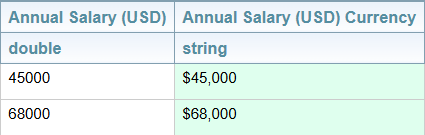
Example 2:
Result 2:
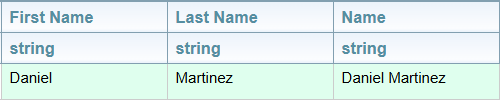
Has Value
Return a true or false indicating if the selected field has a value.
Example:
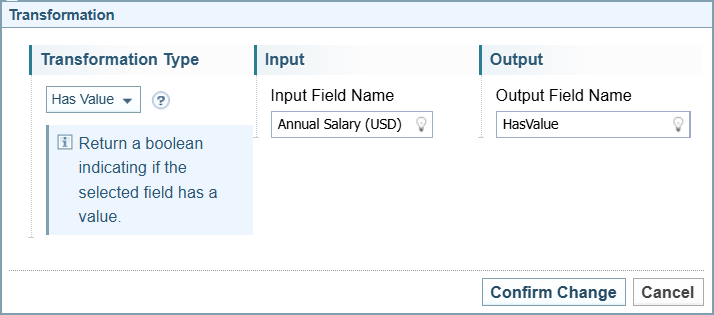
Result:
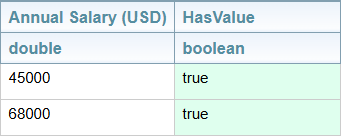
Parse Date String
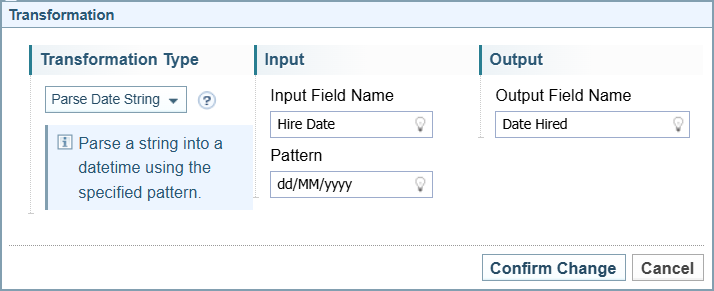
Parse a string into a datetime using the specified pattern.
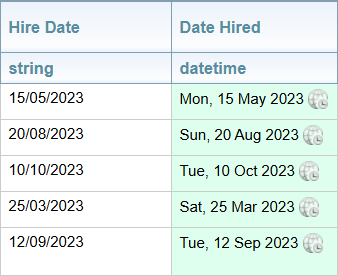
The pattern needs to match the format of the input string. For example, if the input string is 30/10/2024, then the pattern needs to be dd/MM/yyyy.
Example:
Result:
Set Value
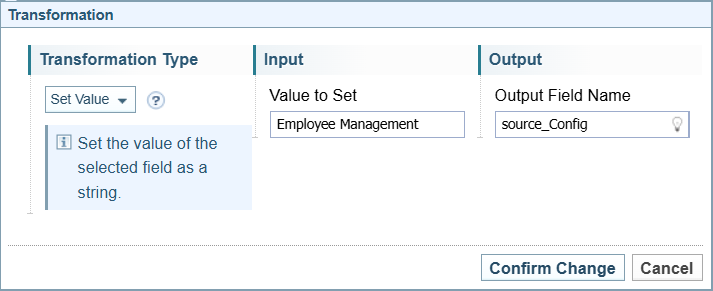
Set the value of the selected field as a string.
Example:
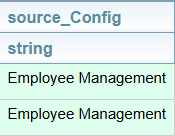
In this example, the Set Value is used to identify the source configuration.
Result:
Dynamic Load Time
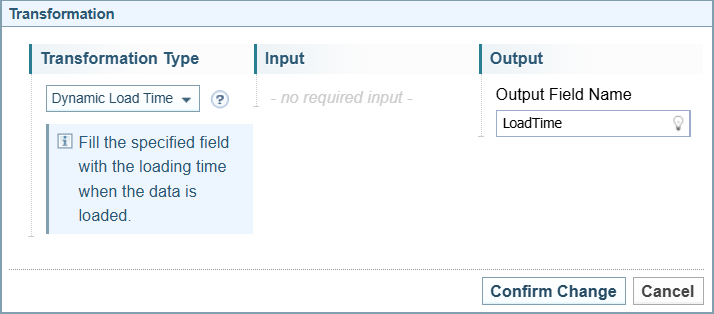
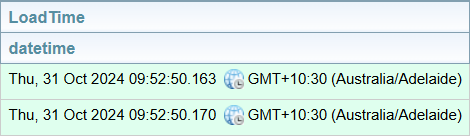
Fill the specified field with the loading time when the data is loaded.
Example:
Result:
JSON Reference Object
JSON has an additional field added to each of the transformations