Document Content
Choose the settings for creating a Sintelix document for each record (Optional).
When you have defined the document content, select to continue. Select the button to save your progress at any time.
Document Creation
A document is created as part of the Sintelix ingestion process.
However, the Ingestion configuration selected on the Source tab can have the Document Persistence setting unchecked, which means documents are deleted once they have been processed and are not saved in the Collection. The information extracted from the documents is stored in the Network only.
Document Persistence
When an Ingestion configuration has Document Persistence disabled, the document persistence disabled icon is displayed.
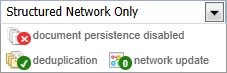
When Document Persistence is turned off for this configuration, a warning message is displayed in the Document Content tab.
Structured Import Documents
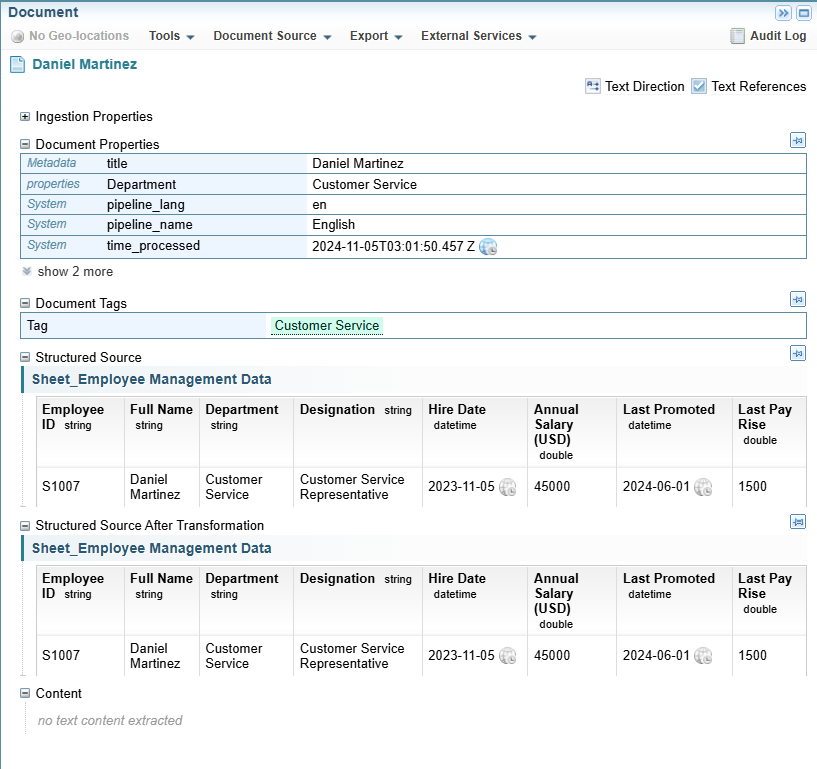
For Structured Imports, a document is created for each row.
Documents created during the Structured Import ingestion process are slightly different to documents ingested during the Unstructured Ingestion process.
Three sections unique to Structured Import are created:
-
Structured Source - showing a table of the original data.
-
Structured Source After Transformation - showing a table of the data after any transformations have been applied.
-
Structured Network Output - listing the Structured Nodes created (visible in the Structured Node Creation tab preview).
See Document Preview 1: for an example.
Structured Import Document Content options
For Structured Import Documents, you can define field/s to:
-
use as the Document Title.
-
add as document properties.
-
add as document tags.
-
include in the document Content section.
Fields included in the document Content section will be processed as unstructured data based on the ingestion configuration, identifying entities and links from text within the content area.
As a general guide, you include fields in the Content section that you want to have analysed to identify entities and links. For example, fields containing location names or free text.
Document Content tab
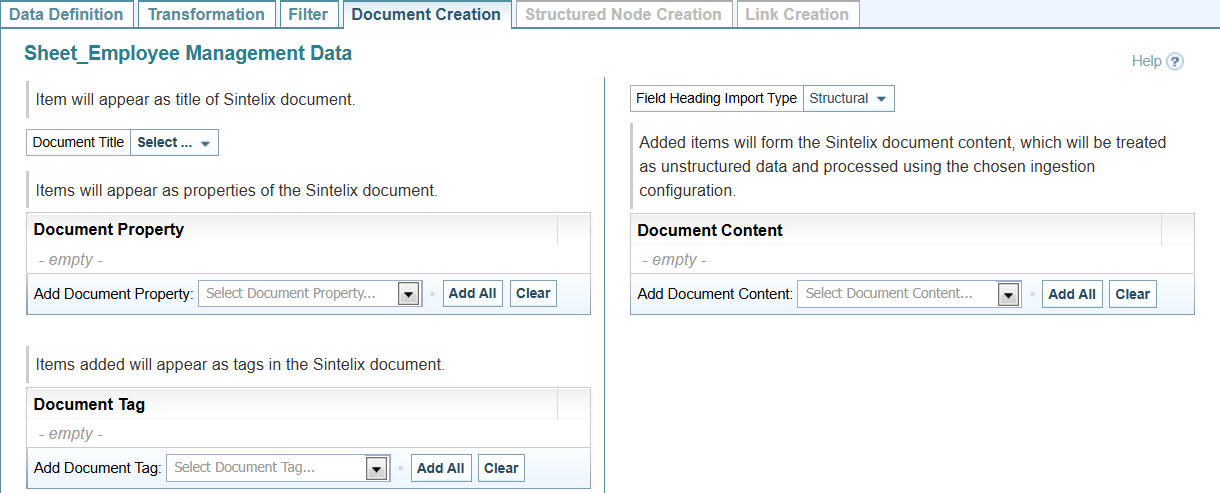
Document Title
Select the field to use as the Document Title from the dropdown.

Document Properties

Document Tags

Field Heading Import Type
The Field Heading Import Type option defines how fields added to the document Content section are formatted and extracted. There are two options:
-
Structural (default): The field names and values are displayed vertically.
Field names are excluded from entity extraction.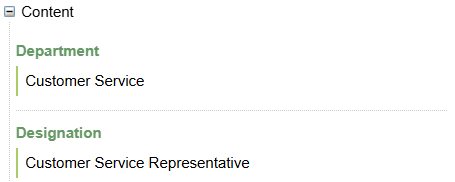
-
Key Value: The field name and value are displayed horizontally.
Field names are included in entity extraction.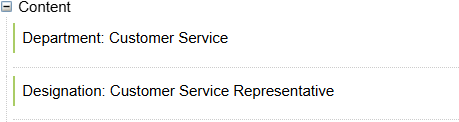
Document Content
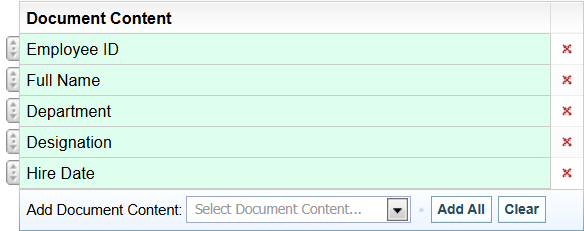
Select the field/s to include in the Content section of the document.
See Options for Adding Fields below.
Options for Adding Fields
When adding fields to the Document Properties, Document Tags and Document Content lists you have the following options:
|
Select the required field from the dropdown. Result: The field is added to the list. |
| Adds all fields to the list. | |
| Removes all fields from the list. | |

|
Removes the field from the list. |

|
Drag to change the order of the fields. Only available for Document Content. |
No Sample Data
If there is no Sample Data, see Missing Sample Data.
Preview Document
Select the  Preview icon in the Sample Data table to preview the document in the right pane.
Sample Data:

Document Preview 1:
The example below previews a document which assigned the Department field to the Document Properties and Document Tags sections, but added no fields to the Content section.
The Structured Network Output section is only added to the preview document once you have completed the Structured Node Creation tab.
Document Preview 2:
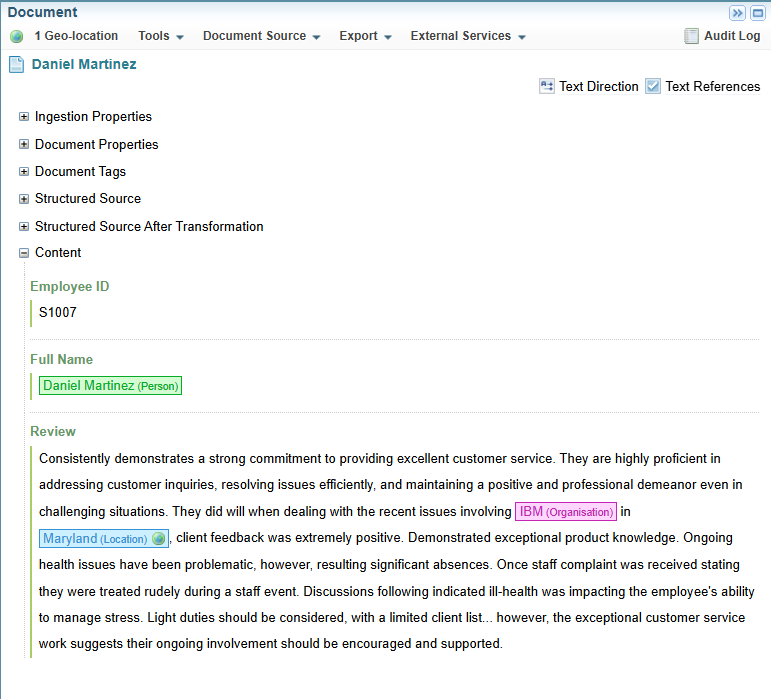
The example below previews a document which added fields to the Content Section. Note that entities have been highlighted in the Content section text.