Link Creation
You can create links between two nodes and assign fields as link features (attributes).
When you have created the required links, select the button to save to configuration.
If you have more than one Container, you need to complete a configuration for each Container. In the Containers tab, select the next Container to begin creating the required configuration.
Link Targets
You can create links between structured nodes and:
-
structured nodes - only structured nodes created in the previous tab of this configuration
-
document nodes - only to documents created in this configuration - only required if you want to give the link a different type name otherwise you can choose to automatically create generic links
-
unstructured nodes - only to unstructured nodes extracted from document content in this container configuration. This option is not displayed if the Document Content tab does not assign any fields to the Document Content.
JSON Reference Object
There is one additional field that is shown when working through the Load Structure Import configuration wizard for a JSON source file, called a Reference Object. See JSON Reference Object.
Link Components
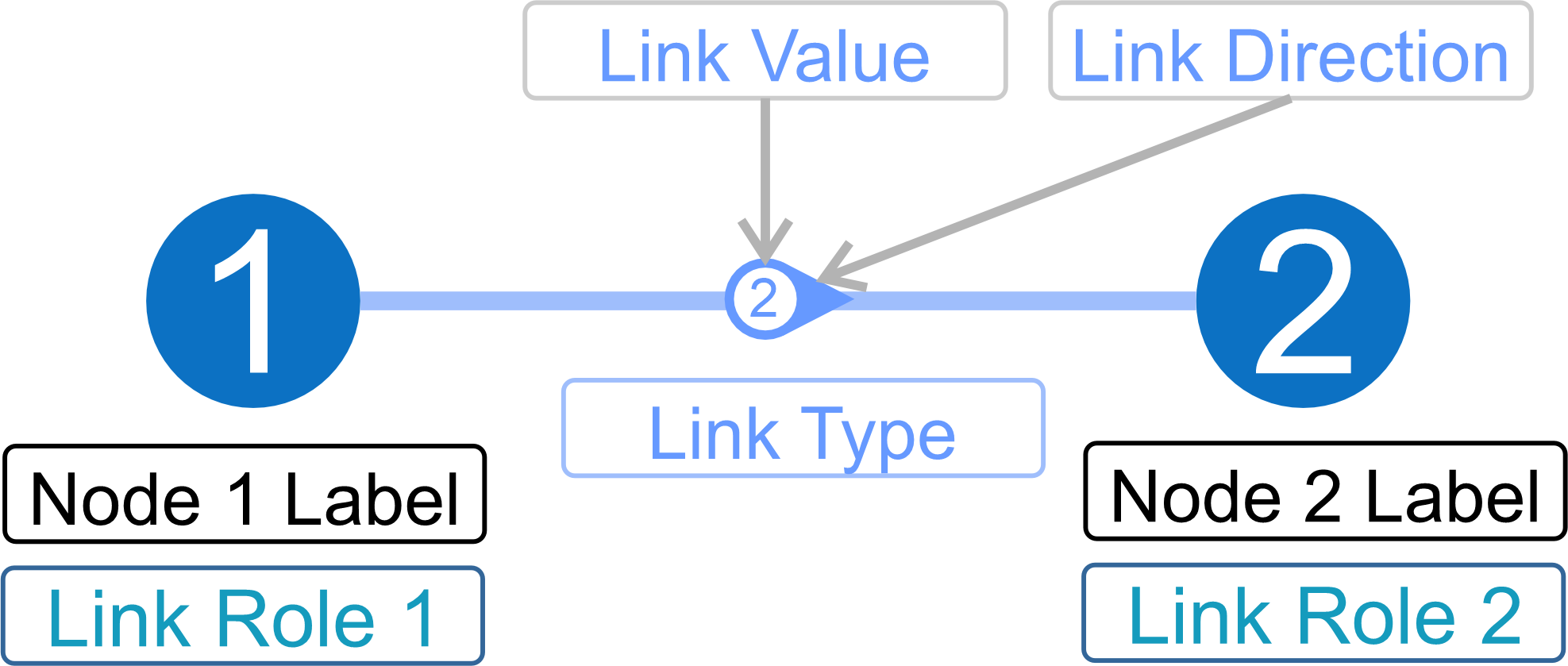
When you create a link, you can control the information displayed when users hover over a link in a Network Graph.
Before creating a link, it may be helpful to understand the components of a link and how they are displayed in a Network Graph.
See Links for more information.
Link Components Summary
The diagram below identifies the components of the link displayed on the Network Graph.
Create a Link
Create Summary Table
When you access the Link Creation tab, the following table is displayed listing any created links.

Select the  Delete icon to delete a link.
Select the  Edit icon to change a links's settings.
Select the  Create Link button to create a new link.
Create a Link Dialog
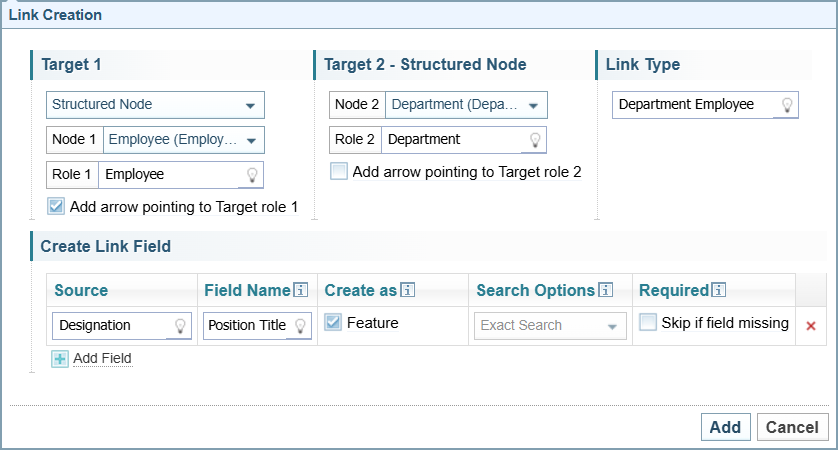
When you select the Create Link button, the Create Link Dialog is displayed:
Create a Link
To create a link:
-
Select the
Create Link button.Result: The Create Link Dialog is displayed.
-
For Target 1:
-
select the type of node from the dropdown (structured, document, unstructured)
-
identify the node name:
-
structured: select the node name from the dropdown
-
unstructured: enter the unstructured node name or select it using the lightbulb. You can create a new unstructured node type simply by giving it a name.
-
document: grey out.
-
-
The Role 1 field defaults to the Node 1 label. Change the Role 1 description, if required.
-
select the checkbox if you want the Link Direction to point to Target 1.
-
-
For Target 2 (can only be a structured node)
-
select the structured node from the dropdown
-
The Role 2 field defaults to the Node 2 label. Change the Role 2 description, if required..
-
select the checkbox if you want the Link Direction to point to Target 2.
-
-
In the Link Type field, enter a label for the link.
Links to Structured Nodes
You can create a link between structured nodes created within this container configuration.
If you want to create links between structured nodes created in different containers/configurations, you need to create an RID feature with the same value. When they are clustered during Network Creation, the nodes will be merged based on the common RID feature.
The diagram below illustrates links are created between nodes in different containers/configurations.
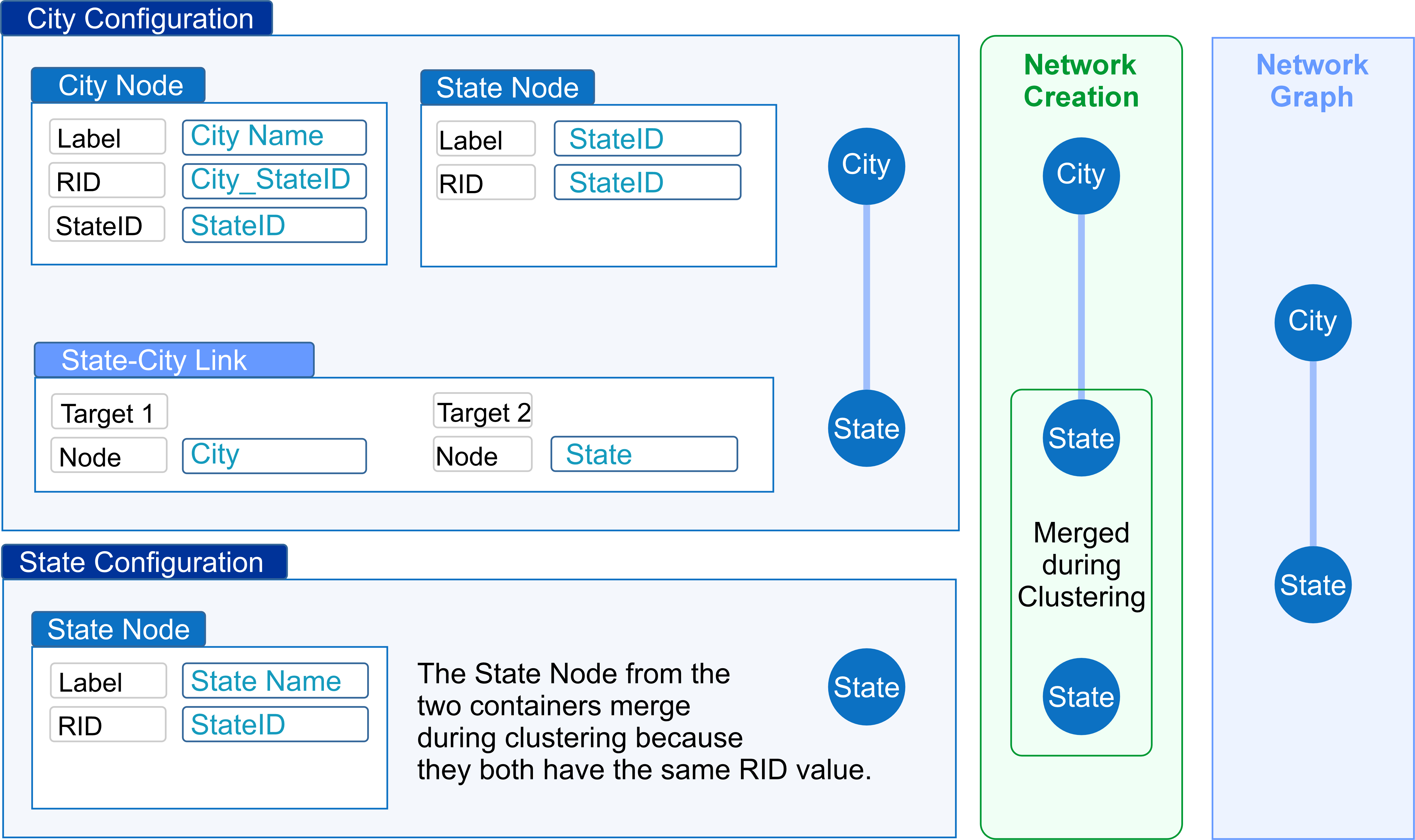
If a Node doesn't have a unique ID to use in the RID field, you can create a unique ID by combing the value of two fields using the Format feature in the Transformations tab.
In this example, the City doesn't have a unique ID. The City Name and the StateID are combined to create a unique ID for each city. This helps differentiate between cities with the same name.
Links to Unstructured Nodes
You can create a link between an unstructured node and a structured node.
The unstructured nodes are those extracted from unstructured text contained within this container/configuration and published in the Content section of the document. See Document Content for more information.
For example, if you have a text field containing free text like a message, then when ingested this text will be run through the entity extraction process, in the same way other files are when ingested into Sintelix. Information such as Persons, Organisations and Locations will be highlighted as entities.
If you want to create a link between a structured node created in this configuration and an unstructured node created during ingestion from text contained within this configuration dataset, you can create that link here.
For example, Person->Employee.
Where:
-
Person is an entity extracted during Ingestion and defined in the Document Processing and Ontology configurations.
-
Employee is an entity created from this Structured Import configuration for this Container.
Links would only be created if the text including in the Content section of the documents for this dataset highlighted a Person entity.
However, once those links have been created, these links would be clustered during Network Creation potentially revealing connections with other ingested information.
There is no way of knowing which unstructured links would be identified within unstructured text during ingestion. You create the links that would be useful for the analysis you are conducting.
Link to Document Nodes
There are two ways to create links to document nodes:
-
automatically generating a generic link
-
defining a custom link.
Automatic Document Links
To have Sintelix automatically generate links to document nodes, select the Generate links checkbox.
This setting applies to all containers in this configuration. Changing this setting in this container changes this setting in all containers.
Custom Document Links
If you want to define your own link to documents, you can create your own link definition.
While documents are always created, they are not always kept.
See Document Creation.
Link Example
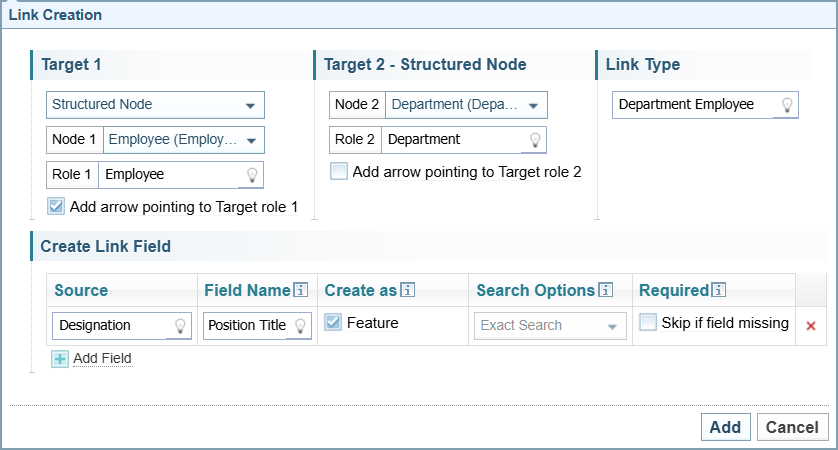
Below is an example of a link created in the Structured Import configuration:
Fields and Features
You can add fields or features to the link. If the Feature checkbox is unselected, a field is created.
No Sample Data
If there is no Sample Data, see Missing Sample Data.
Preview Network
Selecting the  Preview icon in the Sample Data table will display a preview of the resulting Network in the right pane.
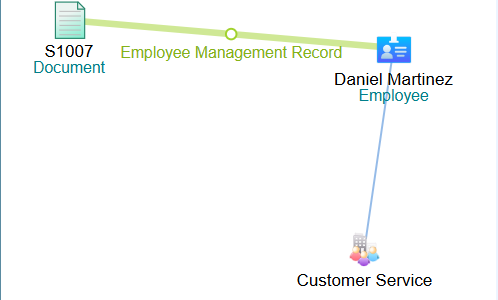
The following preview shows the Network with a custom document node link.
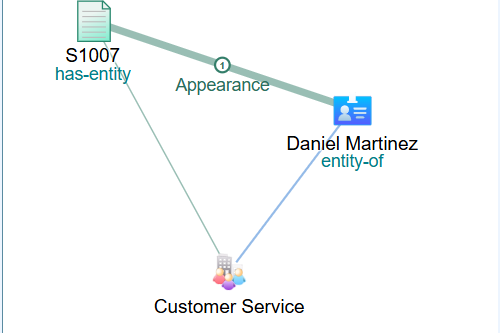
The following preview shows the Network graph with the option to Generate links to document node selected.
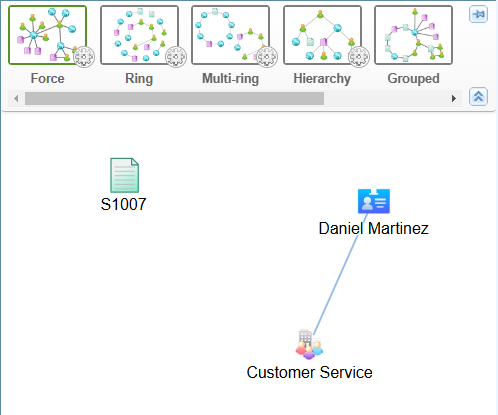
The following preview shows the Network graph with neither a custom nor automatic generation of links to the document node.
Example Resulting Network Graph
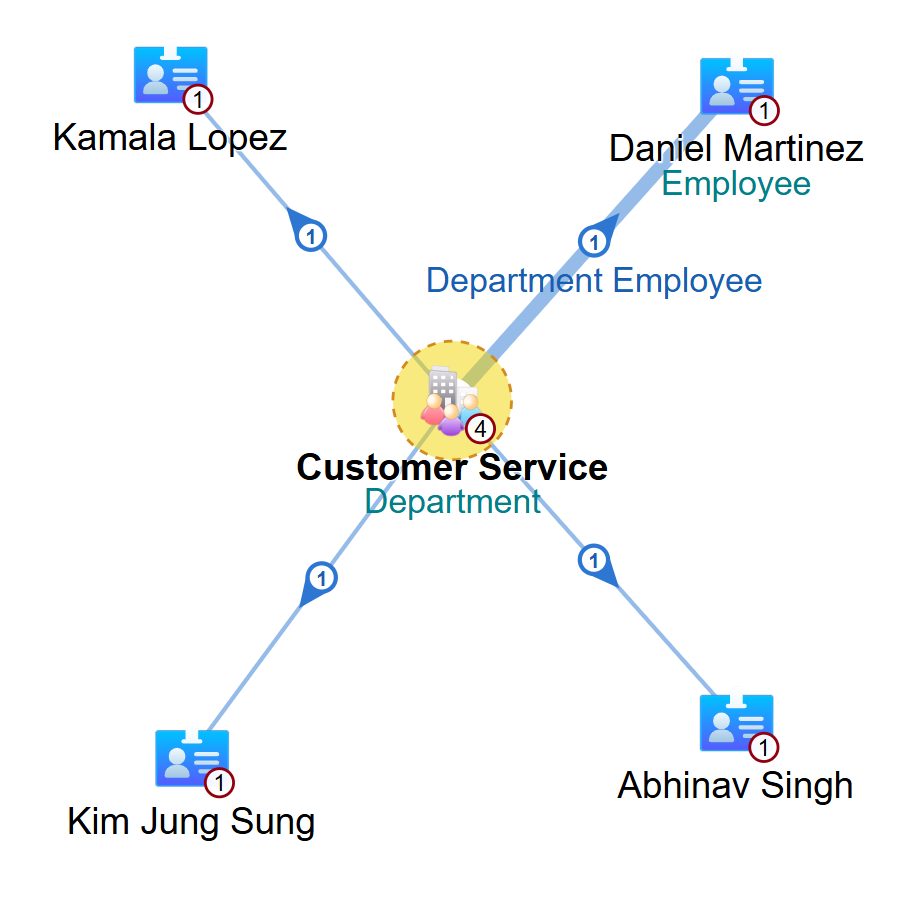
Below is an example of the resulting Network Graph using the data used in the examples: