Source Type and Sample Data
When you create a new Structured Import configuration, you complete the Source tab first, where you:
-
Select the Configuration which defines how the data is ingested.
-
Upload a Sample File on which to base the configuration for Excel, Delimited, Fixed Width or JSON.
Select the Source Type
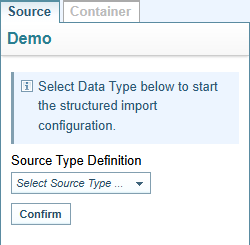
When you create a new configuration, the Source tab is displayed ready for you to select the Source Type.
Source Types
Structured Import currently supports the following source types:
- Excel
- delimited data (csv, tsv, txt)
- fixed width data (txt)
- database
- JSON
- other types which allows you to code a structured import configuration for JSON.
Select the Source Type
-
Select the Source Type required from the dropdown.
-
Select to continue.
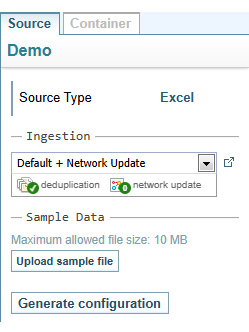
Result: You will be prompted to Select the Configuration and Upload a Sample File.
If the Source Type is other type, the Code Editor is displayed. See Structured Import: Other Type
Once you have confirmed the Source Type, you can not change the Source Type.
Select the Configuration
Select the Ingestion configuration to apply this Structured Import configuration from the dropdown.
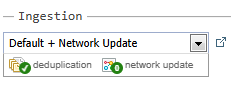
See Ingestion Configuration Symbols.
Select the Open icon  to open the selected configuration.
Result: The configuration will be opened in a new browser tab.
Integrated Ingestion Configuration
The Ingestion configuration selected is integrated into the Structured Import conformation. It applies to all containers in this configuration.
For Unstructured ingestion a user can select the Ingestion configuration to use when adding documents.
For Structured ingestion, the user selects a Structured Import configuration, which stores the Ingestion configuration within its settings. When adding documents, users can not change the Ingestion configuration for a Structured Import.
This means the Structured Import configuration completely controls how structured data is ingested.
Document Creation
A document is always created as part of the Sintelix ingestion process.
However, the Ingestion configuration selected on the Source tab can have the Document Persistence setting unchecked, which means documents are deleted once they have been processed and are not saved in the Collection. The information extracted from the documents is stored in the Network only.
Document Persistence Disabled
When an Ingestion configuration has Document Persistence disabled, the document persistence disabled icon is displayed.
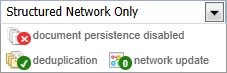
When Document Persistence is turned off for this configuration, a warning message is displayed in the Document Content tab and the Link Creation tab.

While you can choose Document Content settings and create links to the Document node, these settings will not be applied while document persistence is disabled.
Upload a Sample File
Sample File
When configuring structured load for Excel, Delimited, Fixed Width or JSON, you need to upload a sample file on which to base the configuration.
The sample file should be representative of the data you will be importing using this configuration.
As you step through the Structured Import Wizard, you can see the results of the configuration settings on the sample data.
Tip: For a JSON file with a complex structure with many variable field options, it is recommended to include at least one record that within the sample file that captures all schema variations.
Change the Sample File
At any time, you can upload a different sample file.
This allows you to upload:
-
the same sample file with modified data.
-
a different sample file to test the configuration with different sample data.
However, you may need to save and refresh the page to see the results of the changed sample file data.
Upload a Sample File
When configuring structured load for Excel, Delimited, Fixed Width JSON, you need to upload a sample file:
-
Select .
-
Select the file you want to use as the sample data file and select .
Result: The file is uploaded and displayed on the tab.
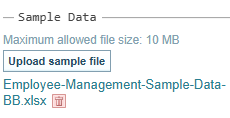
-
If the Source Type is Excel, the worksheets in the file will be displayed for selection.
Select or un-select the required worksheets.
See Sample Excel File.
-
If the Source Type is Database, the database tables will be displayed for selection.
Select or un-select the required worksheets.
-
Select to continue.
Result:
-
The Containers tab is displayed.
-
The Structured Import Wizard tabs are loaded, with the Data Definition tab selected.
-
A selection of data from the uploaded file is displayed in the —Sample Data— section at the bottom of each tab so you can preview the results of the configuration settings on the sample data.
-
Sample Excel File
When you upload a sample Excel file, the worksheets available for selection will be displayed.
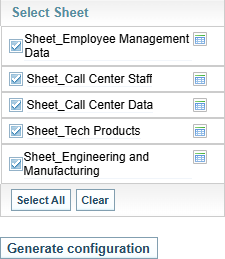
 Source Tab Example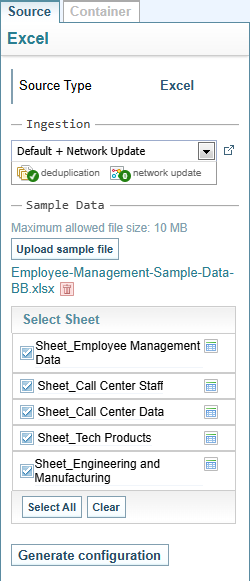

|
Select the worksheet icon to preview the worksheet data content if required. A preview of the data will be shown in the right pane. |

|
Unselect any worksheets not required for this configuration. |
| Selects all Worksheets. | |
| Un-select all Worksheets. | |
| Builds the configuration based on the selections made. |
The worksheets selected become Containers. You can change your selections in the Containers tab.
Connect to a Database
Connect to a Database
When configuring structured load for a Database, you need to connect to a Database on which to base the configuration.
The database should be representative of the data you will be loading using this configuration.
The Load Structured Data Wizard will display sample data from the database so you can see the results of the configuration settings.
Sample Database Source
When you connect to a sample Database source, the tables available for selection will be displayed.
You must select at least one container.
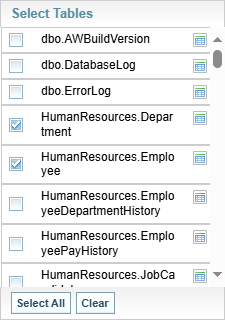
|
|
Select the table icon to preview the table data content if required. A preview of the data will be shown in the right pane. |
|
|
Unselect any tables not required for this configuration. |
| Selects all tables. | |
| Un-select all tables. | |
| Builds the configuration based on the selections made. |
The tables selected become Containers. You can change your selections in the Containers tab.