Shortcuts in Network Graphs
Shortcut Menu Summary
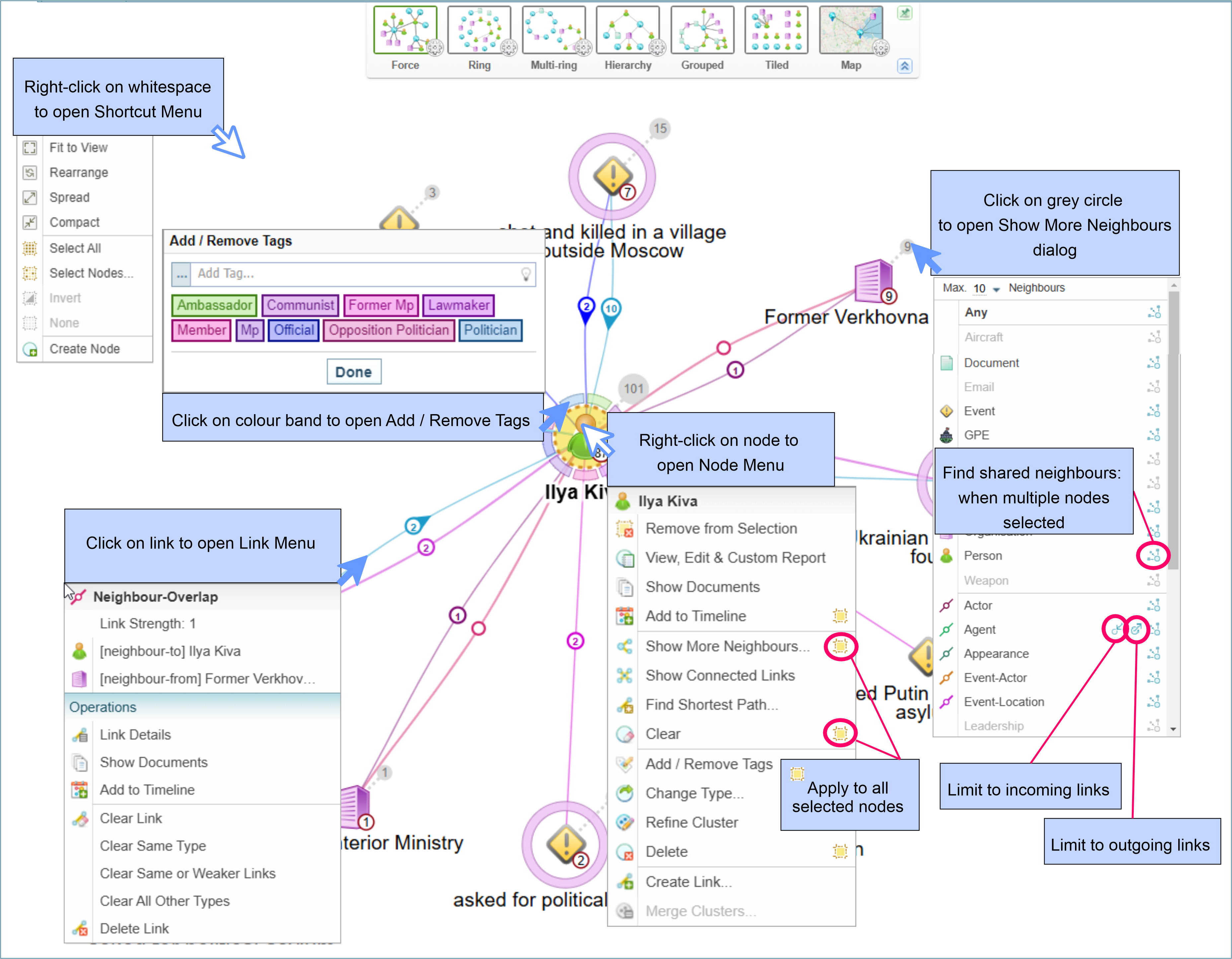
Mouse Shortcuts
When viewing a network graph, there are several ways you can use the mouse that are useful to understand:
-
Zoom: Use the mouse wheel to zoom in and out of a graph.
-
Move: Click and drag to move around the graph.
-
Select: Click a node to select a node.
Press the SHIFT key and click on multiple nodes to select more than one node.
CTRL key and drag around multiple nodes to select those nodes.
-
Layout Menu: right-clicking in the white space around a graph displays a shortcut menu for laying out and selecting nodes
-
Node Menu: right-clicking on a node displays the node menu
-
Show More Neighbours: clicking on the grey circle next to a node displays the Show More Neighbours dialog
-
Show Connected Links: Shows all links between selected nodes.
-
Show Documents: clicking the mouse centre button (usually the mouse wheel) on a node or link opens the Show Documents pane
-
Details pane: holding the SHIFT key clicking the mouse centre button on a node or link opens the Node Details pane
-
Link Menu: clicking on a Links displays the link menu
Keyboard Shortcuts
There are several keyboard shortcuts you can use when viewing a graph. Keyboard shortcuts are shown when hovering over a menu option.
| Keyboard Shortcut | Action |
|---|---|
| Home | Fit to View |
| 0 | Rearrange |
| + or = | Spread |
| - | Compact |
| ** | Select All |
| Numpad / | Invert Selection |
| Esc | Select None |
| Delete | Clear Selected |