Graphs Layouts
Quick Summary
At the top of the Network Graph display area is a toolbar providing different graph layouts.

Select a layout option to change current Graph layout.
Hover over a layout option to view a tooltip description of the layout.
Select the cog icon  to change settings for the Graph layout.
Select the show/hide icon  to expand or collapse the toolbar.
Select the pin icon  to keep the toolbar expanded or unselect the pin icon
  to keep the toolbar collapsed.
Video: Network Graph Layouts
Click below to view a video demonstrating the different Network Graph layouts.
Layouts
The table below describes the different layout options:

|
Arrange nodes naturally spread out from the most connected nodes. |

|
Arrange all nodes in one or more concentric rings. Selected nodes are arranged in an inner ring. |

|
Arrange sets of connected nodes in separated ring layouts. Selected nodes are arranged in an inner ring. |

|
Arrange connected nodes in a hierarchy starting with the most connected node or selected nodes. |

|
Arrange the most connected nodes in a ring, with other connected nodes fanned outwards. |

|
Re-arrange the existing layout to tile un-connected nodes or groups and minimise gaps. |

|
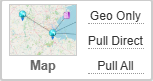
Arrange nodes on a map based on:
See Viewing Maps for more information about the map pane.
The Map Layout options (above) include:
|
Apply Layout Settings
Click on the cog icon to open the settings panel for a layout.
Once you have changed the settings, you can select:
-
Save, to apply these settings now and in the future.
-
Test, to apply these settings to the current graph but not to save them.
-
 to close the dialog without applying any changes.
Layout Setting Options
While each layout has different settings, there are some common options shared across settings:
|
|
|
|
|
|
|
| Option | Force | Ring | Multi‑ring | Hierarchy | Map |
|
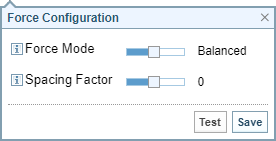
Force Layout Calculation - Fast, Balanced or Best Layout. |

|
||||
|
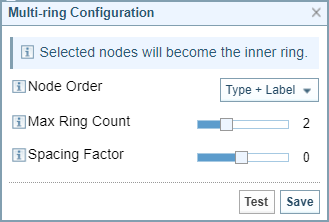
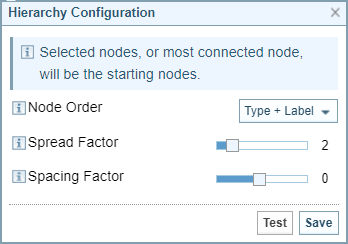
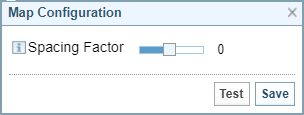
Adjusts the spacing between nodes. |
|
|
|
|
|
|
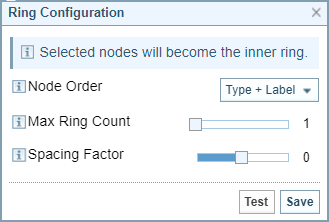
Sorts nodes into alphabetical order based on either Type then Label or Label then Type. |
|
|
|
||
|
Maximum number of rings created by the layout. Excludes the inner ring of selected node/s. |
|
|
|||
|
Positions nodes lower in the hierarchy if an alternative path is available to make the layout more compact. |
|





Layout Dialogs
The table below shows the different layout settings dialogs:
Hover over the information icon  to view a descriptive tooltip.
| Force Settings |
|
| Ring Settings |
|
| Multi-Ring Settings |
|
| Hierarchy Settings |
|
| Map Settings |
|