Set Up Email Account for Sintelix
Why
Setting up an email account in Sintelix enables users to reset their own password and receive email alerts.
Access
Select Admin > Email Account Settings tab to change the settings for logs.
Screen
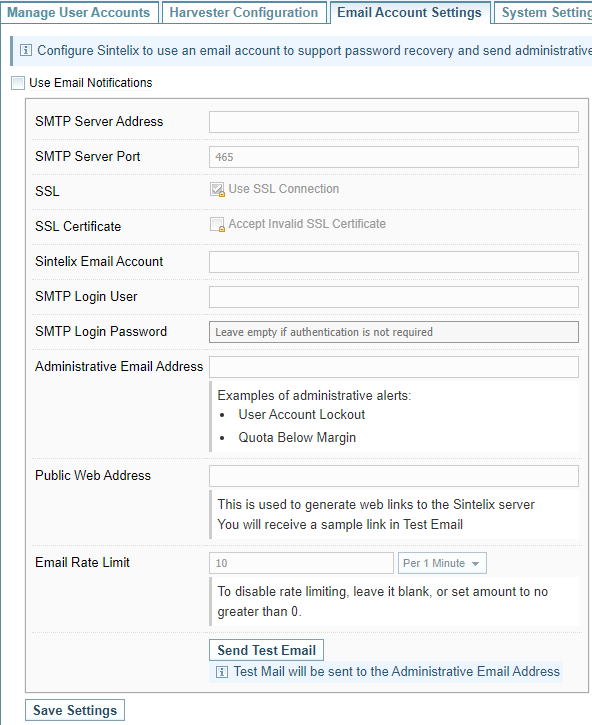
Set up the Email Account
To set up an email account in Sintelix:
-
Select Use Email Notifications.
Result: The email settings fields are enabled.
-
Complete your company’s SMTP server details and account details.
- SMTP Server Address is the server Sintelix will use to send email.
- SMTP Server Port is the port used for mail delivery. It is typically 25 or 587, or 465 if SSL is used.
- Check Use SSL Connection if your server uses SSL.
- Check Accept Invalid SSL Certificate if your server uses a self-signed or expired SSL certificate.
- Sintelix Email Account is the email account on behalf of which Sintelix will send its emails. Depending on the SMTP server’s settings, this account may have to have been created within the email system.
- If your email server requires user authentication, enter the details in SMTP Login User and SMTP Login Password fields.
- Administrative Email Address is an email address where administrative alerts will be sent. An example of administrative alert is account lockdown which might indicate a brute force attack on the system. If this field is left empty, administrative alerts will not be sent.
-
Select .
Send a Test Email
You can validate the email account settings by sending a Test Email. The Test Email will be sent to the Administrative Email Address.
-
Select .
Result: The following dialog is displayed, indicating the status of the test message and providing access a log.
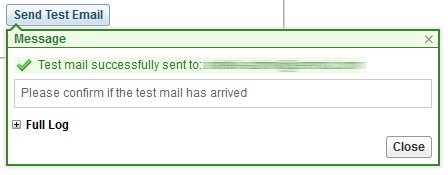
Email transmissions are logged and all available information is documented. To view the log, select Full Log.
- Select , to clear the message.
- Check that the email has been received. If it has not been received, revise your settings.