Reprocess Documents in a Collection
Reprocess Documents
Reprocessing is a way of refreshing Documents in a Collection and linked Networks with the latest changes to Ingestion and Network Creation configurations.
Reprocessing will:
-
remove Text References, Entities and Links from Documents and linked Networks
-
remove manual edits to Documents, unless excluded from reprocessing
-
not change fact-based information stored in Documents
-
re-apply entity extraction to markup Text References, Entities and Links
-
recreate the Network, if it has been deleted
-
re-populate the Network with the Entities and Links identified.
You can choose to reprocess a single Document or all Documents in a Collection.
Reasons to Reprocess
You may want to reprocess Documents in a Collection when:
-
The Ingestion, Document Processing, Network Creation or other configurations, for example, Dictionaries have changed since the Documents were initially processed.
-
You want to apply a different Ingestion configuration to the Collection.
-
You want to apply update the Network with a different Ontology or Network Creation configuration
-
You want to remove manual edits from Documents.
Manual Edits
Manual edits made to Documents will be removed during reprocessing, unless you choose to preserve them.
Fact-based information is excluded
Reprocess the Network
The Entities and Links re-generated from the Documents will be updated in the Network(s) linked to the Ingestion configuration.
The Network Creation configuration defines the schema (structure) of the Network.
Changing the Network Creation configuration to add or remove entities, fields or features can be applied using the Reprocess feature.
However, if a "type" of a field is changed, from example from string to datetime, then the existing the Network will need to be deleted before Reprocessing in order to re-create the Network to apply the changes.
Re-create the Network
When you make significant changes to configurations that affect the Network schema, you need to re-create the Network to apply the changes.
To recreate a Network:
-
delete the Network, and
-
reprocess the Collection(s) linked to the Network.
Significant changes to configurations that may need you to recreate the Network include changing:
-
a data type for a field/feature in Network Creation or Structured Data Load configurations.
-
the Ontology configuration linked to a Network.
The Ontology configuration is linked to the Network at creation. Once created, you cannot apply a different Ontology configuration. You have to recreate the Network if you want to apply a different Ontology configuration.
Reprocess the Collection
In the Collections tab:
-
You can either:
-
reprocess all the documents in the collection, by clicking the button:

-
reprocess a specific document, by clicking the Reprocess icon
 available for the document in the Action column.
Result: The Reprocess Documents dialog is displayed with the current default Ingestion configuration for the Collection selected.
-
-
If required, change the Ingestion Configuration from the Select an Ingestion Configuration dropdown.
Result: The symbols are updated to reflect the settings. See Ingestion Configuration Symbols.
-
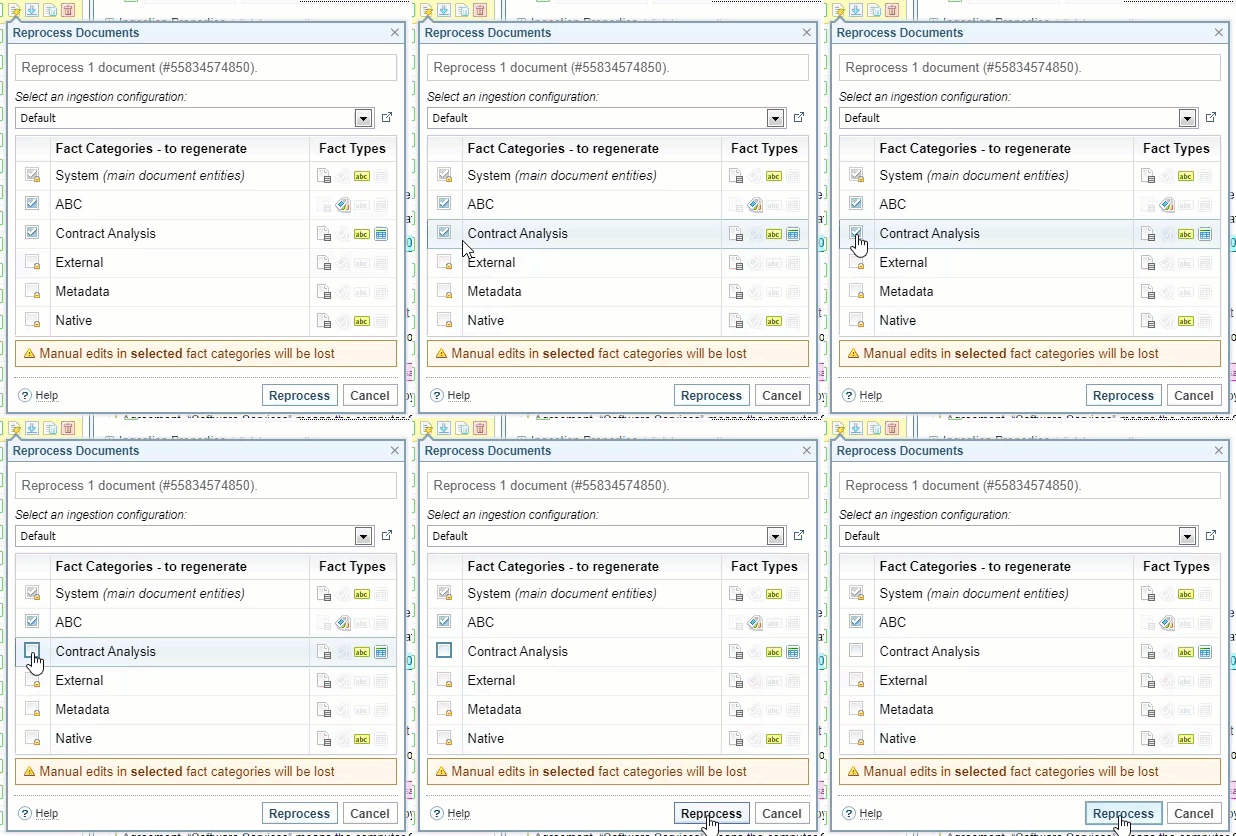
If manual mark ups have been created, they are displayed in Reprocess Document dialog.
-
To remove the markup, leave them checked, and select .
-
To preserve them, clear the checkbox and select .
-
Preserve Markups and Document Tags
The following types of mark ups are automatically preserved during reprocessing, as they are fact categories (that is, name-spaces), with protected status. Document processing The Sintelix configuration responsible for managing the extraction of information from your documents. is not allowed to add, change, or delete facts that belong to these categories.
- Native - metadata from the original document.
- Metadata - document properties added by Sintelix as part of document ingestion.
- External - source of the document, for example the URL of the uploaded document.
- System - fields, for example language and time when the document was processed.
However, if you have manually added a document tag A configuration used for automatically adding document tags to Sintelix documents based on a pre-trained model, the tag is displayed in the Reprocess Documents dialog.
To preserve the tags while reprocessing, clear the selection and select :