Collections
Introduction
Collections Once source data has been ingested, the resulting Documents are stored in a Collection. Once Documents are stored in a Collection, you can browse, search and edit Documents. Only text-based Documents is stored in Collections, not the original source files. are used to add, ingest, view, edit and manage documents.
Collections can be searched and used to generate networks A container that stores information in nodes and links. See Nodes and Links topic for more information.
You can have multiple collections within a Project.
Add, Manage and View Documents
You can Add (Ingest) Documents from the  Add Documents tab or use the Harvest Documents feature.
Once documents are added, they are automatically ingested and stored in a Collection.
The documents can be viewed from the  Documents tab, where you can Manage Documents or select a document to view in the Documents pane.
Open a Collection
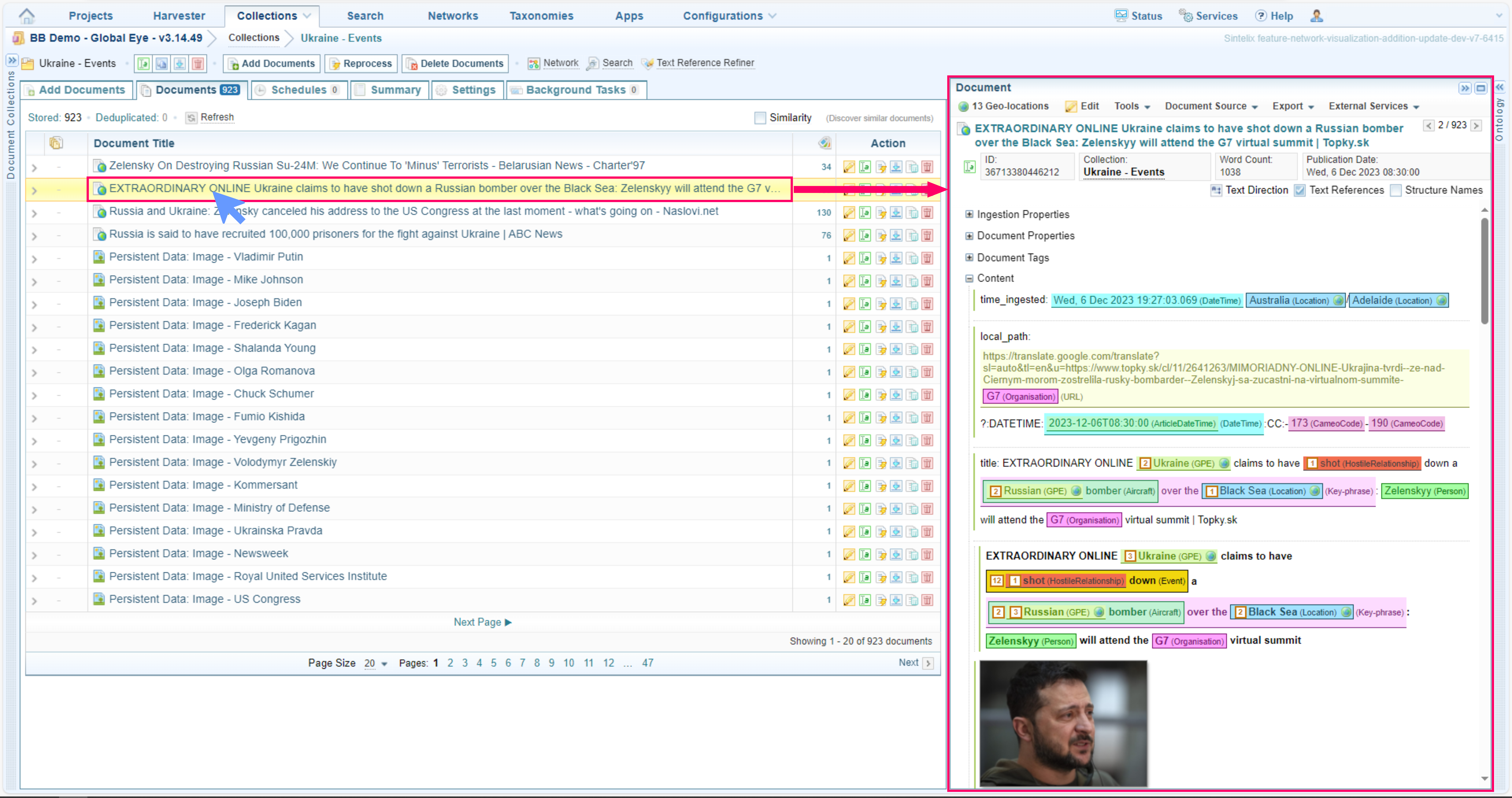
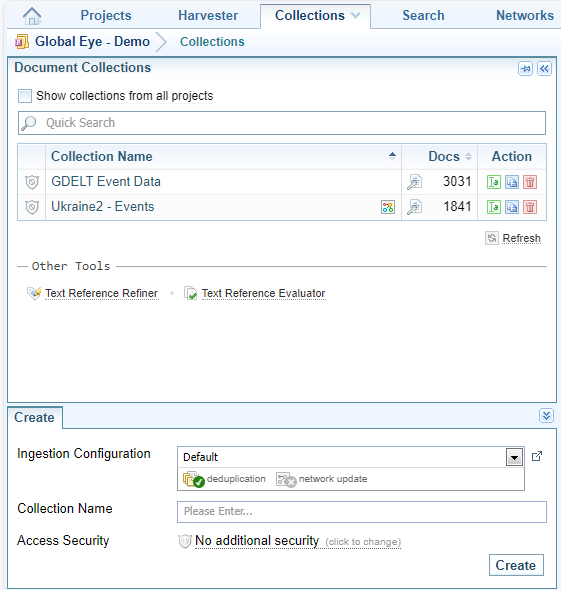
When you select the Collections tab, the Manage Collections pane is displayed. Clicking on a Collection Name opens that Collection, displaying a list of the documents stored in that Collection.
On the Manage Collections pane, you can also create, copy, import, export, rename, reprocess and delete Collections. See Manage Collections.
Navigating a Collection
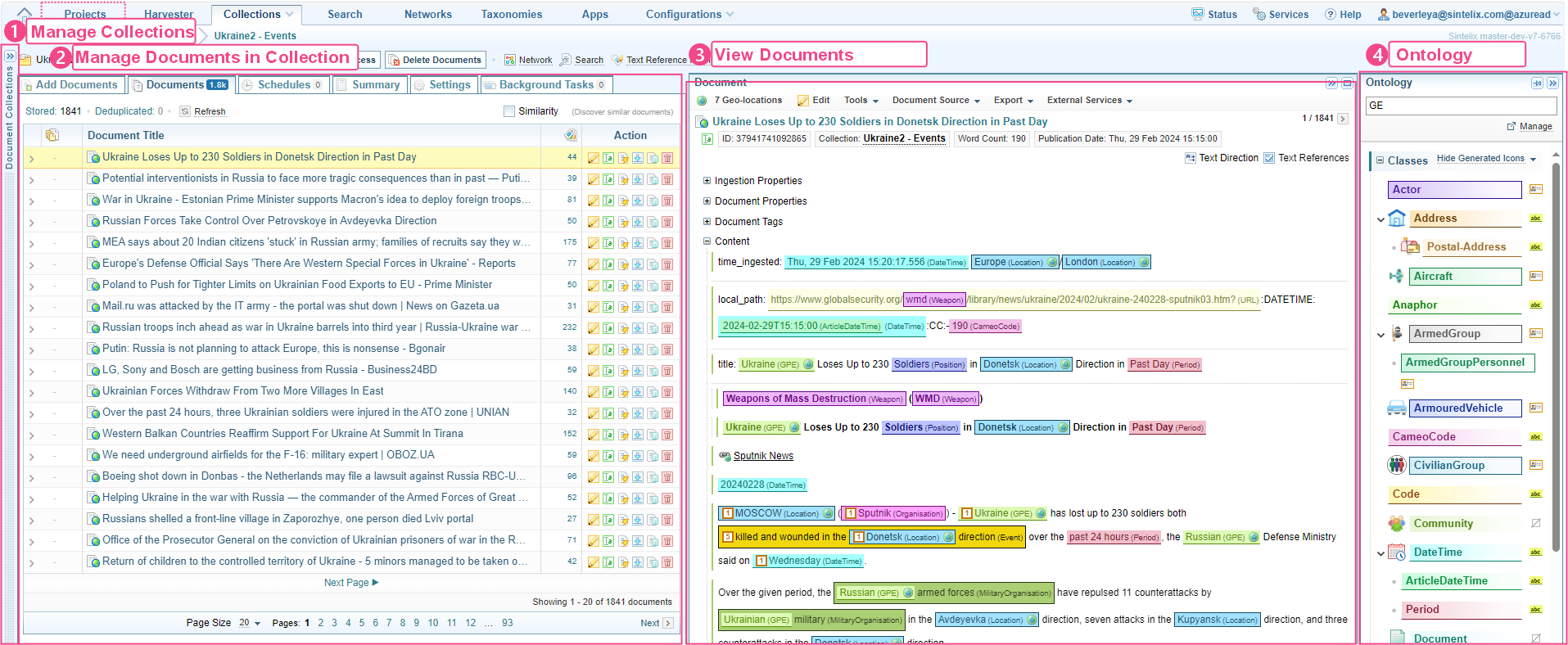
Once a Collection has been selected, four panes are available.
-
Once a Collection has been opened, the Document Collections pane is collapsed. This pane allows you to Manage Collections, including opening, creating, renaming, importing, exporting and deleting collections.
-
The Manage Documents pane allows you to manage documents, including adding, opening, reprocessing, renaming, exporting and deleting documents. See Manage Documents.
-
The Document pane allows you to view and edit a selected document. See Documents.
-
Ontology Section pane lists the Ontology currently applied to the documents.
Collections tabs

Below is a summary of each of the tabs displayed:
-
Add Documents tab: Allows you to add files for ingestion.
-
Documents tab: Allows you to Manage Documents - where you choose to View and Edit a Document
-
 Schedules tab: Allows you to schedule adding documents for ingestion. See Schedule Ingestion
 -
 Summary tab: Summarise a collection by document properties, ingestion properties or document tags. See Collection Summary
 -
 Settings tab: Select the document properties to appear in document view and also set security on the collection. See Collection Settings.
 -
 Background tasks tab: View the progress of ingestion or reprocessing tasks. See Collection Background Tasks.
 -
Reprocess button: Reprocess the collection. See Reprocess Documents in a Collection.
Collections Toolbar
The Collections Toolbar enables you to modify settings that affect an entire collection Once source data has been ingested, the resulting Documents are stored in a Collection. Once Documents are stored in a Collection, you can browse, search and edit Documents. Only text-based Documents is stored in Collections, not the original source files..

|
Task |
Action |
|
|---|---|---|

|
|
|

|
|
|

|
Export a Collection |
A zip file containing the Collection documents in xml format will be downloaded to your local file system. |

|
Select Delete Collection All documents within the Collection will be completely erased from Sintelix. You will not be able to retrieve them if you did not export a backup. |
|
|
|
Open the Add Documents Panel |
|
|
|
Option 1 (Basic):
Option 2 (Advanced):
|
|
 Delete Documents Delete Documents
|
Delete all documents in a Collection |
|
|
|
Open Networks generated from Collection |
|
|
|
Open Collection in Sintelix Search |
|
|
|
Open collection in text reference refinement |
 .
. .
. .
. .
. Reprocess


Ontology pane

Ontology Section
The Ontology A Sintelix Configuration that defines the classes that make up the entities, text references and link types in a project. section displays the Ontology used in the active Ingestion Configuration. When the Ingestion Configuration is changed for a collection Once source data has been ingested, the resulting Documents are stored in a Collection. Once Documents are stored in a Collection, you can browse, search and edit Documents. Only text-based Documents is stored in Collections, not the original source files., this panel will update accordingly.
The Ontology section provides you with an overview of the entity classes and non-entity classes used to label Text References Text that has been marked up (that is, highlighted with a coloured label) in a document. in your documents. The Ontology panel also displays connection types for creating links between entities.
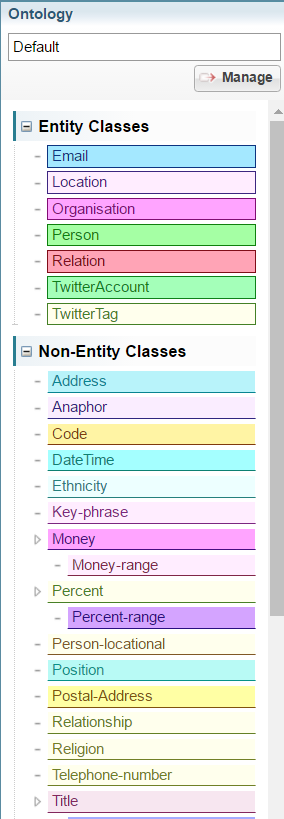
Select Manage to edit the active Ontology configuration.
Refer to the Ontology topic in the Configuration Guide for more information.