Collection/Network Security
Project Security Settings
See Manage Project Security to understand how security is managed for projects, collections and networks under the default Sintelix Security Model.
Access by User Name or Group
Access to Projects, Collections and Networks can be assigned to individual users or to Security Groups. When access is assigned to a Security Group, a user has access when they are a member of that group.
Administrator's need to assign users to Security Groups. See HelpManage User Accounts.
Collection/Network Security Settings
Security can be applied to collections and networks to enable users to access (open) the Collection/Network.
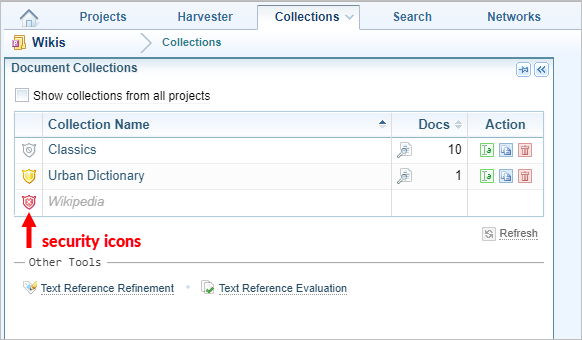
In the Collection/Network list, icons are used to indicate the access status.
|
Icon |
Status |
|---|---|
|
|
Unrestricted Can be accessed by anyone who can access the Project. |
|
|
Restricted Can be accessed by the current user. |
|
|
Insufficient Privileges Can not be accessed by the current user. User cannot view the security applied. |


Access Collection Security Settings
You can view collection security settings by either:
-
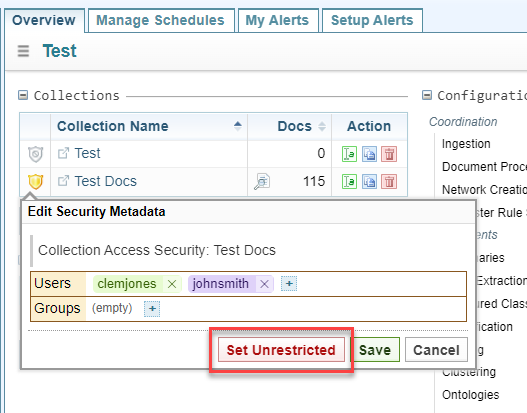
Selecting either the Projects or Collections tab to access the list of collections, and click on the security icon next to the Collection name.
-
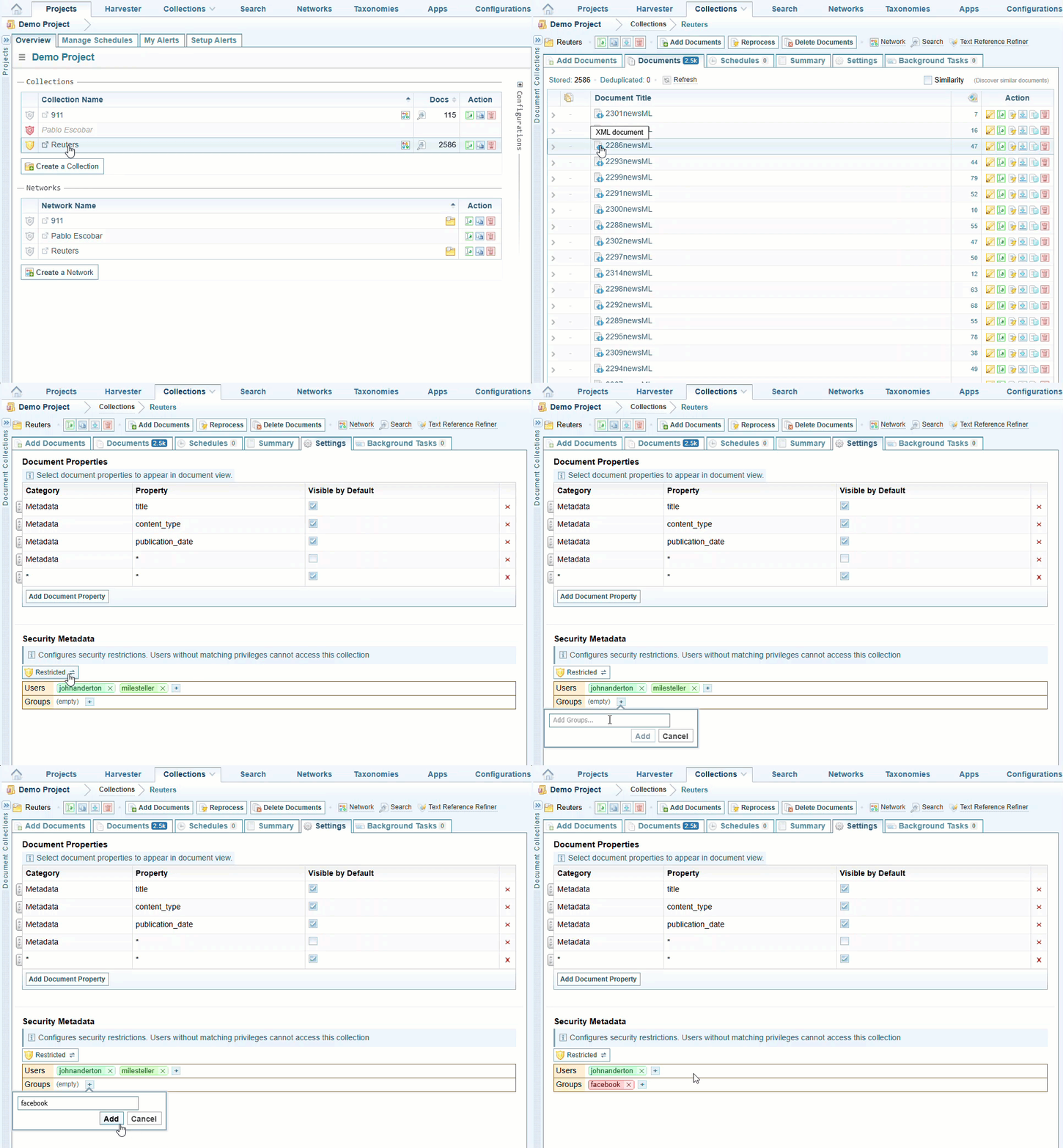
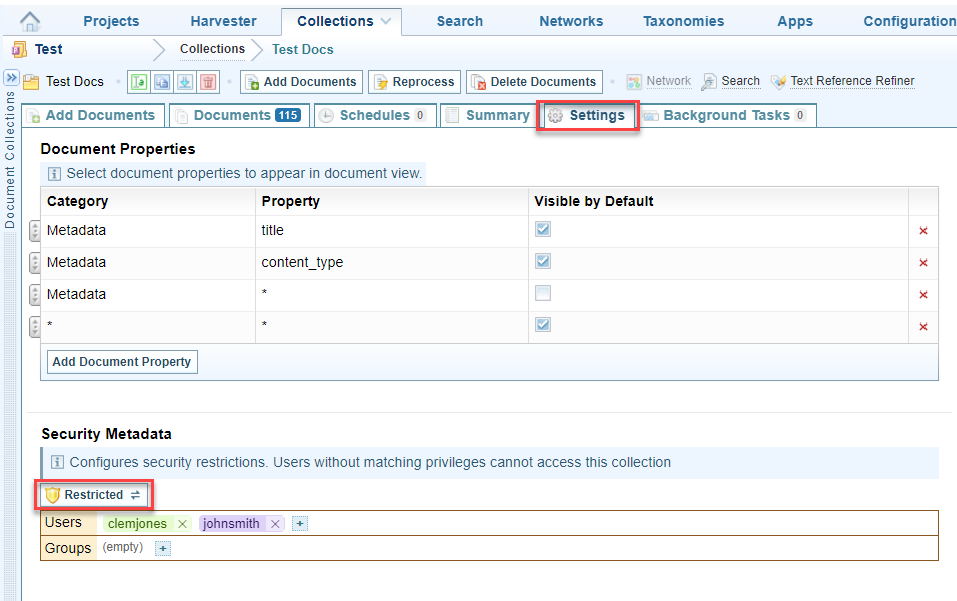
Open a Collection, and select the Settings tab to view the Security Metadata for the collection.
 Video Demo: From Collections List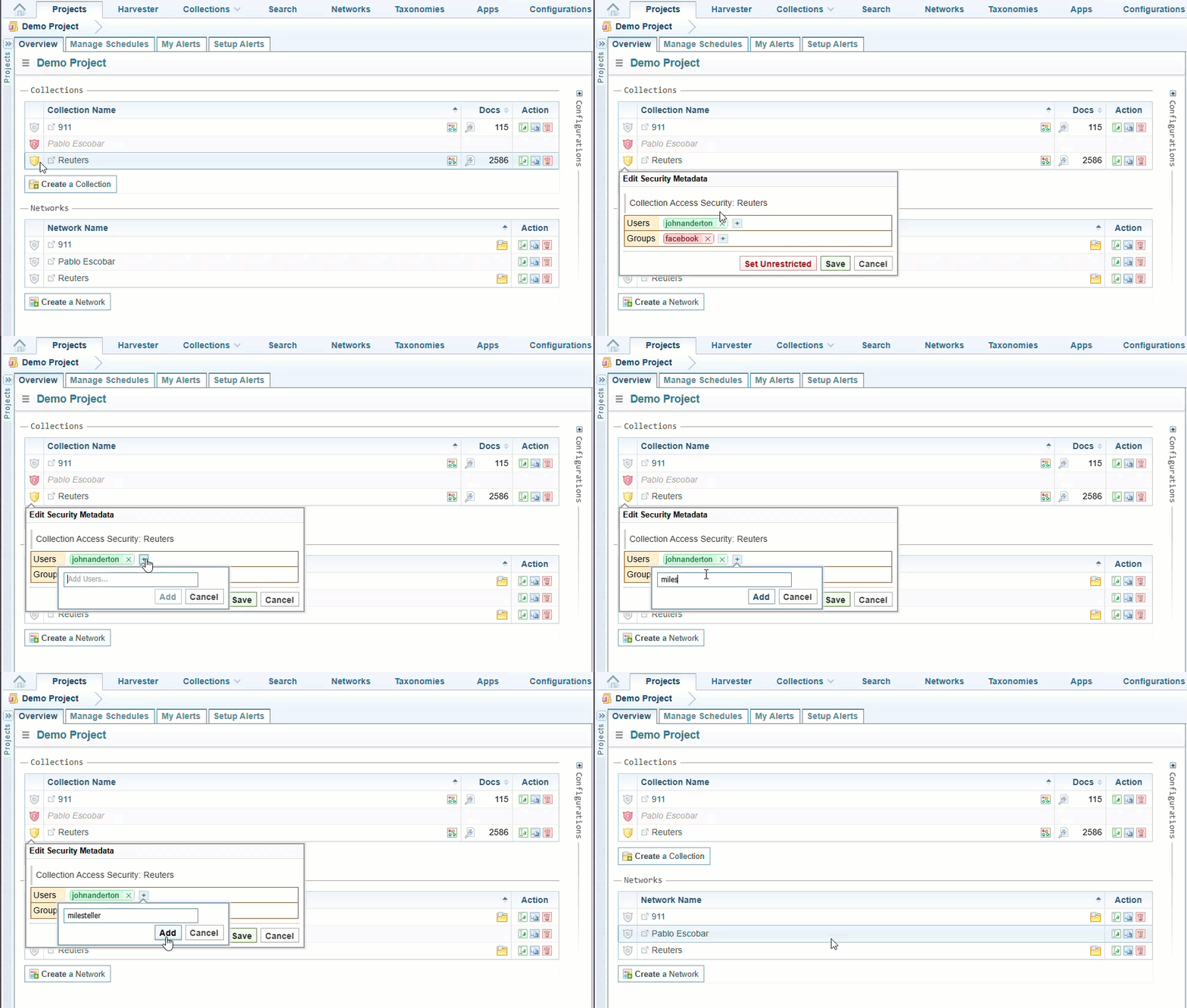
Access Network Security Settings
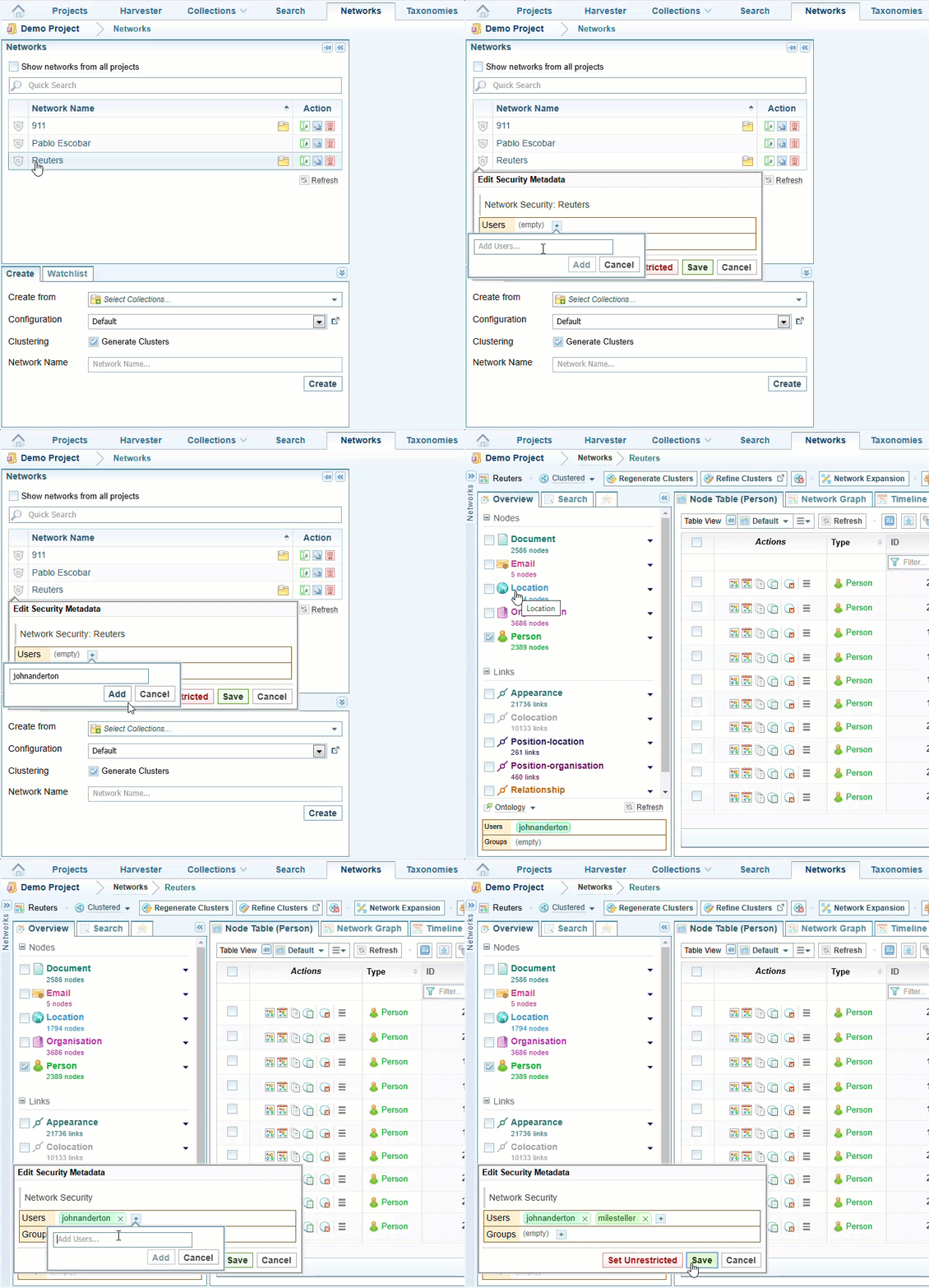
You can view Network security settings by selecting either the Projects or Networks tab to access the list of networks, and click on the security icon next to the Network name.
When a Network is selected, the security settings for the Network are displayed on the Overview pane. You can edit the security settings by clicking on the displayed security settings.
Add User/Group
To add users or security groups in the Edit Security Metadata dialog:
-
Select the
 Add button to display the add users and/or groups.
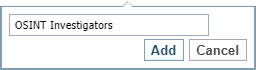
Result: The Add dialog is displayed.
-
Enter user name or security group name
-
Select .
Remove User/Group
To remove users or security groups in the Edit Security Metadata dialog:
-
Select the
 icon beside their user name.
 -
Select .

Remove All Restrictions
To remove all users and security groups to make the Collection/Network unrestricted:
-
From within Collections, select the Settings tab.
In the Security Metadata section, select the Restricted button.
The button is changed to Unrestricted.
Select .
-
From the Edit Security Metadata window, select .
Every user name and group name is removed from the window and the window is closed.