Audit Log Settings
Quick Summary
As an Administrator you can manage the System, Document Audit and Harvester Log settings.
Adding item names to the audit log and enabling document audit logging can result in sensitive information being stored in the audit logs, greatly increase the size of log files stored and impact system performance.
Viewing Log Files
All System Logs, including the Document Audit Logs can be viewed from the System Logs tab.
Access
Select Admin > Audit Logs tab to change the settings for logs.
Audit Log Configuration
By default, only the ID numbers of Projects, Collections, Networks, Documents and Schedules are included in the audit log, as the names of these items may include sensitive information.
The names of these items can be included in the Audit Log for easier referencing by modifying the following options.
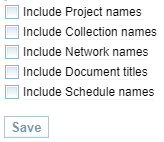
Document Audit Log Configuration
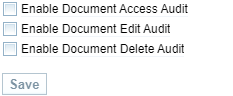
You can log document access, edit and/or delete events.
For more information viewing Document Audit Logs, see Document Audit Log.
The Document Audit Log options include:
|
Document Access Audit |
logs when a document is opened (accessed) by a user, including for editing. Logging all Document access events can result in large log files and impact system performance.
|
|
|
Document Edit Audit |
Logs changes to document title, tags, and text-block content. Only edits made from the Document Editor or Document Search will be logged. Changes made through an API or scripts are not logged. Changes to Text References are not logged. Events and information about document edits and deletions are stored in the document audit logs. Sensitive information may be retained in the document audit logs, even if a document is deleted.
|
|
|
Document Delete Audit |
Logs the deletion of documents. When a document is deleted, the document audit events in the System Logs are retained, therefore sensitive information about deleted documents may be retained in the log files when document audit is enabled. |
Harvester Logging Option
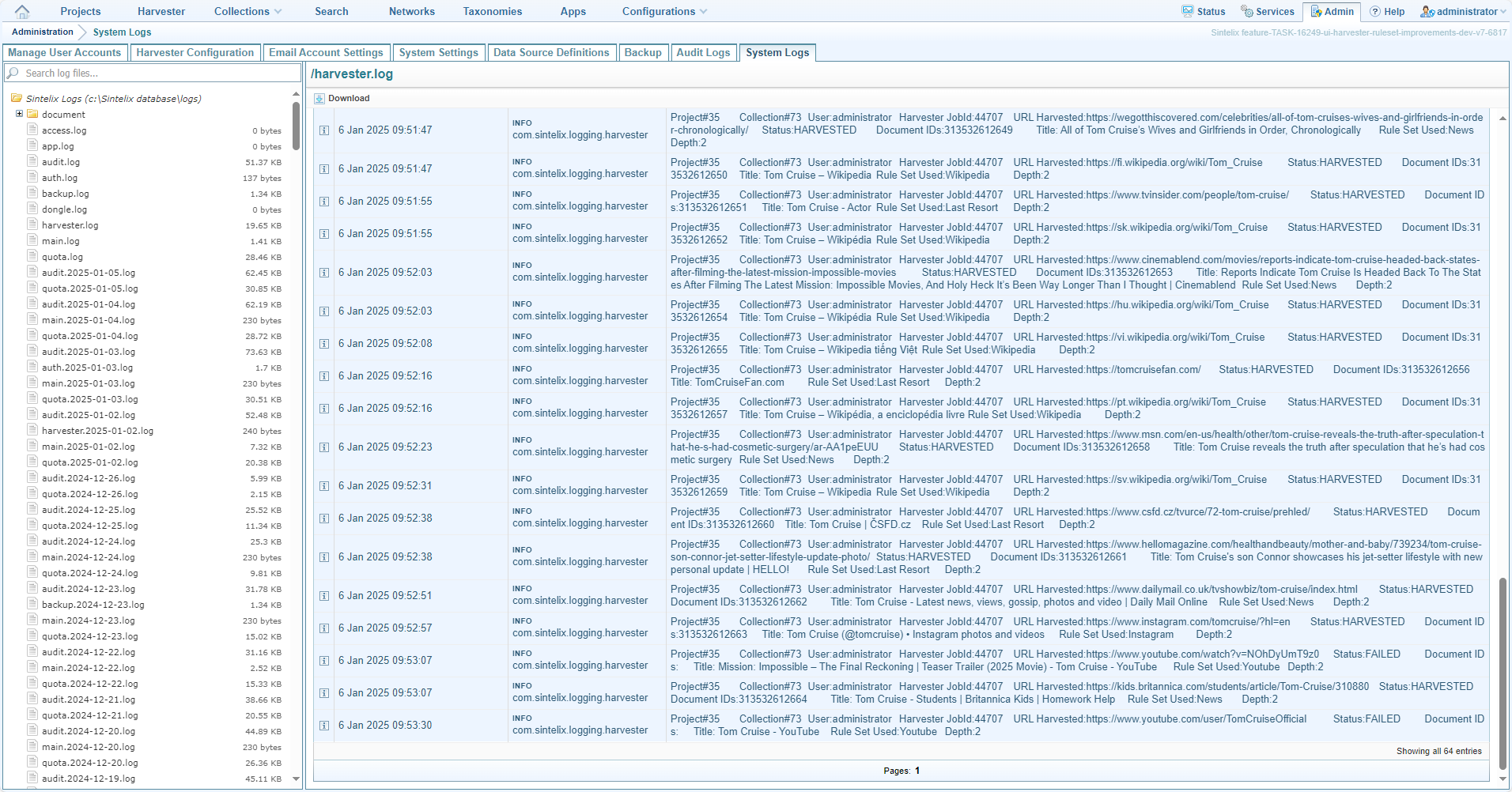
When the Enable Harvester Page Log option is enabled, detailed entries are added to the harvester.log that include the detail from the Harvest Page Load Log, including:
- Time
- Project and Collection
- User
- Harvest Job #
- URL Harvested
- Status (with Failure error message)
- Document ID# and Title
- Rule Set used
- Depth
To enable, select the Enable Harvester Page Log checkbox and select Save.

Example
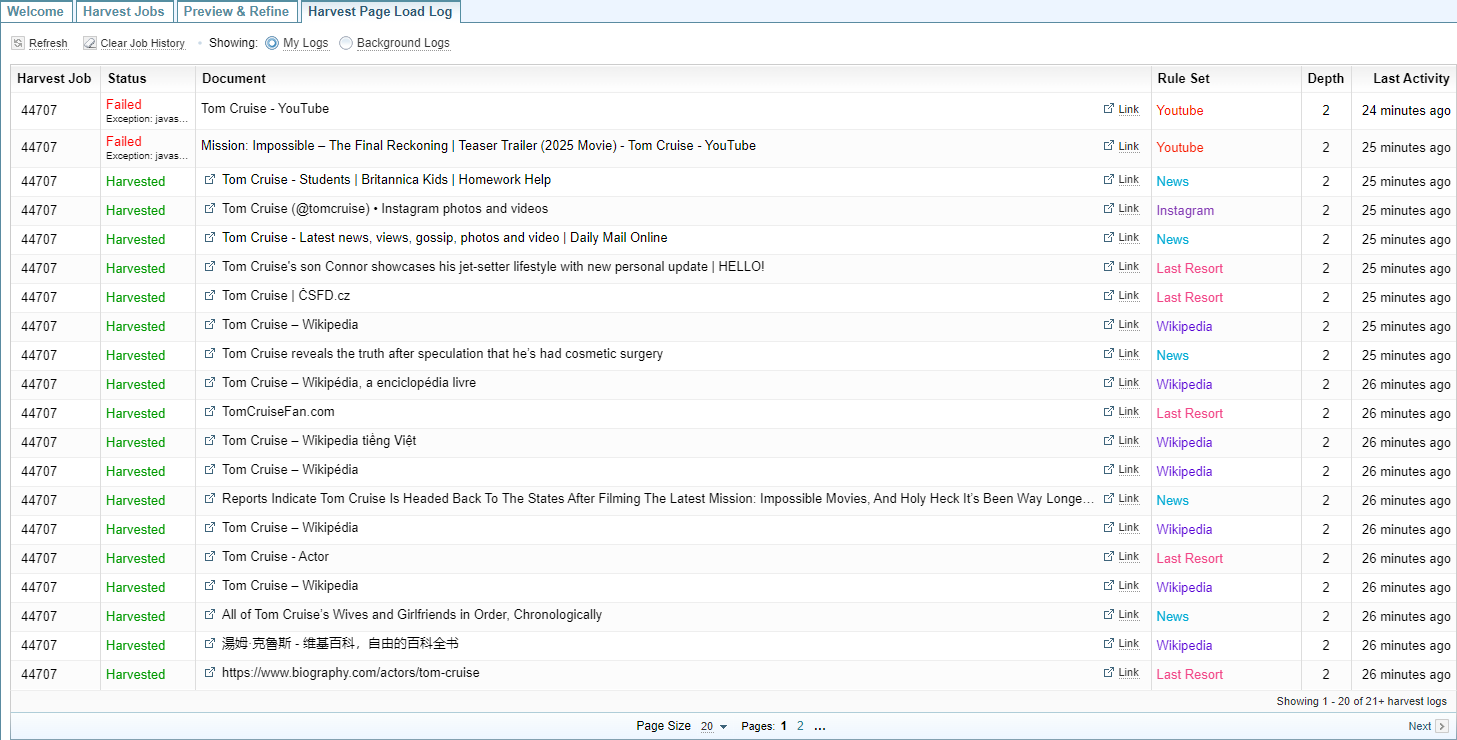
The following diagram shows the Harvest Page Load Log, available to each user.
See View the Harvester Logs. However, this log can be cleared by the user.
The following diagram shows the same data captured in the Harvester log when the Harvester Page Logging is enabled.