View the Link Table
Actions
Once you have selected a Link in the Overview pane, the Link Table View is displayed.
From the Link Table View, you can:
- Filter and sort the views (see Filter and Sort Network Tables)
- Edit the link entries (see Edit Features and Fields)
- Access the Action menu to analyse the contents of the Network Table.
Features and Shortcuts
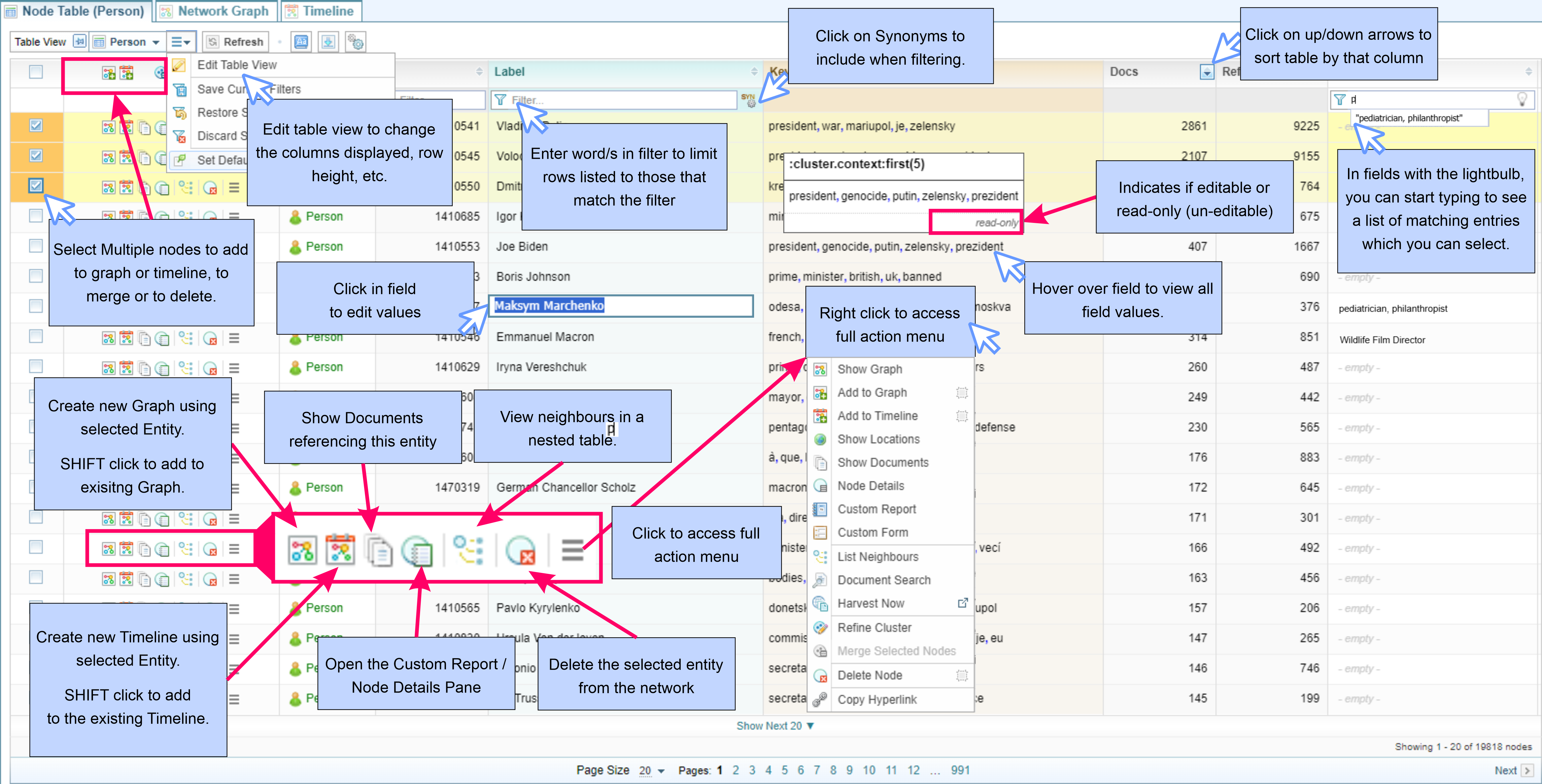
The diagram below quickly summarises some of the features and shortcuts when viewing Network Tables.
Action Menu
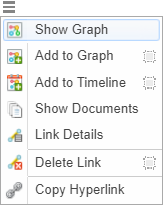
Each table entry has an Action menu displayed.

The different actions available from the action menu are described below.
|
|
Opens a Network Graph for that Node, displayed in the Network Graph tab. See Network Graph Analysis |
|
|
Opens the Documents tab in the Side Bar panel. See Documents Pane |
 |
Opens the Link Details tab in the Side Bar panel where you can edit the link fields and features details. |
 |
Deletes the Link entry. |
 |
Displays the full Action Menu. Right clicking in a Table row will also open the full Action Menu.
|

|
Creates a new Network Graph, displayed in the Network Graph tab. See Network Graph Analysis |
 |
Adds the Link to the Network Graph, displayed in the Network Graph tab. See Network Graph Analysis |

|
Add the Link to the Timeline View, displayed in the Timeline tab. See Network Timeline Analysis |
| |
Opens the Link Details tab in the Side Bar panel. |
 |
Opens the Documents tab in the Side Bar panel. See Documents Pane |
| |
Deletes the Link entry. |
 |
Copy Hyperlink creates and copies a link to the Node/Link table. You can add this link to your documents or project pages. |
Action Menu: Multiple Selections
When multiple Table rows have been selected, an Action Menu appears in the column header:
Select multiple nodes to access the Action menu for multiple selections.
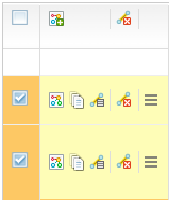
With multiple nodes selected you can delete the selected links.
You can also add the multiple selected links to a  Network Graph.